Give RevenueCat access to Google Play with a service account
revenuecatRevenueCat checks each purchase on Android with Google Play, through a service account of Google Cloud that has access to your Google Play Console account. Until RevenueCat has valid credentials, it cannot validate the purchases of Google Play, and the user who paid gets no premium access.
You need a Google Cloud project, which may be the one of the Firebase project of the app, and the rights to invite users to your Play Console account. Add the Play Store app to the RevenueCat project first; see the step about the API keys.
RevenueCat offers a script for Google Cloud Shell that does steps 1 to 3 for you. It is in Creating Play Service Credentials of the documentation of RevenueCat, next to these steps.
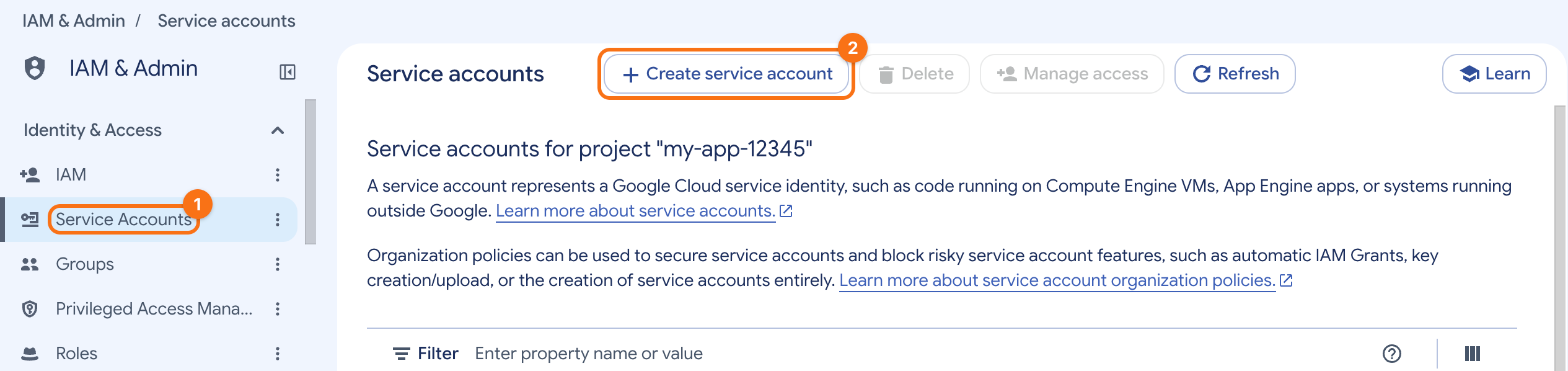
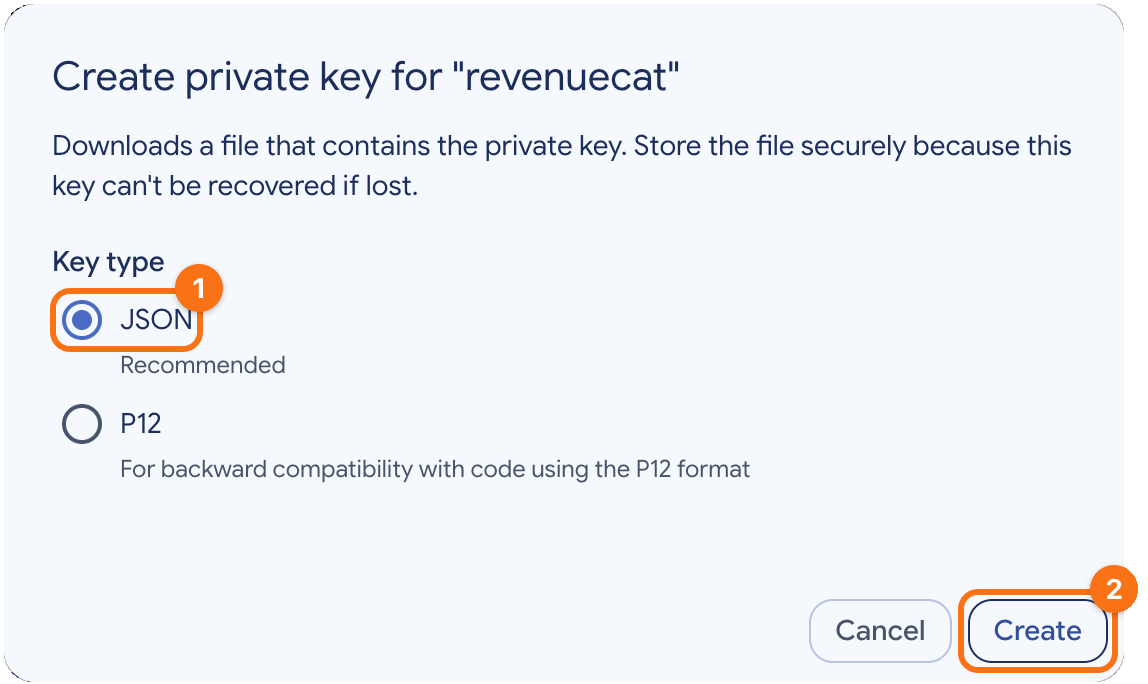
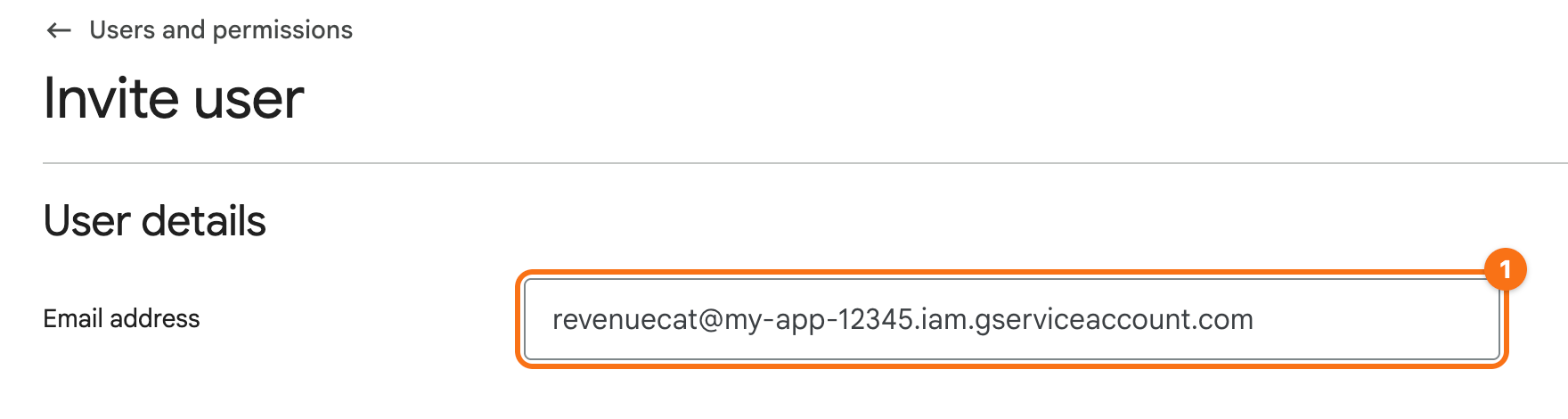
The screenshots use example values: the Google Cloud project my-app-12345 and its service account revenuecat@my-app-12345.iam.gserviceaccount.com. The orange frames mark what to click, in the order of their numbers.
1. Turn on the APIs. In the Google Cloud console, select the project. Under APIs & Services, enable the Google Play Android Developer API and the Google Play Developer Reporting API.
2. Create the service account. Open IAM & Admin, click Service Accounts in the sidebar (1), and then Create service account (2).
Enter a name, such as revenuecat, and click Create and continue. Give it the roles Pub/Sub Editor and Monitoring Viewer, and click Done. RevenueCat uses the first for the real-time notifications of Google Play.
3. Create its key. In the row of the service account, open the menu under Actions and click Manage keys. Click Add key, then Create new key, choose JSON (1) and click Create (2). The browser downloads the JSON key.
The JSON key lets anyone act as the service account. Keep it in a password manager, and never put it into .env, the app or its repository.
4. Invite it to Play Console. In Google Play Console, open Manage account in the bar on the left, then Users and permissions, and click Invite new users. Enter the email address of the service account (1), which is client_email in the JSON key.
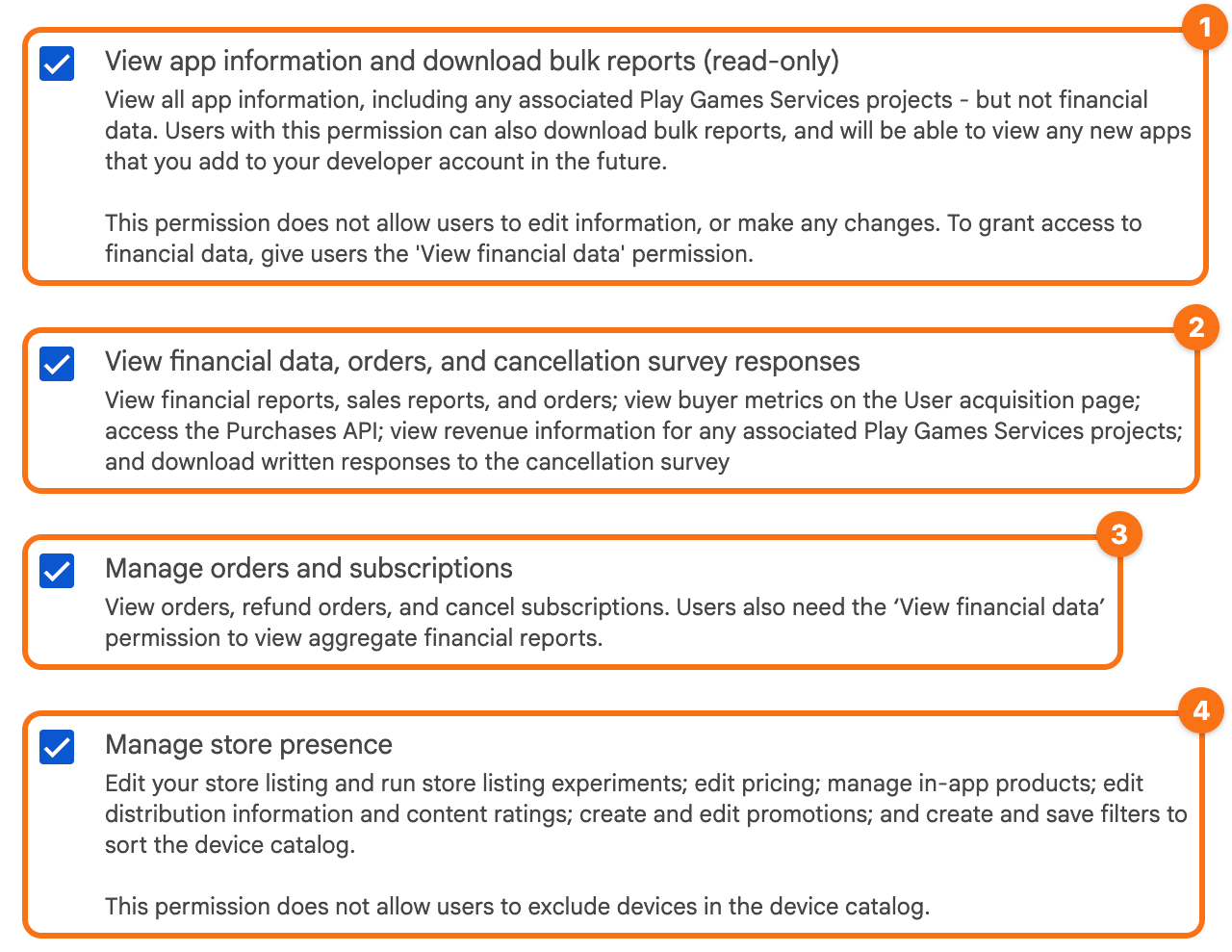
On the tab App permissions, add the app. On the tab Account permissions, check:
- View app information and download bulk reports (read-only) (1)
- View financial data, orders, and cancellation survey responses (2)
- Manage orders and subscriptions (3)
- Manage store presence (4)
Play Console also checks the permissions that these need, such as View app quality information (read-only).
Click Invite user.
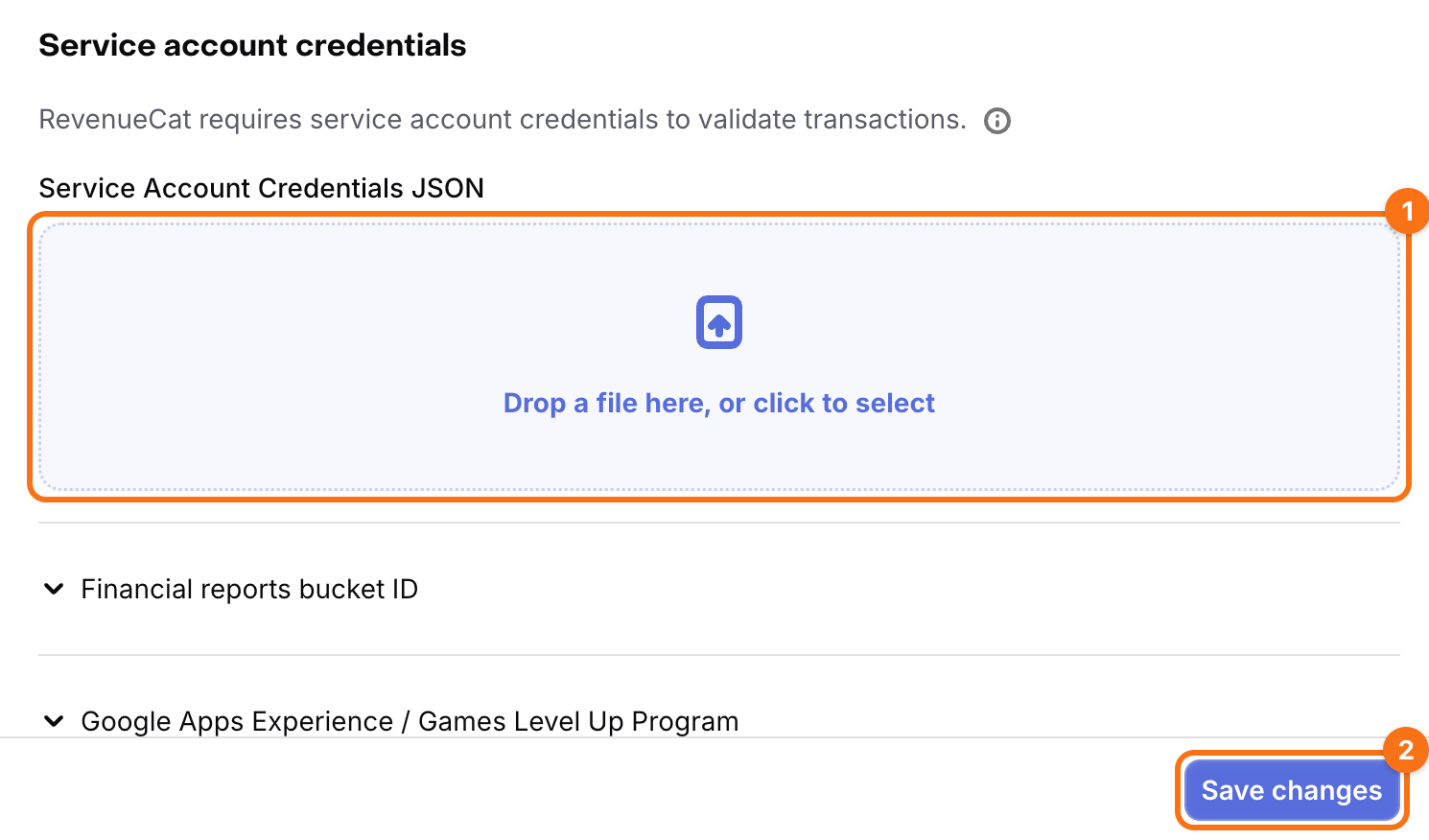
5. Upload the key to RevenueCat. In the RevenueCat dashboard, click Apps in the sidebar and open the Play Store app. In the section Service account credentials, drop the JSON key on Service Account Credentials JSON (1) and click Save changes (2).
Check. RevenueCat shows the credentials as valid. Google may take up to 36 hours to accept new credentials, so they may show as invalid on the first day. Open the status of the credentials and click Check credentials to look again. RevenueCat suggests editing the description of any product of the app in Play Console, which may make Google accept them sooner.
To see a purchase go through, add your Google account under Manage account > Play apps settings > License testing of Play Console, install the app from the internal testing track, and buy a plan with the test card that Google Play offers a license tester. The purchase shows in RevenueCat under the customers of the project.