In Xcode, sign the iOS app with your paid Apple Developer team
Push messages and Sign in with Apple are capabilities of the iOS app. Apple grants them to an App ID, the bundle id of the app registered in a team, and only a paid Apple Developer team can have such an App ID. A free personal team cannot sign the app with them, and Xcode stops with an error about the entitlement.
The easiest way to get the App ID is to let Xcode sign the app once with your paid team: Xcode registers the bundle id and turns on the capabilities that the app asks for.
A bundle id is unique across all Apple developers, and ids under com.example are usually taken. Generate the app with your own organization, such as smf create my_app --org com.yourcompany, so that the bundle id is yours. The screenshots show the example bundle id com.example.my-app and the example Team ID SAYMYFRAME. The orange frames mark what to click or check, in the order of their numbers.
1. Sign the app in Xcode. Open ios/Runner.xcworkspace of the app in Xcode. Select Runner in the project navigator, then the target Runner (1), then the tab Signing & Capabilities (2). Keep Automatically manage signing checked and choose your paid team under Team (3). If the team is missing, add your Apple Account in Xcode > Settings > Accounts.
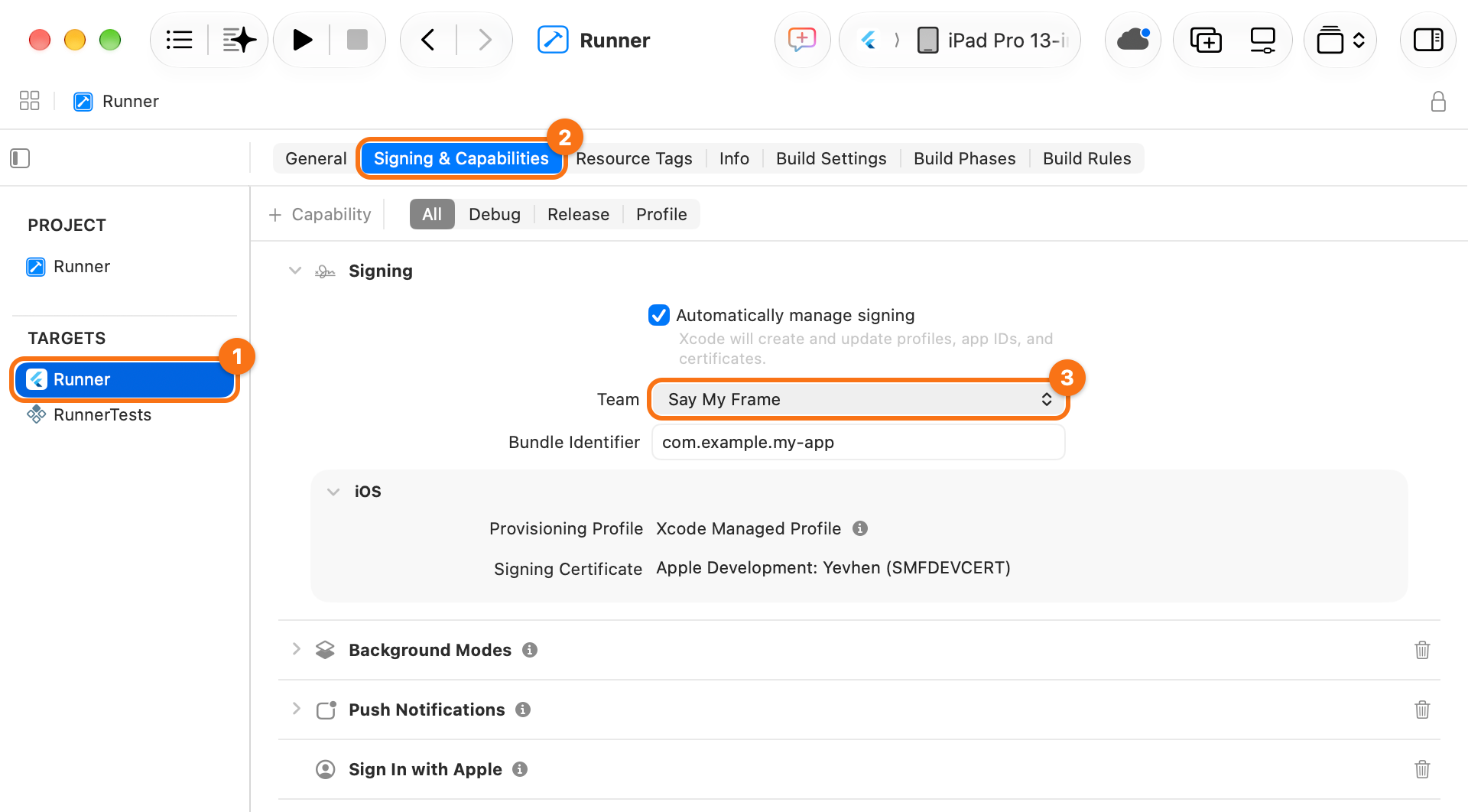
Xcode registers the App ID and shows no error once the signing works. The capabilities of the app, such as Push Notifications and Sign in with Apple, are listed below the signing.
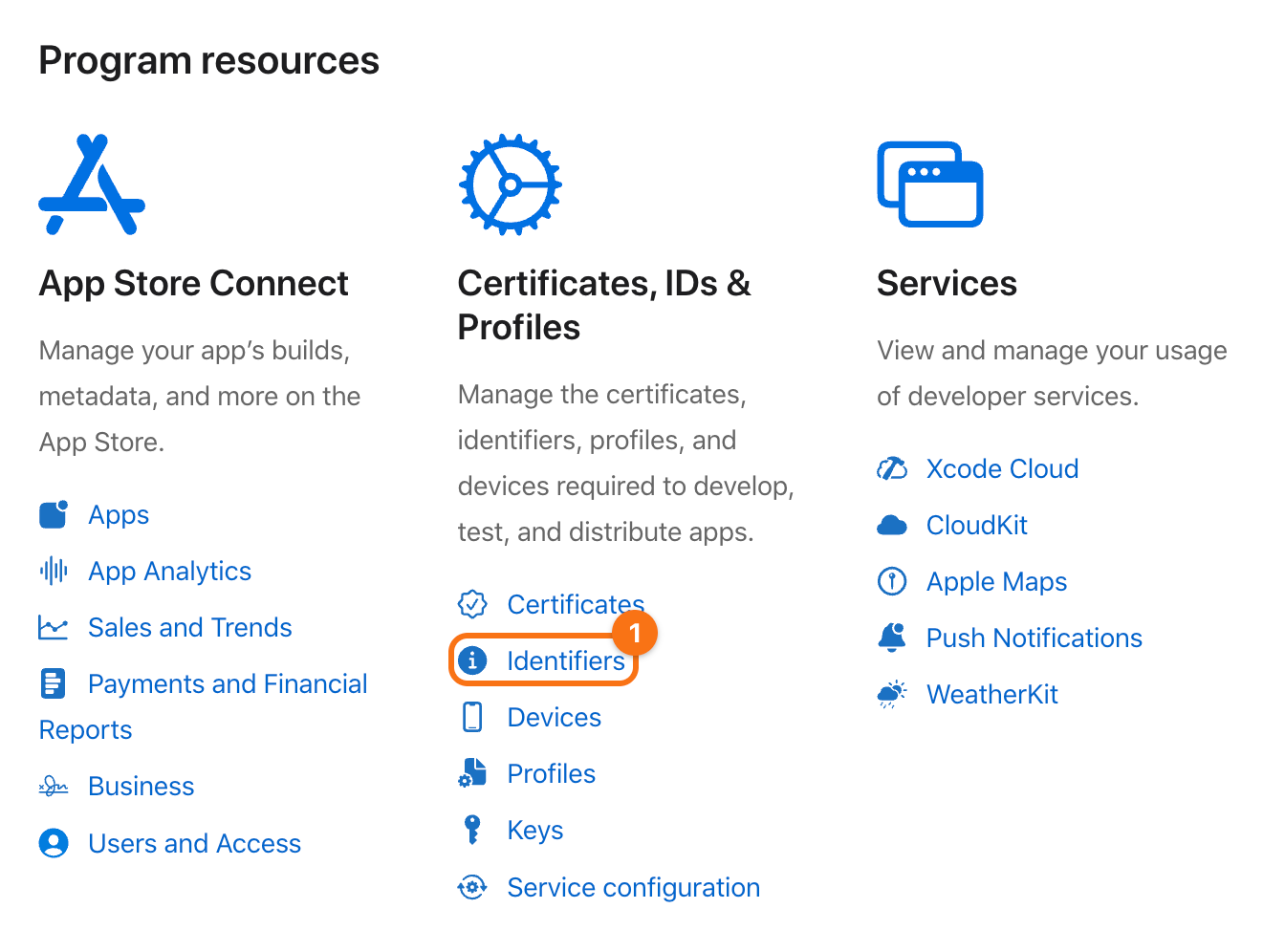
2. Check the App ID. In your Apple Developer account, under Certificates, IDs & Profiles, click Identifiers (1).
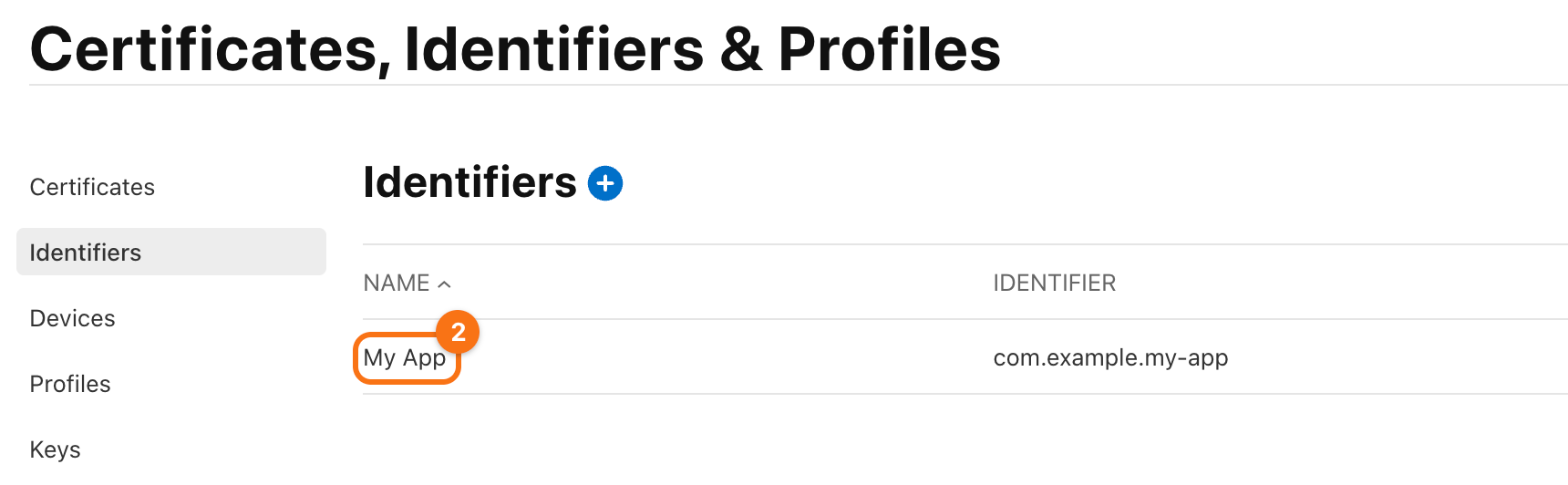
The bundle id of the app is in the list. An App ID that Xcode registered has a name that starts with XC. Click it (2).
The capabilities that the app uses are checked: Push Notifications (1) for push messages and Sign In with Apple (2) for Sign in with Apple.
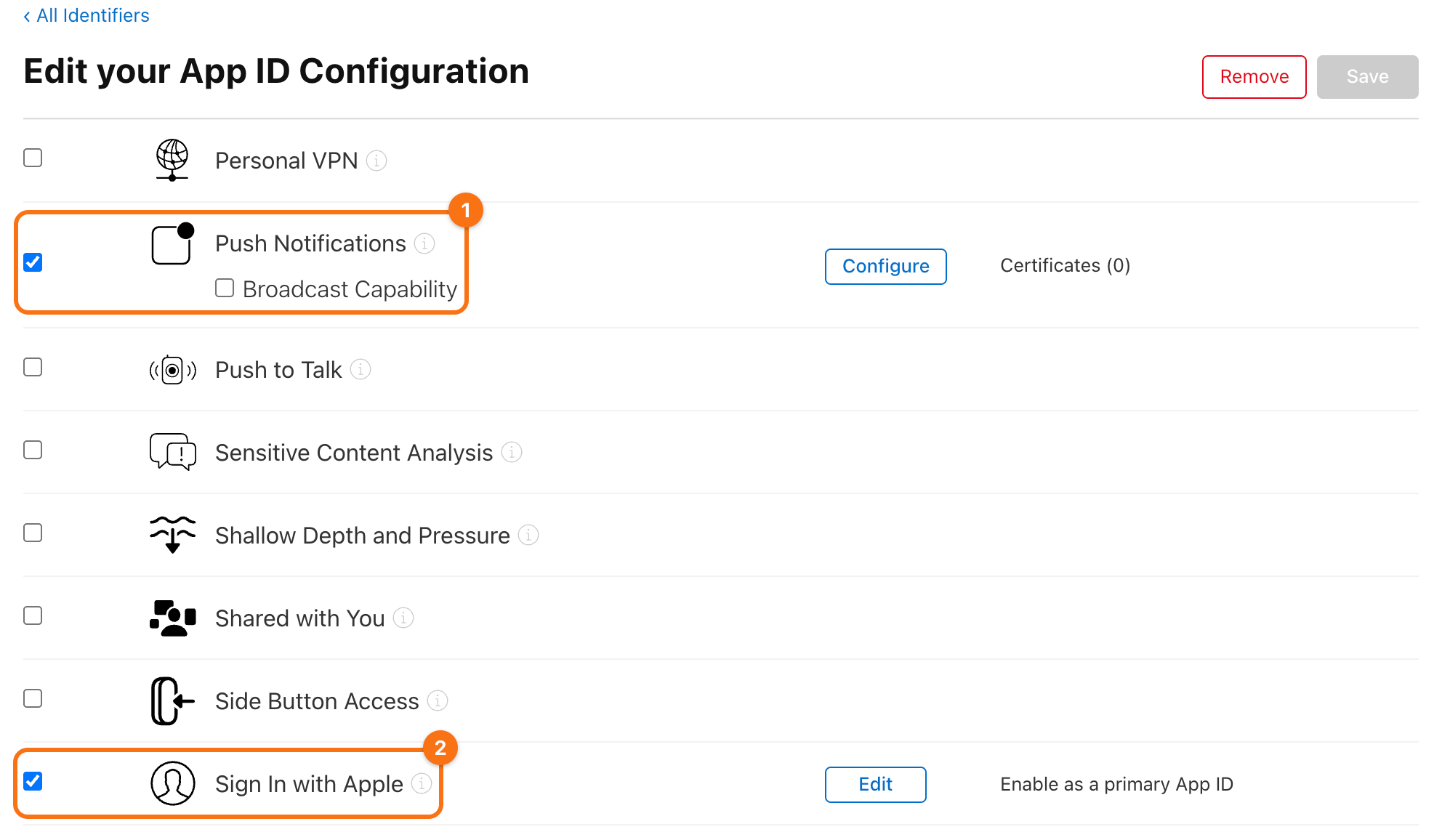
If one is not checked, check it and click Save, then sign the app in Xcode again.
Without Xcode
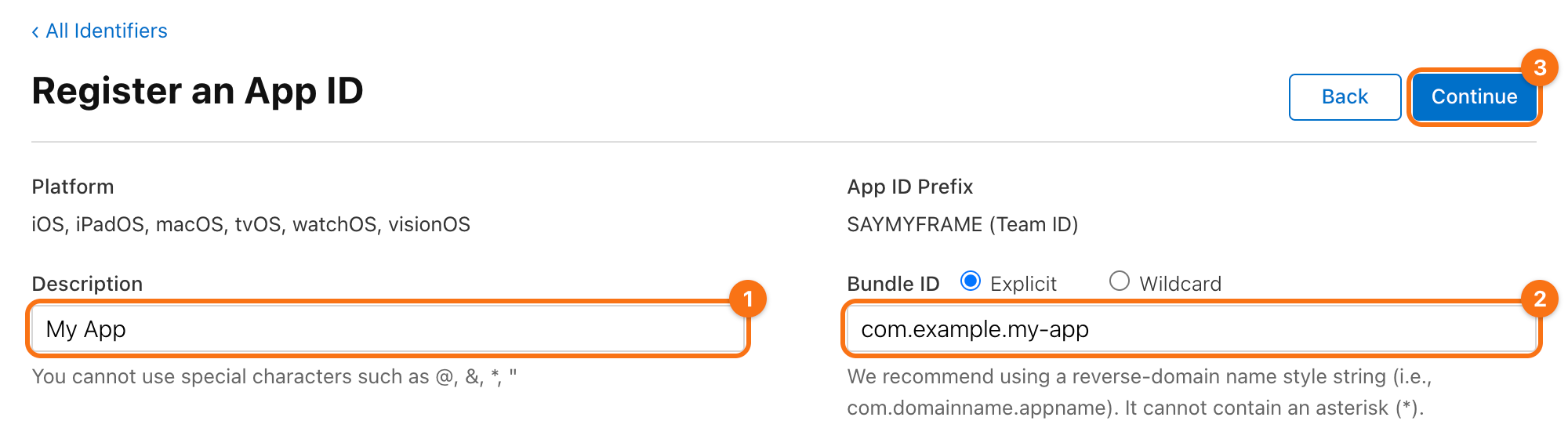
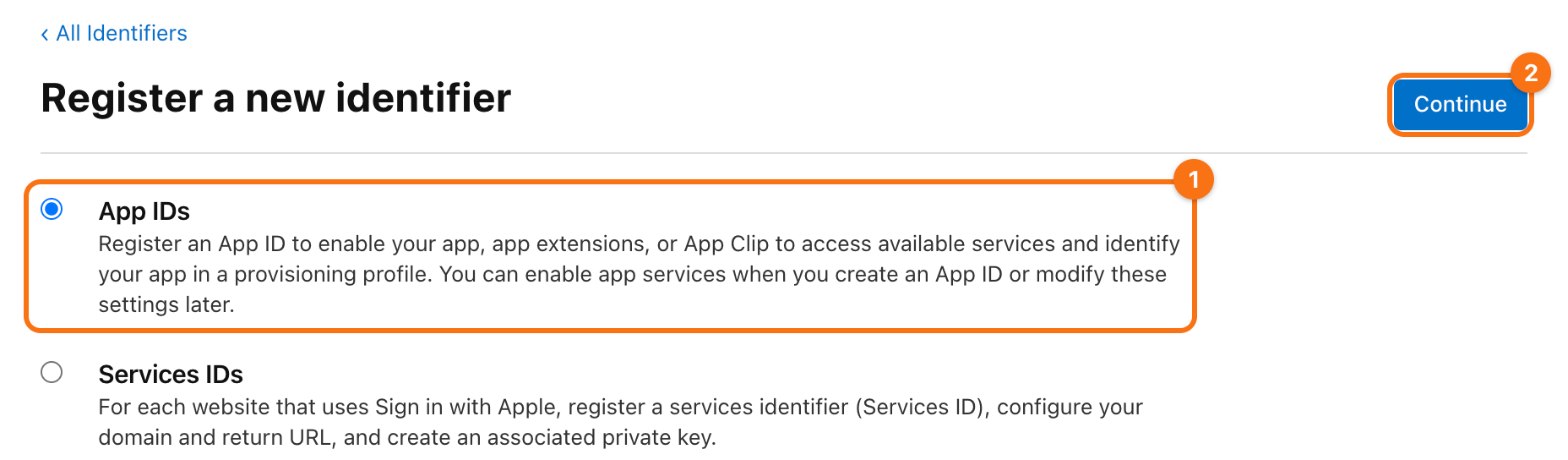
You can also register the App ID yourself and then choose the team in Xcode. On the Identifiers page, click the + next to the title. Choose App IDs (1) and click Continue (2), then choose App and click Continue again.
Enter a description (1), such as My App. Keep Explicit and enter the bundle id of the app (2), which Xcode shows under Bundle Identifier on the tab Signing & Capabilities. Then check the capabilities that the app uses in the list below the form, click Continue (3) and Register.