Turn on Sign in with Apple in Firebase Authentication
firebase_authThe app lets users sign in with Apple through Firebase Authentication. No command can turn Apple on there, so you do it once in the Firebase console. Until then, a sign-in with Apple fails with the reason notConfigured, and the message for the developer says what to enable.
The iOS app also needs Sign In with Apple on its App ID, which signing the app in Xcode with a paid team gives it; see the step about the App ID.
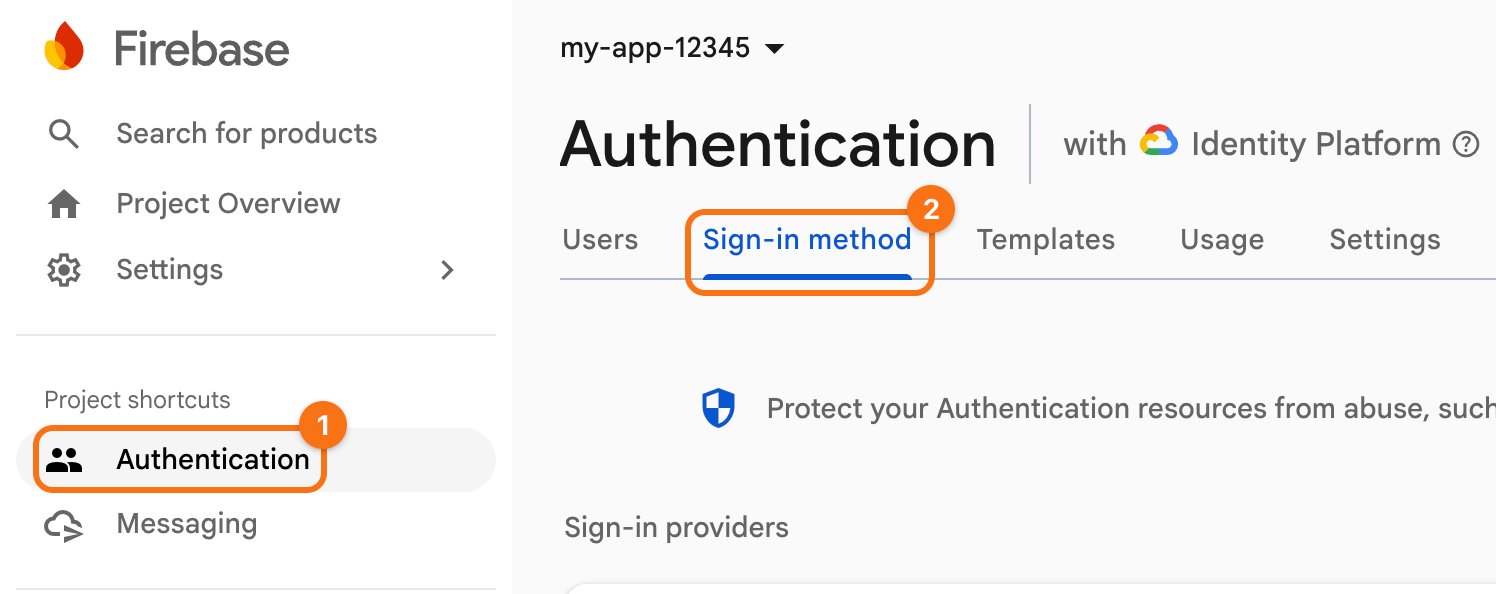
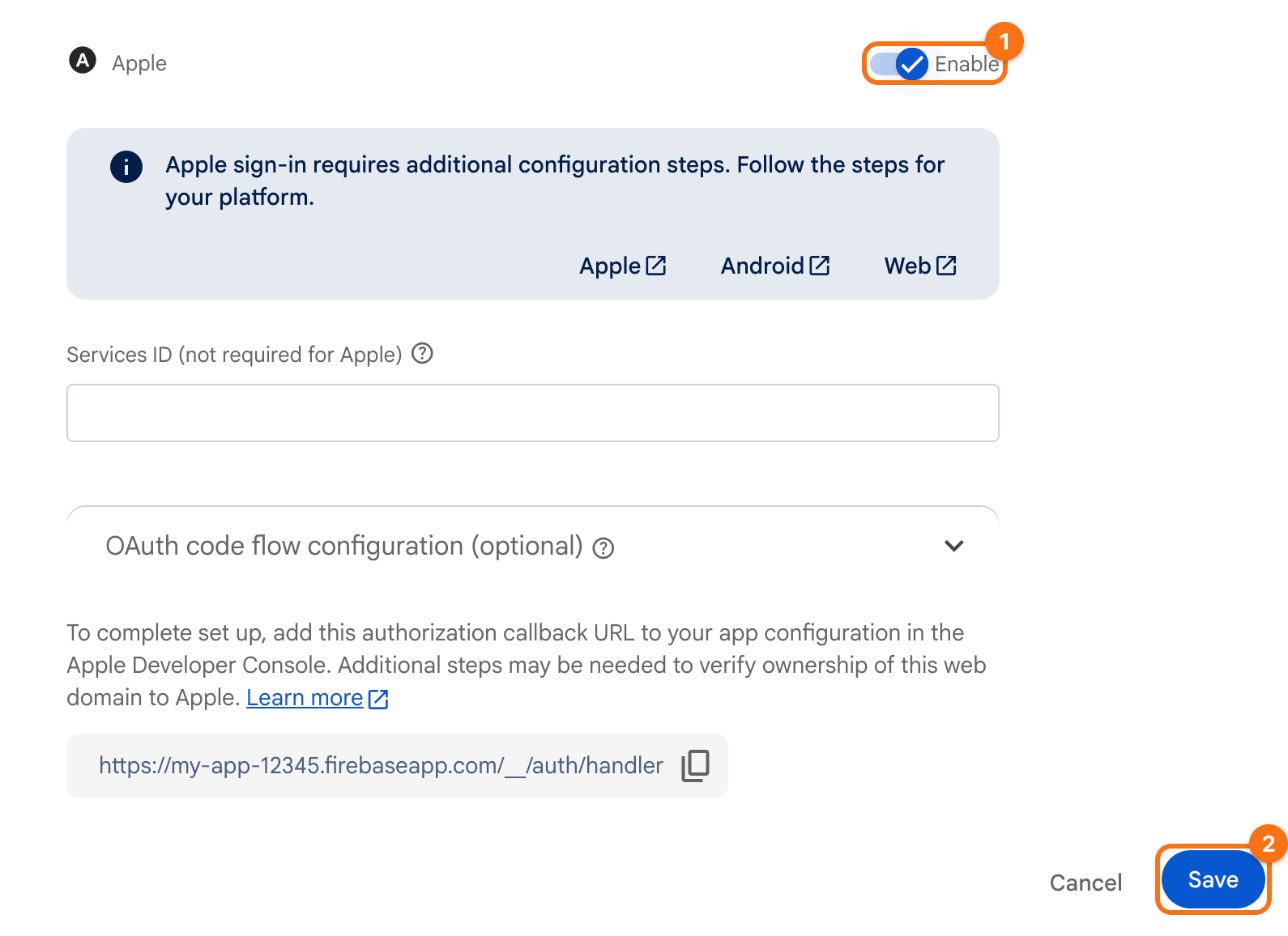
The screenshots show the example Firebase project my-app-12345. The orange frames mark what to click, in the order of their numbers.
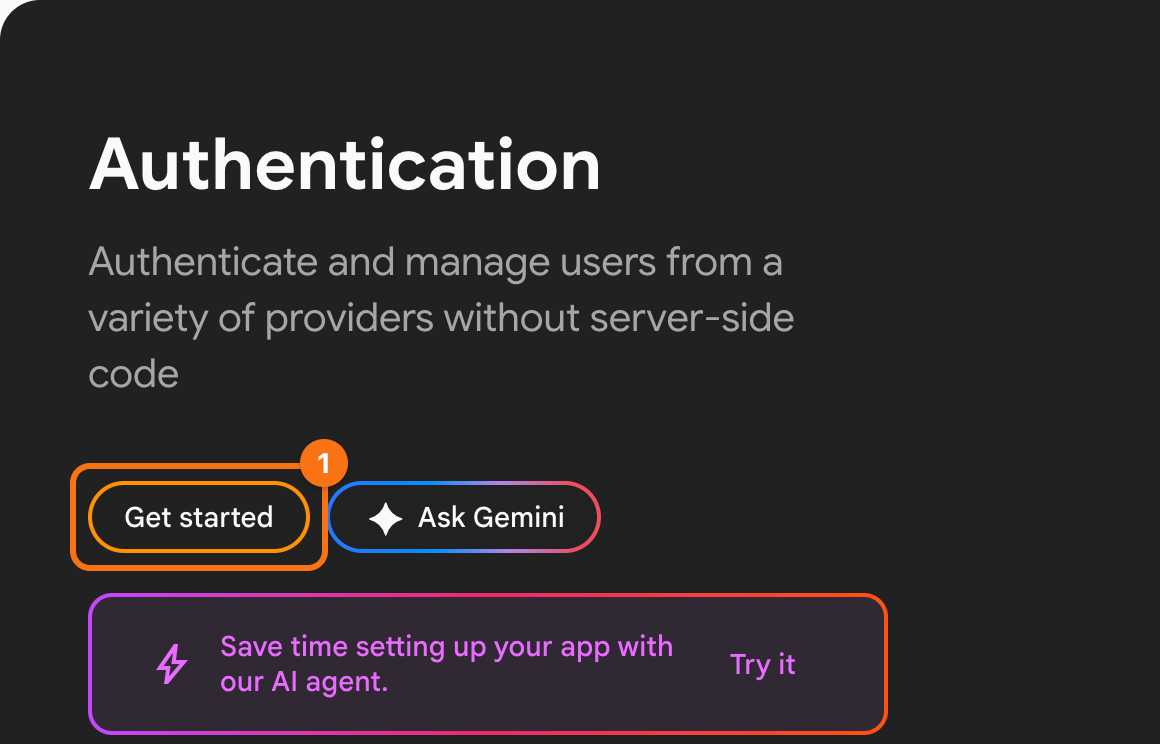
1. Open Authentication. In the Firebase console, open your project and click Authentication in the menu on the left (1). If it is not among the shortcuts there, it is under Security. Open the tab Sign-in method (2). If the page offers Get started instead, click it first: Authentication was never set up in this project.
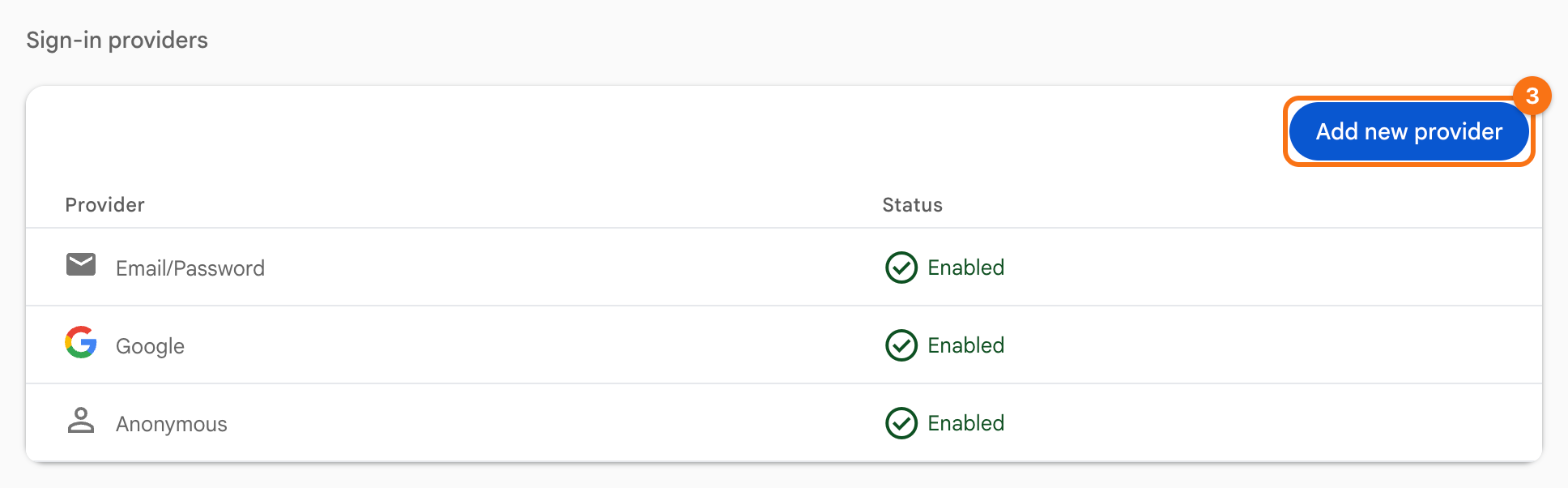
2. Add Apple. Click Add new provider (3).
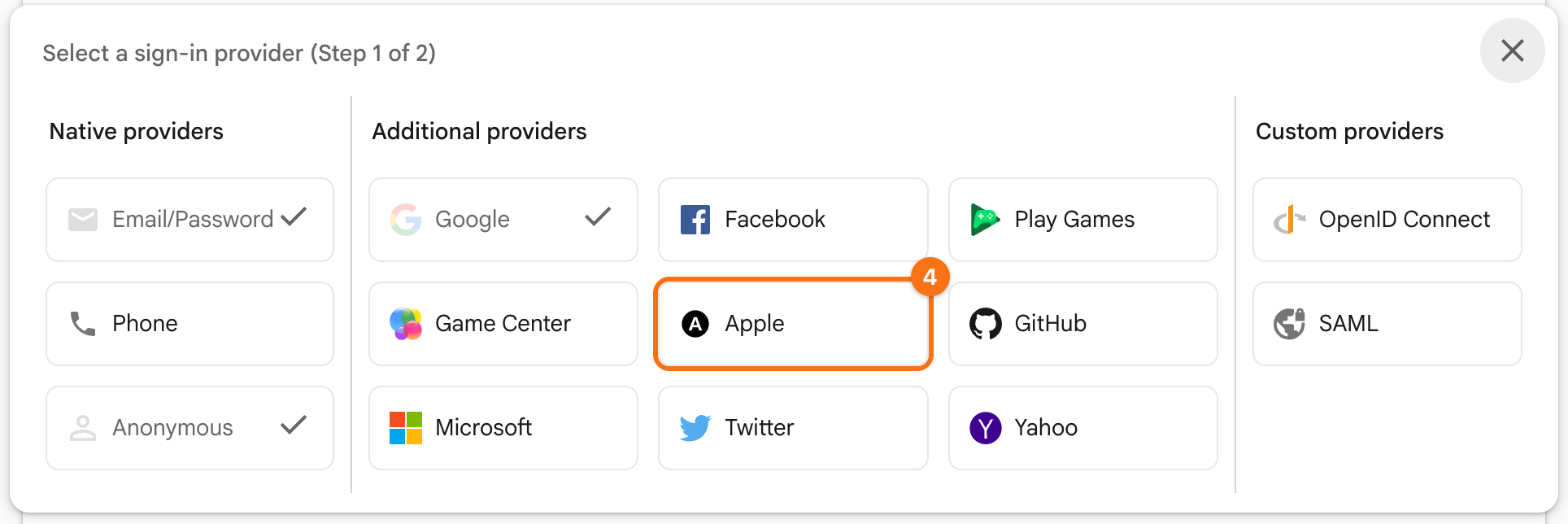
Under Additional providers, click Apple (4).
3. Enable it. Turn on Enable (1) and click Save (2). An iOS app needs nothing else here: leave Services ID empty for now. The step about deleting accounts fills it in.
Check. Apple is in the list of providers with the status Enabled. Sign in with Apple in the app on an iPhone or a simulator with an Apple Account. On a simulator, sign in to the Apple Account in the Settings app of the simulator first.