Set up payments in App Store Connect and Google Play Console
revenuecatNeither store lets an app sell anything before you have agreed to its terms for paid apps and told it how you get paid and taxed. App Store Connect lets you create no in-app purchase until the Paid Apps Agreement is signed, and a purchase in the sandbox of Apple works only once the agreement is active. Google Play Console sells only through a payments profile linked to your developer account.
You do this once for your developer account, and it holds for all of its apps. The Test Store of RevenueCat needs none of it, so a debug build can sell before this step is done.
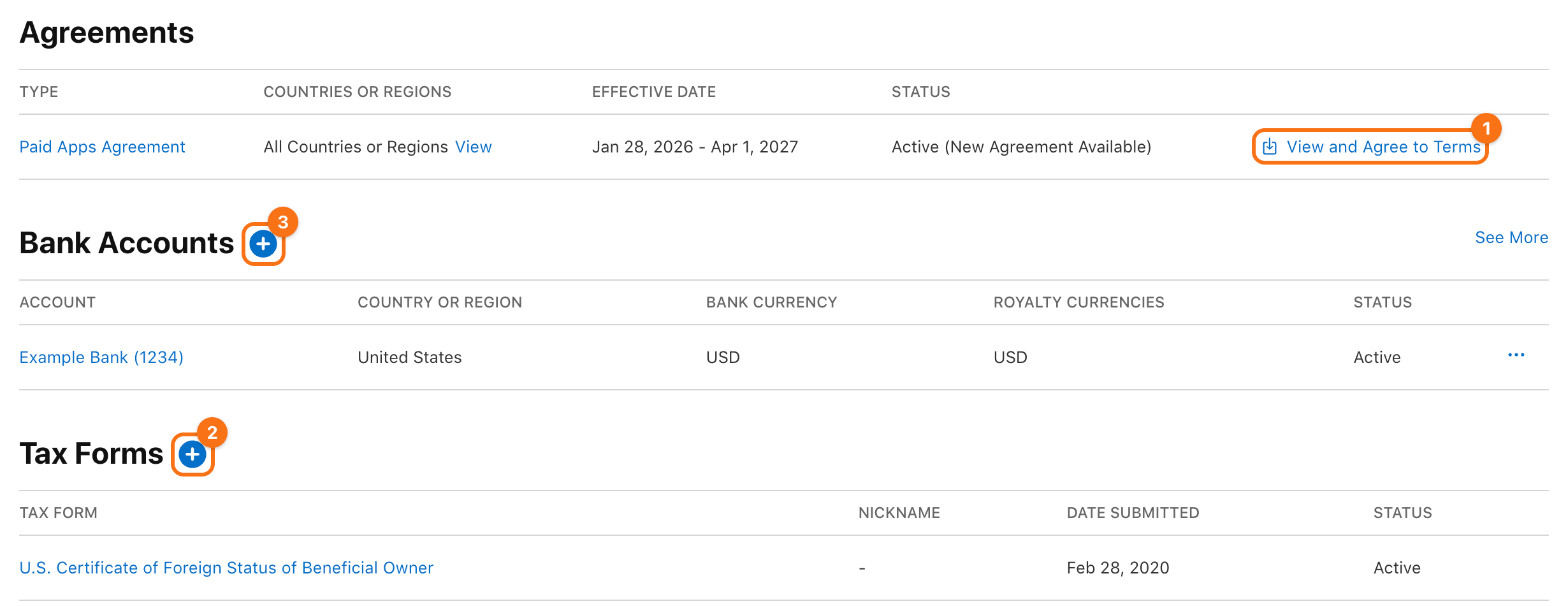
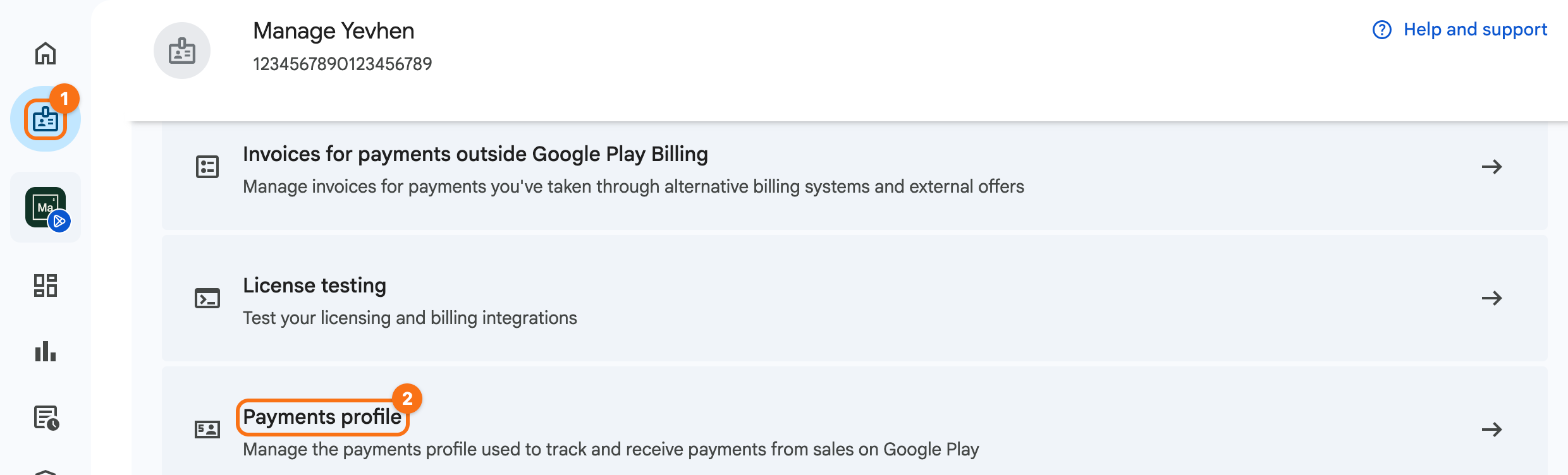
The screenshots use example values, such as the bank account Example Bank (1234). The orange frames mark what to click, in the order of their numbers.
App Store Connect
1. Sign the Paid Apps Agreement. In App Store Connect, click Business at the top of the page. On the tab Agreements, find the row Paid Apps Agreement, click View and Agree to Terms (1), and then Agree. Only the Account Holder of the team can sign it.
2. Add the tax forms. On the same tab, click + next to Tax Forms (2), fill in each form that Apple asks for, and click Submit. The Account Holder, an Admin or a Finance user can do this.
3. Add a bank account. Click + next to Bank Accounts (3) and enter the account that gets the proceeds. Apple asks for the agreement and the tax forms first. When an Admin or a Finance user adds the account, the Account Holder approves it.
Google Play Console
4. Create a payments profile. In Google Play Console, open Manage account (1) in the bar on the left. Under Play apps settings, click Payments profile (2), and then Create payments profile.
Enter your legal name and address (no PO box), a primary contact, and the public information of your business: a website, a product category, a support email and the name that shows on the card statements of your users. Click Submit. Play Console links the profile to your developer account.
5. Add the tax information. On the payments profile, in the card Settings, click Manage settings. Open the tax information of your country, click Edit, add the form that Google asks for, such as a U.S. tax form, and save it.
6. Add a bank account. On the payments profile, in the card How you get paid, click Manage payment methods, add a payment method and enter the account holder name and the details of the account. The account is in the country of the payments profile. In some countries Google sends a small deposit to the account, which you confirm in Play Console a few days later.
Check. In App Store Connect, the row Paid Apps on the tab Agreements has the status Active. In Play Console, Manage account > Payments profile shows your profile with its bank account under How you get paid.