Give RevenueCat your In-App Purchase key from App Store Connect
revenuecatRevenueCat checks each purchase on iOS with Apple, and for that it needs an In-App Purchase key from App Store Connect. Without the key, RevenueCat does not record the transactions of the App Store, and the user who paid gets no premium access.
You make the key once for your team, and it serves all of its apps. Add the App Store app to the RevenueCat project first; see the step about the API keys.
RevenueCat no longer needs the App-Specific Shared Secret of App Store Connect for this: the In-App Purchase key replaces it. The screenshots use example values: the Key ID SMFSUBSKEY and an Issuer ID from the documentation of Apple. The orange frames mark what to click, in the order of their numbers.
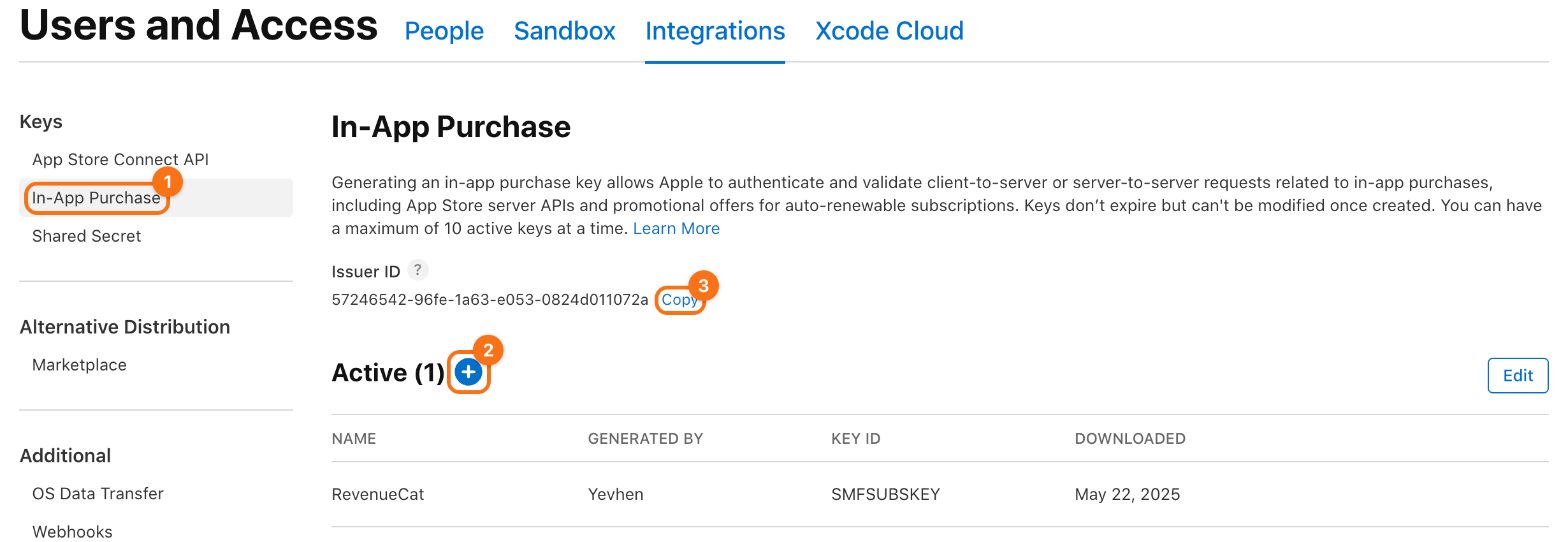
1. Generate the key. In App Store Connect, open Users and Access and the tab Integrations. In the sidebar, under Keys, click In-App Purchase (1). Click Generate In-App Purchase Key, or + next to Active (2) when the team has a key already. The Account Holder or an Admin can do this. Copy the Issuer ID (3), which the same page shows above the keys.
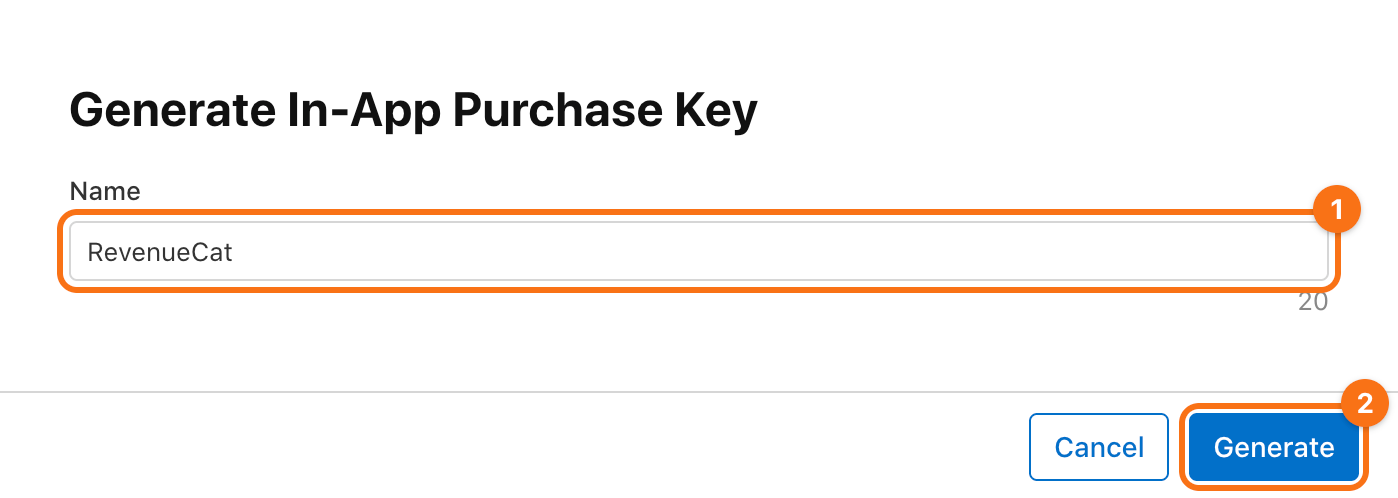
Enter a name (1), such as RevenueCat, and click Generate (2).
If App Store Connect shows no Issuer ID, create any key under App Store Connect API on the same tab Integrations, and the Issuer ID appears.
2. Download it. In the list Active, download the new key from its row. You get a .p8 file whose name has the Key ID, such as SubscriptionKey_SMFSUBSKEY.p8.
Apple lets you download the file only once. Keep it in a password manager. The private key in it is a secret: you upload it to RevenueCat yourself, and it never goes into .env, the app or its repository.
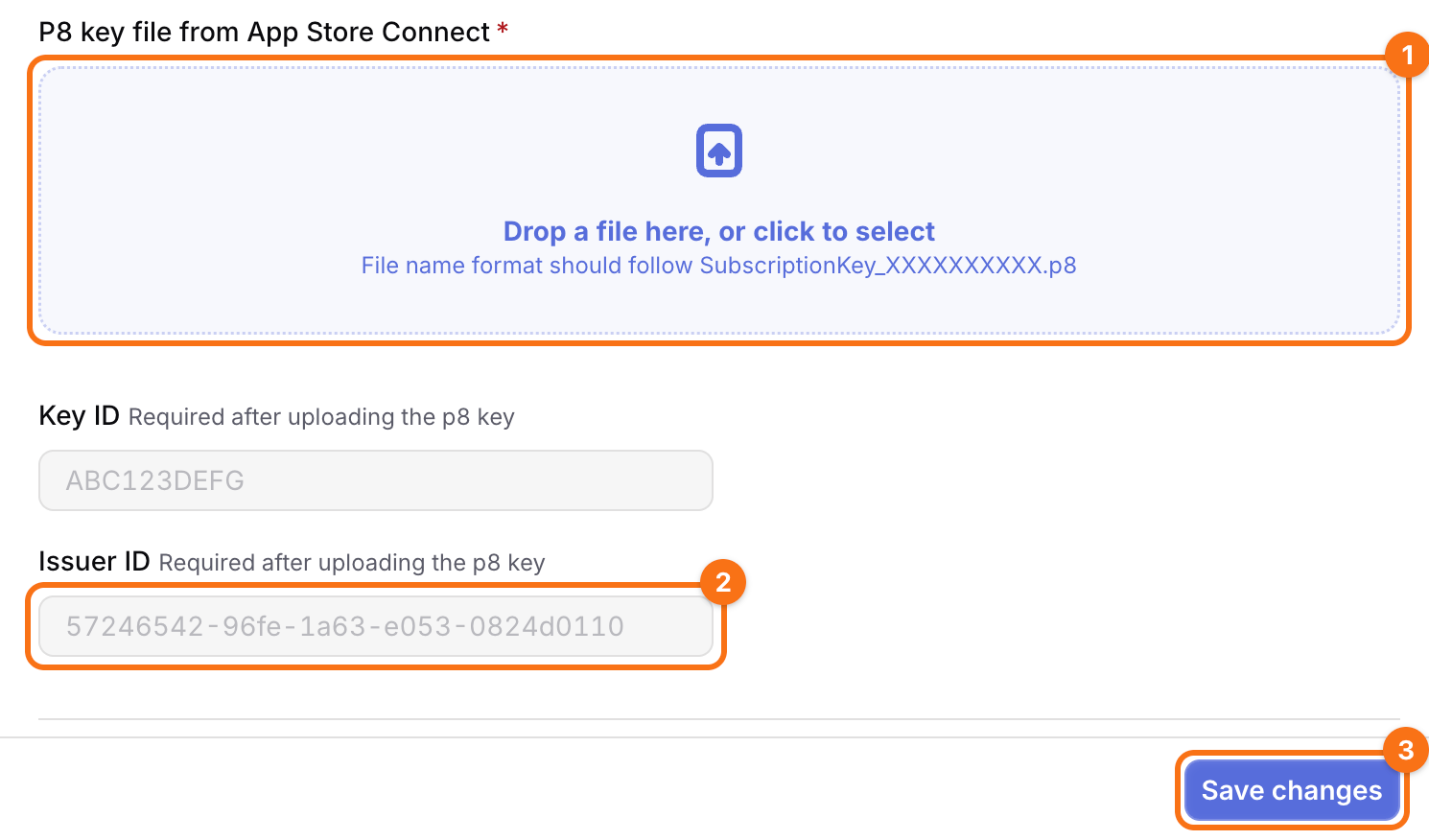
3. Upload it to RevenueCat. In the RevenueCat dashboard, click Apps in the sidebar and open the App Store app. In the section In-app purchase key configuration, click Add new key if the section offers it. Drop the .p8 file on P8 key file from App Store Connect (1) without renaming it, since RevenueCat reads the Key ID from its name and fills in Key ID itself. Paste the Issuer ID (2) and click Save changes (3).
Check. RevenueCat shows Valid credentials for the key.
To see a purchase go through, buy a plan with a sandbox account. Create one in App Store Connect under Users and Access > Sandbox, with an email address that is no Apple Account yet. Run a debug build on an iPhone with REVENUECAT_TEST_KEY empty, and buy a plan: iOS asks for the sandbox account at the first purchase, and keeps it under Settings > Developer afterwards. The purchase shows in RevenueCat under the customers of the project. The sandbox needs the Paid Apps Agreement to be active; see the step about payments.