Set up the entitlement premium and the default offering in RevenueCat
revenuecatThe app asks RevenueCat for two things. Its premium access is the entitlement premium, and its plans are the packages of the default offering of the project, which the SDK calls the current offering. Until both are there, the paywall says that the plans are not available, and a debug build names what RevenueCat lacks, such as "RevenueCat has no current offering".
You make the entitlement and the offering once for the project. Each store gets its products into them, the Test Store of RevenueCat too.
A new RevenueCat project has a Test Store with products, so you can do this step before the products of the App Store and Google Play exist, and buy a plan in a debug build. Add the products of the stores to the entitlement and to the packages once they exist. The screenshots use the project My App, and the orange frames mark what to click, in the order of their numbers.
1. Create a project. In the RevenueCat dashboard, create a project for the app, or open the one that you have. A project without a Test Store gets one on the page Apps, in the section Test configuration.
2. Add the products. Open Product catalog, then Products, and click New product, then Create from scratch, for each product that RevenueCat does not list yet. Choose the app of the store, fill in the form and click Create Product:
| Store | What the form takes |
|---|---|
| App Store | The Product ID of App Store Connect in Identifier, as it is, such as premium_monthly, and the Product type: Subscription for a plan that renews, Non-consumable for a plan paid once. |
| Play Store, a subscription | The Product type Subscription, the ID of the subscription in Subscription, such as premium_monthly, and the ID of its base plan in Base plan Id, such as monthly. |
| Play Store, a one-time product | The Product type Non-consumable and its Product ID in Google product identifier, such as premium_lifetime. Otherwise RevenueCat consumes the purchase, and Google Play lets the user buy it again. |
| Test Store | Any identifier, with a name, a price and a duration. These cannot be edited once the product is saved. |
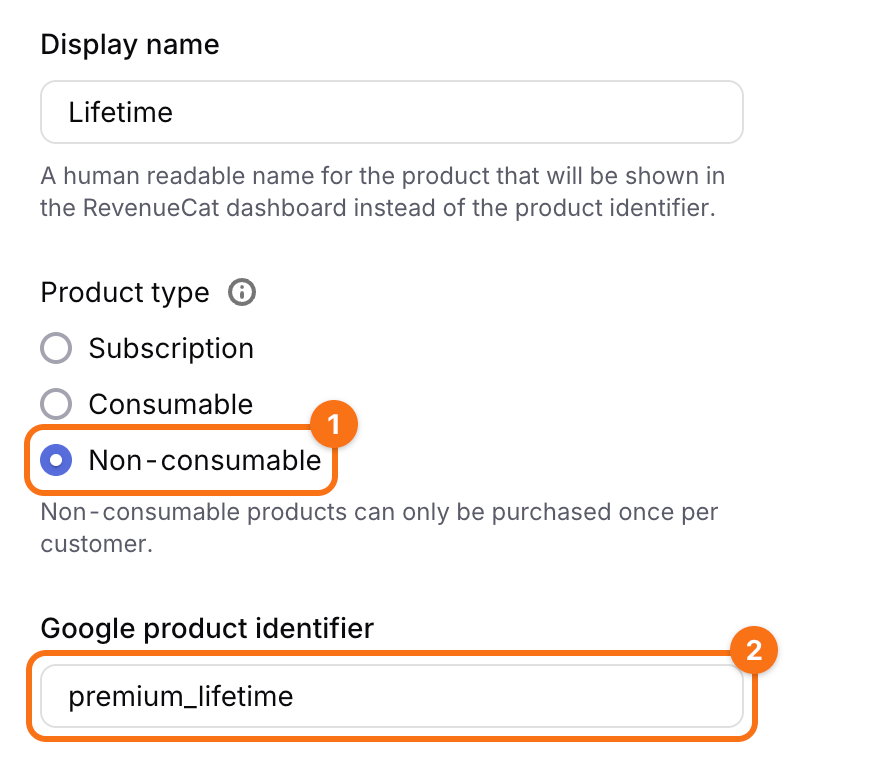
Once RevenueCat has the credentials of a store (see the steps about the App Store key and the service account of Google Play), Import Products at the top of the form takes the products from the store instead.
The Test Store sells subscriptions without a free trial, so a plan there shows no trial on the paywall.
3. Create the entitlement premium. In Product catalog, open Entitlements and click New entitlement. Enter the identifier premium, in lowercase, exactly so, and a description such as Premium access. Open the entitlement, whose page shows the identifier premium (1). Under Associated products, click Attach (2), select every product of every plan, of every store, and save.
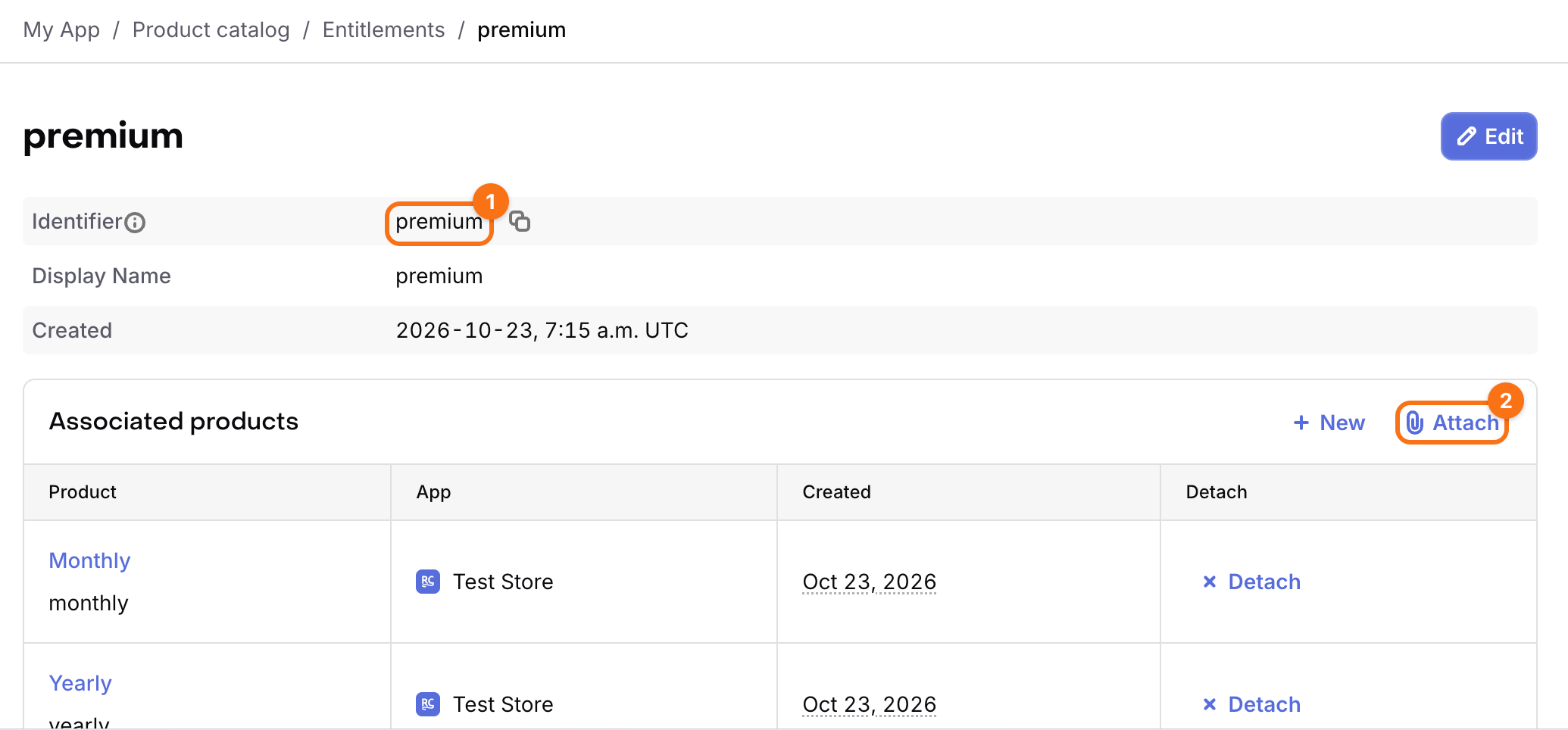
Every product of the default offering has to be attached. A purchase of a product that is not gives the user no premium access: the paywall then fails with "Purchases are unavailable right now", and the debug hint names the product to attach.
4. Create the offering. In Product catalog, open Offerings and click New offering, then Create from scratch. Enter an identifier, such as default, which you cannot change later, and a description, and click Save.
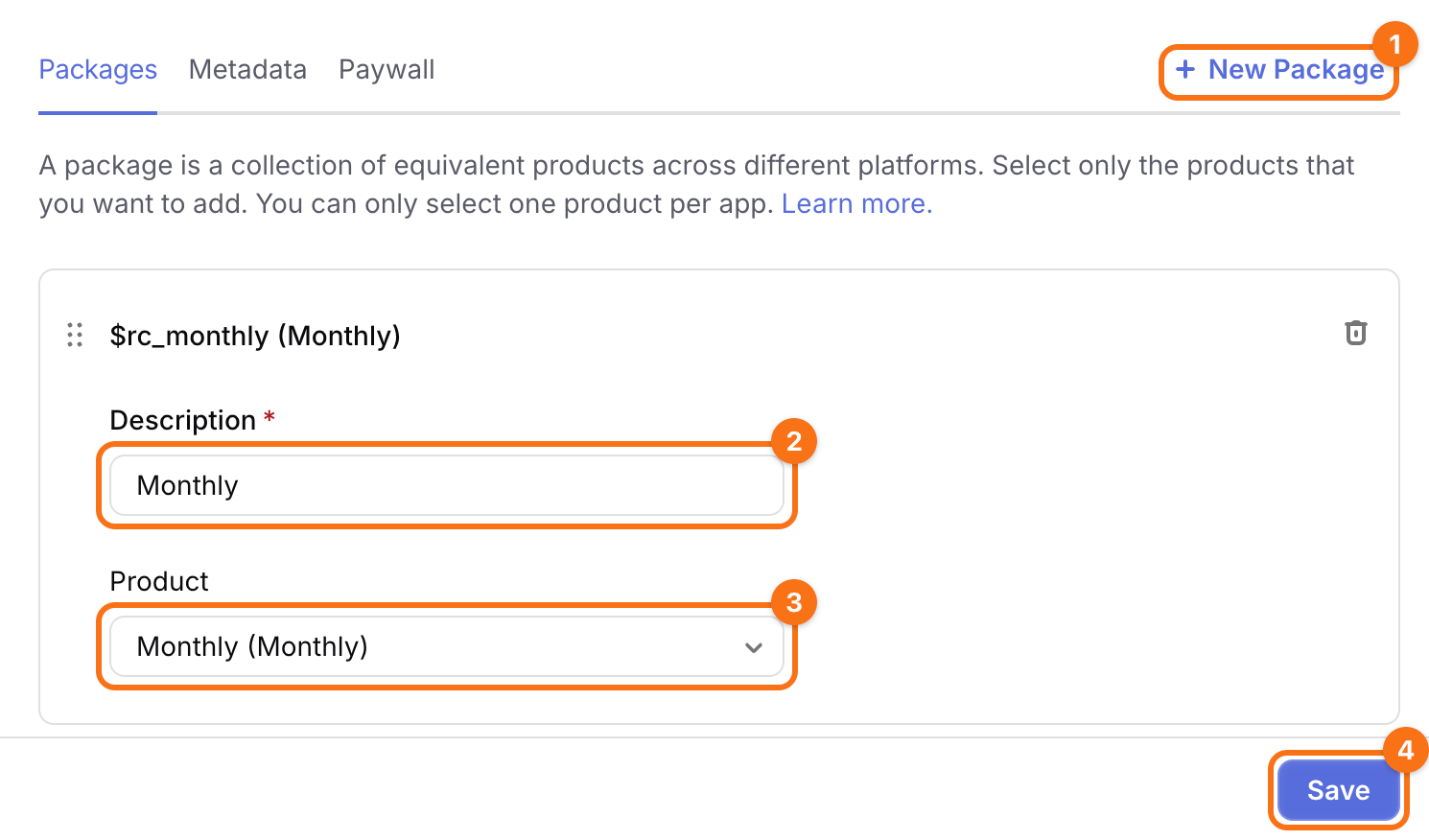
5. Add a package for each plan. Open the offering, click Edit, and then New Package (1). In the new package, choose the Identifier of the duration of the plan, such as monthly, annual or lifetime, or a custom one, enter a Description (2), and choose under Product (3) the product of each app for that plan. RevenueCat takes one product of each app. Click Save (4). The paywall shows the plans in the order of the packages, and it selects the first yearly plan.
6. Make it the default offering. On Offerings, click ··· in the column Actions of the offering, then Make Default. The default offering has a check mark next to its identifier. The app sells the packages of this offering alone.
Check. With the API key of the Test Store in REVENUECAT_TEST_KEY (see the step about the API keys), run a debug build and open the paywall, such as from the row Subscription of the settings screen. It shows a card for each package. Buy one: the Test Store shows its own dialog, where Test valid purchase completes the purchase, and the router closes the paywall.