Turn on Google Analytics in the Firebase project, unless it is on already
Firebase Analytics keeps what the app records in Google Analytics. A Firebase project that flutterfire configure created has no Google Analytics, and a project created in the console may have been created without it. The app logs its events either way, but they appear nowhere until Google Analytics is on.
Skip this step if the Analytics pages of your Firebase project show data or a dashboard rather than a button to enable it.
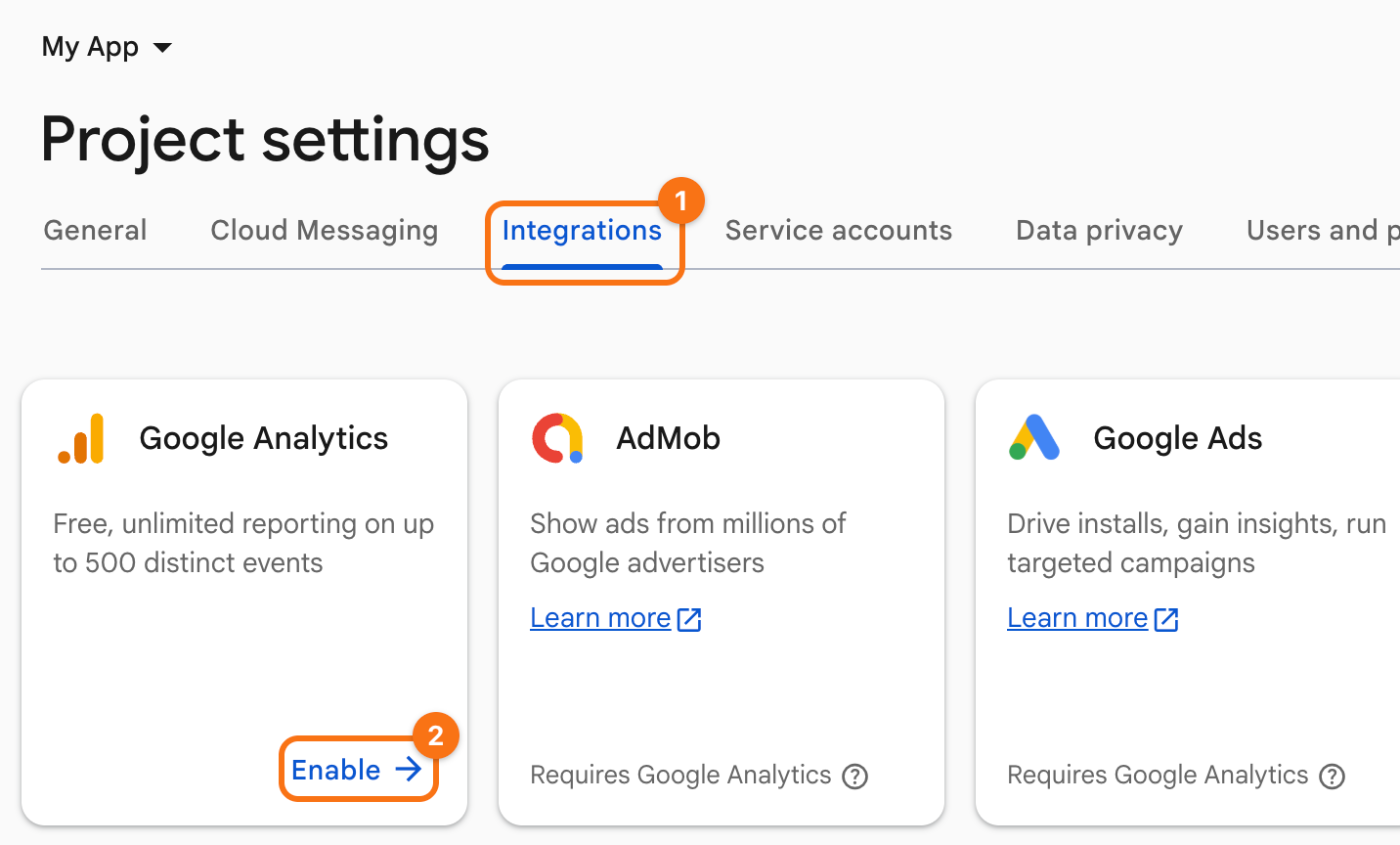
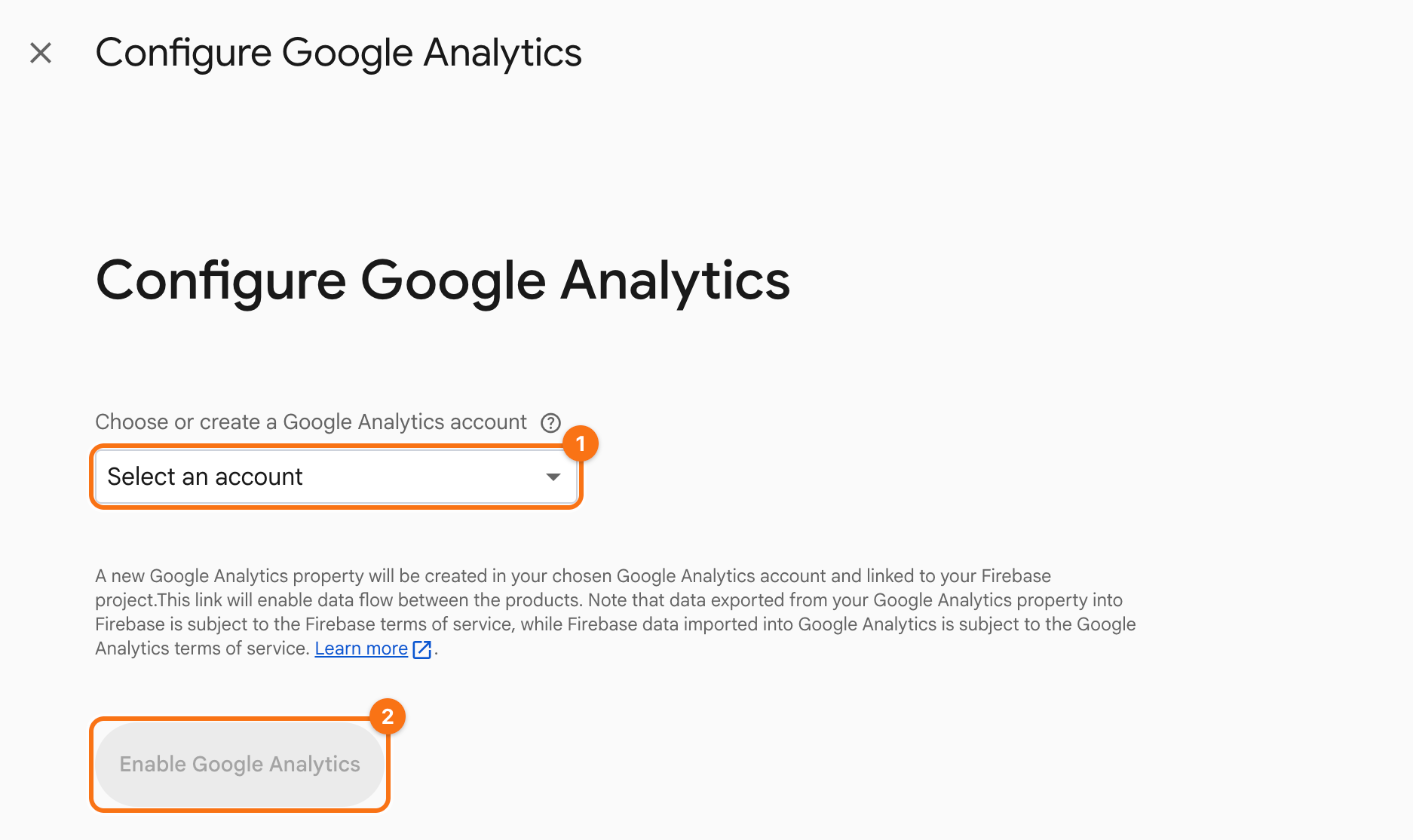
The screenshots show the example Firebase project My App. The orange frames mark what to click, in the order of their numbers.
1. Open Integrations. In the Firebase console, open your project. In the menu on the left, point at Settings and click Integrations, which opens the tab Integrations (1) of the project settings. On the card Google Analytics, click Enable (2). A card that says Enabled and Manage means it is on already.
2. Choose an account. Choose a Google Analytics account in the list (1), or create one there, and click Enable Google Analytics (2). Firebase creates a property of Google Analytics in that account and links it to the project.
The app needs no new configuration for this: the Android and iOS apps of the project send their events to the new property.
Check. Run the app and open a few screens. Events arrive in Analytics > Realtime within a few minutes. To see them at once, turn on the DebugView of the device.