Copy the API keys of your RevenueCat apps into .env
revenuecatThe app configures RevenueCat with the public API key of a RevenueCat app of the project: the App Store app on iOS, the Play Store app on Android, and the Test Store in a debug build. While the key that a build takes is empty, the app runs without purchases and never calls RevenueCat, and a debug build prints which key to fill in.
These keys are public. Each is compiled into the app, where anyone can read it. A secret API key of RevenueCat, which starts with sk_, never goes into the app, and the app refuses one.
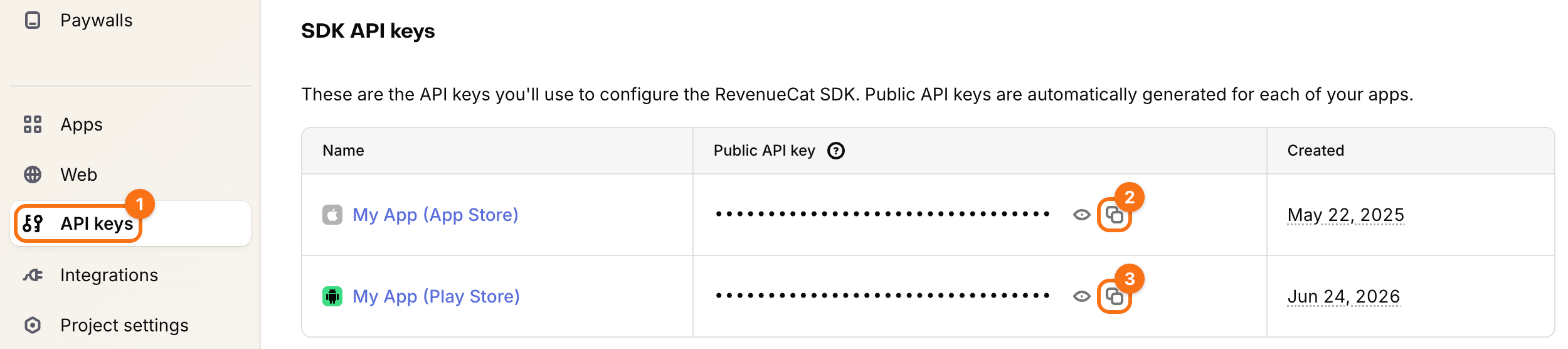
The examples use the bundle id com.example.my-app and the package name com.example.my_app of an app that smf create my_app generated. Yours start with the organization that you gave --org. The screenshots use the project My App. The orange frames mark what to click, in the order of their numbers.
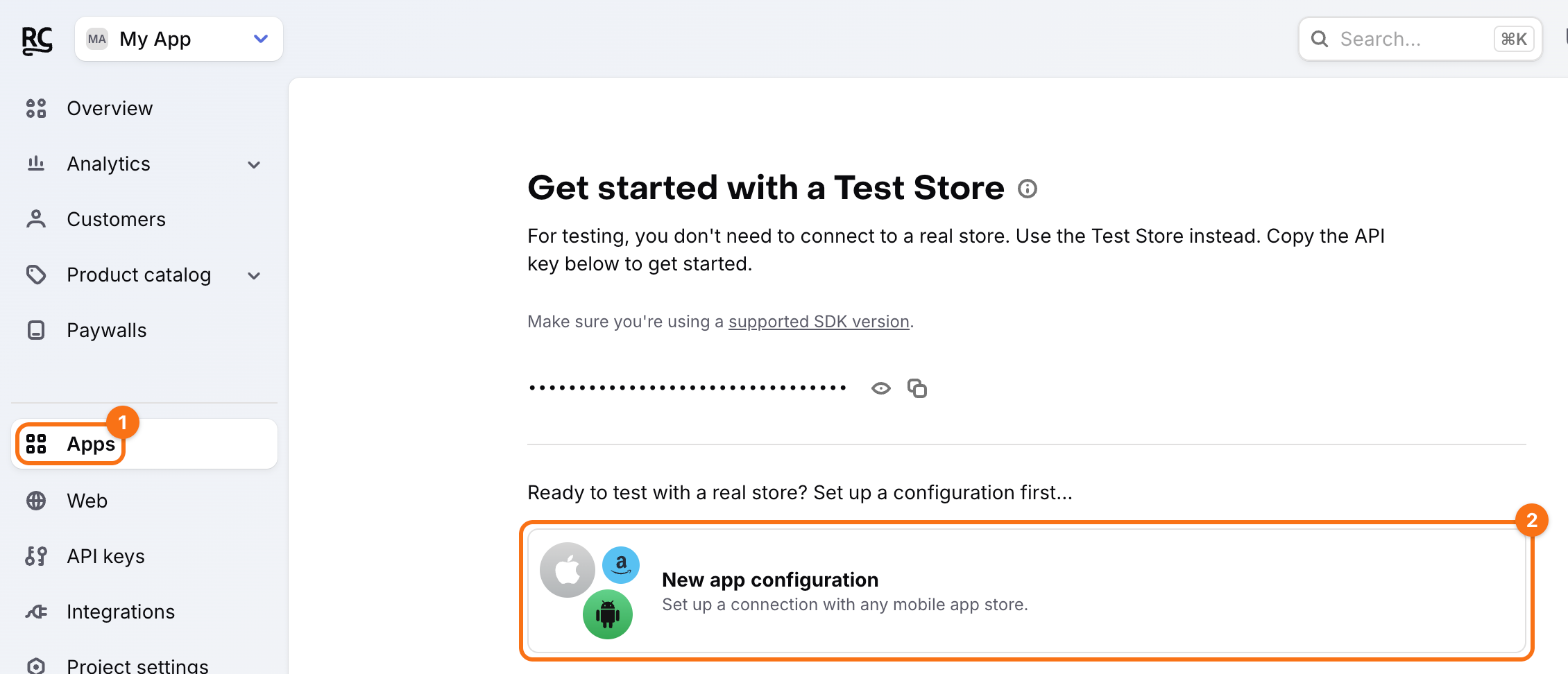
1. Add the apps of the stores. In the RevenueCat dashboard, open the project and click Apps in the sidebar (1). Click New app configuration (2), or New app once the project has an app.
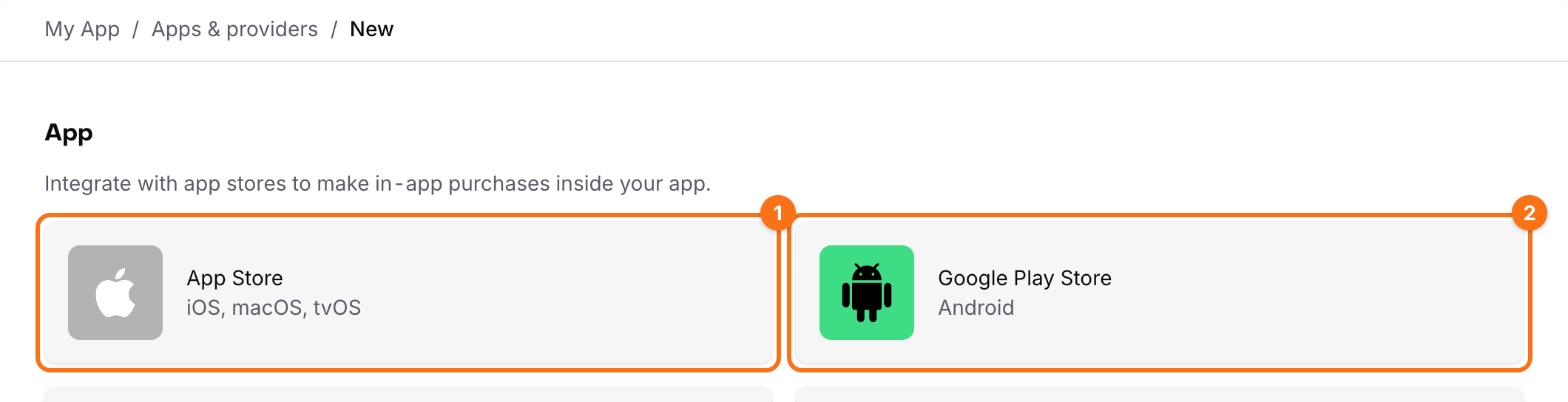
Choose App Store (1) for the iOS app, and then, for the Android app, Google Play Store (2).
-
App Store: an app name and the App Bundle ID (1) of the iOS app, such as
com.example.my-app. Xcode shows it under Bundle Identifier on the tab Signing & Capabilities of the target Runner.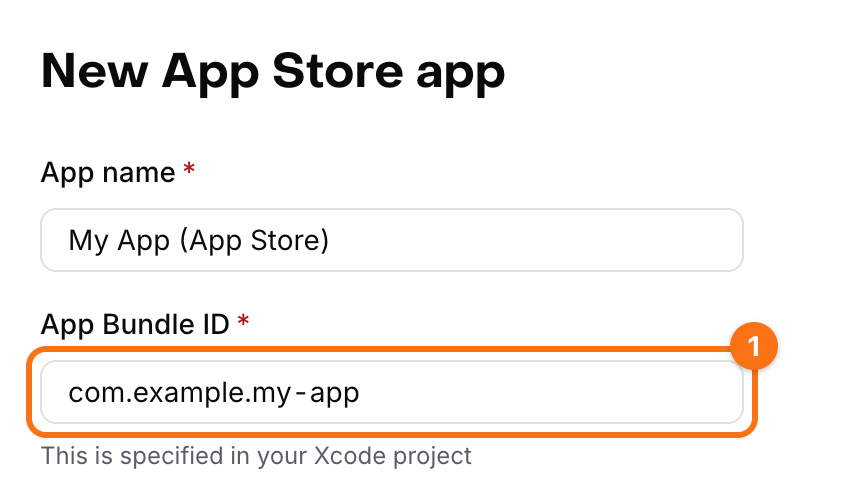
-
Google Play Store: an app name and the Google Play package name (1) of the Android app, such as
com.example.my_app, theapplicationIdinandroid/app/build.gradle.kts.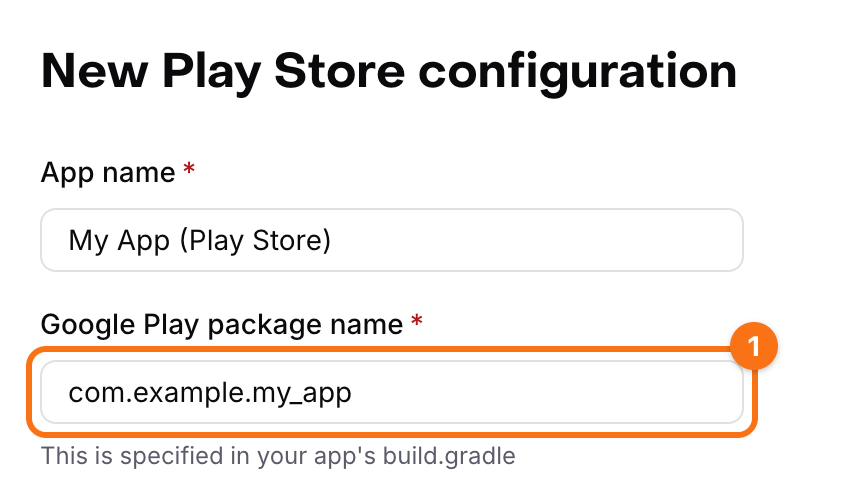
Click Save changes at the bottom of each form. RevenueCat creates the public API key of each app with it. The forms also have a section for the credentials of the store, which the next two steps fill in, and you can add them now or later.
2. Copy the keys. Click API keys in the sidebar (1). Under SDK API keys, click the copy icon of each app: the key of the App Store app (2) starts with appl_, and the key of the Play Store app (3) with goog_. The Test Store has a row of its own there, with a key that starts with test_, and the page Apps shows that key too.
3. Put them into .env. In .env at the root of the app:
REVENUECAT_APPLE_KEY=appl_...
REVENUECAT_GOOGLE_KEY=goog_...
REVENUECAT_TEST_KEY=test_...
.env stays out of git. On another machine, copy .env.example to .env and fill it in again.
4. Start the app again. The flutter tool reads .env when a command starts, so stop flutter run and start it again with the values:
flutter run --dart-define-from-file=.env
Run and Debug of VS Code, and the run configuration of the app in Android Studio, pass the argument for you.
The app chooses the key by the build:
| Build | Key |
|---|---|
A debug build, with REVENUECAT_TEST_KEY filled in | The Test Store |
| A debug build without it, and every profile or release build | REVENUECAT_APPLE_KEY on iOS, REVENUECAT_GOOGLE_KEY on Android |
A release build never takes the key of the Test Store, since RevenueCat stops such a build on purpose. To buy through the sandbox of a store in a debug build, leave REVENUECAT_TEST_KEY empty.
Check. A debug build no longer prints that a key "has no value in this build", and the paywall shows the plans of the default offering.