Create the products of your plans in App Store Connect and Google Play Console
revenuecatThe plans of the app are products in the stores. Every plan gives the same premium access, so create one product for each plan that you sell, in both stores, such as:
| Plan | App Store | Google Play | Product ID |
|---|---|---|---|
| Monthly, with a free week | An auto-renewable subscription of 1 month, with an introductory offer | A subscription with a monthly base plan and a free trial offer | premium_monthly |
| Yearly | An auto-renewable subscription of 1 year | A subscription with a yearly base plan | premium_yearly |
| Lifetime | A non-consumable in-app purchase | A one-time product | premium_lifetime |
The same Product ID in both stores keeps the next steps simple. A Product ID can never be used again, in either store, even after you delete its product. On Google Play it starts with a lowercase letter or a digit, has at most 40 characters, and may have underscores and periods.
The paywall names these periods: every week, every 1, 2, 3 or 6 months, and every year. It names a free trial or a lower price at first of 3 days, 1 or 2 weeks, 1, 2, 3 or 6 months, or 1 year. These are the periods and trials of the App Store. Google Play offers more, such as every 4 weeks, and the paywall shows the title of such a product instead of the name of its period.
Do the step about payments first: App Store Connect lets you create no in-app purchase until the Paid Apps Agreement is signed.
The screenshots use the app My App. The orange frames mark what to click, in the order of their numbers.
App Store Connect
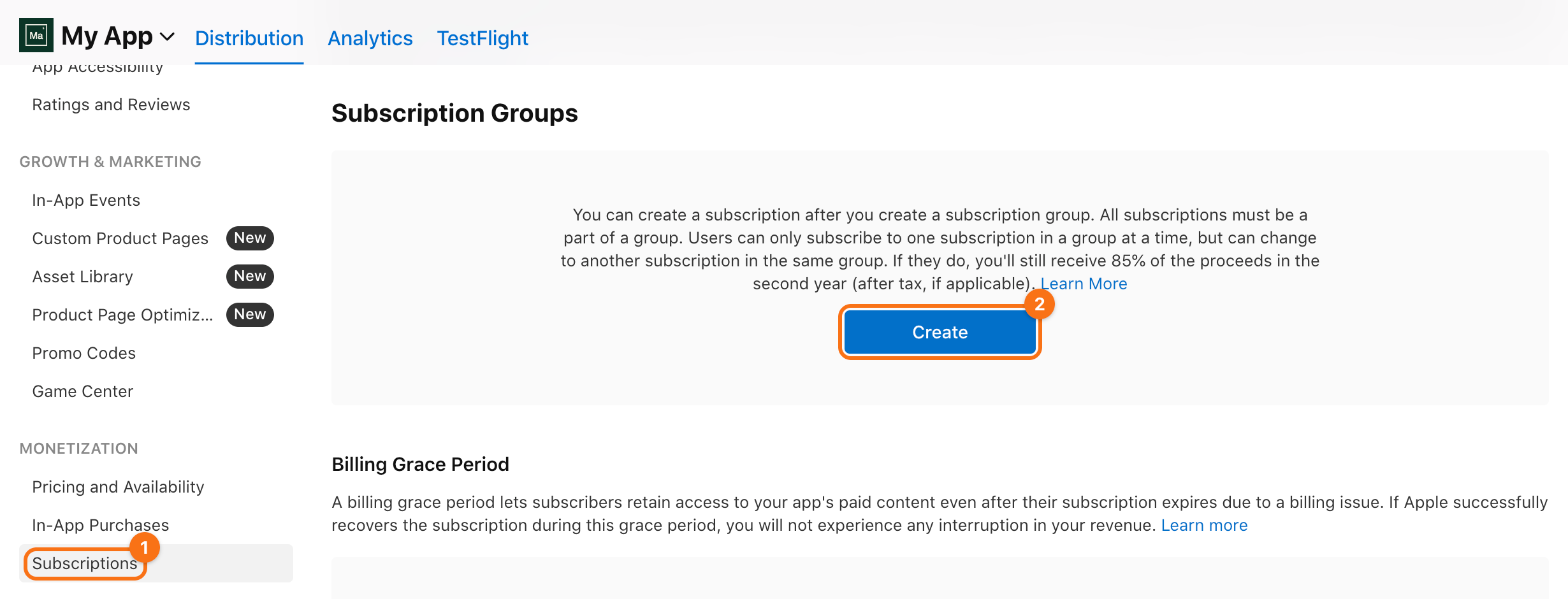
1. Create a subscription group. In App Store Connect, open Apps and your app. In the sidebar, under Monetization, click Subscriptions (1). In Subscription Groups, click Create (2), or + next to the heading once the app has a group.
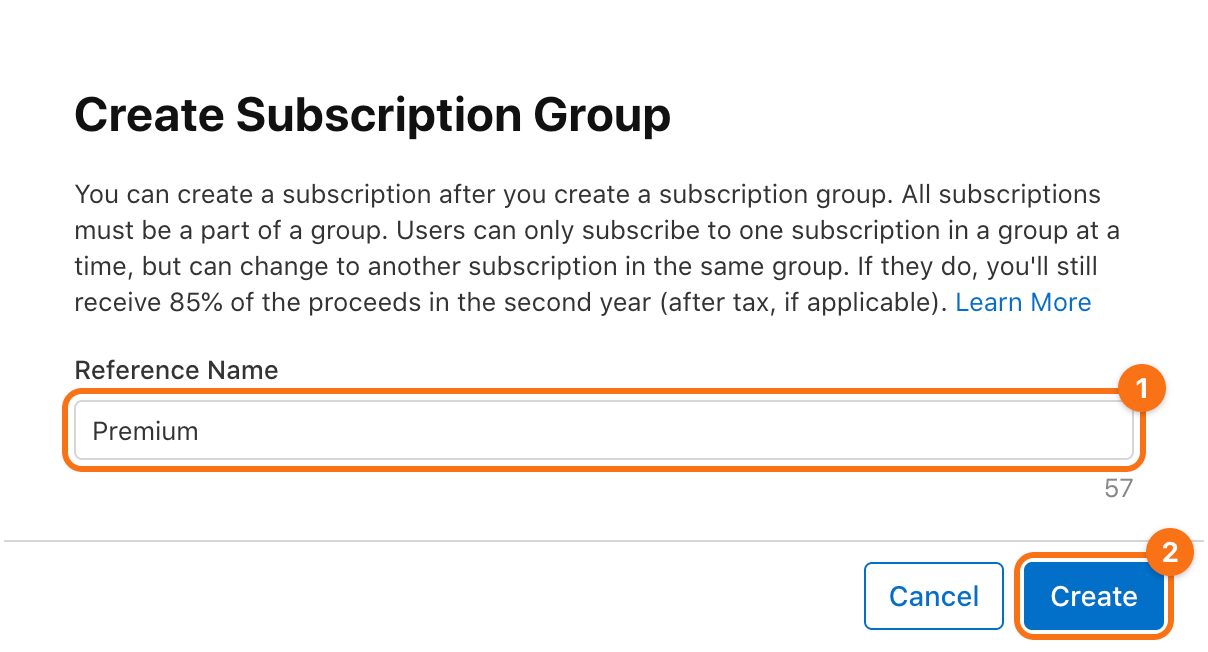
Enter a reference name (1), such as Premium, and click Create (2).
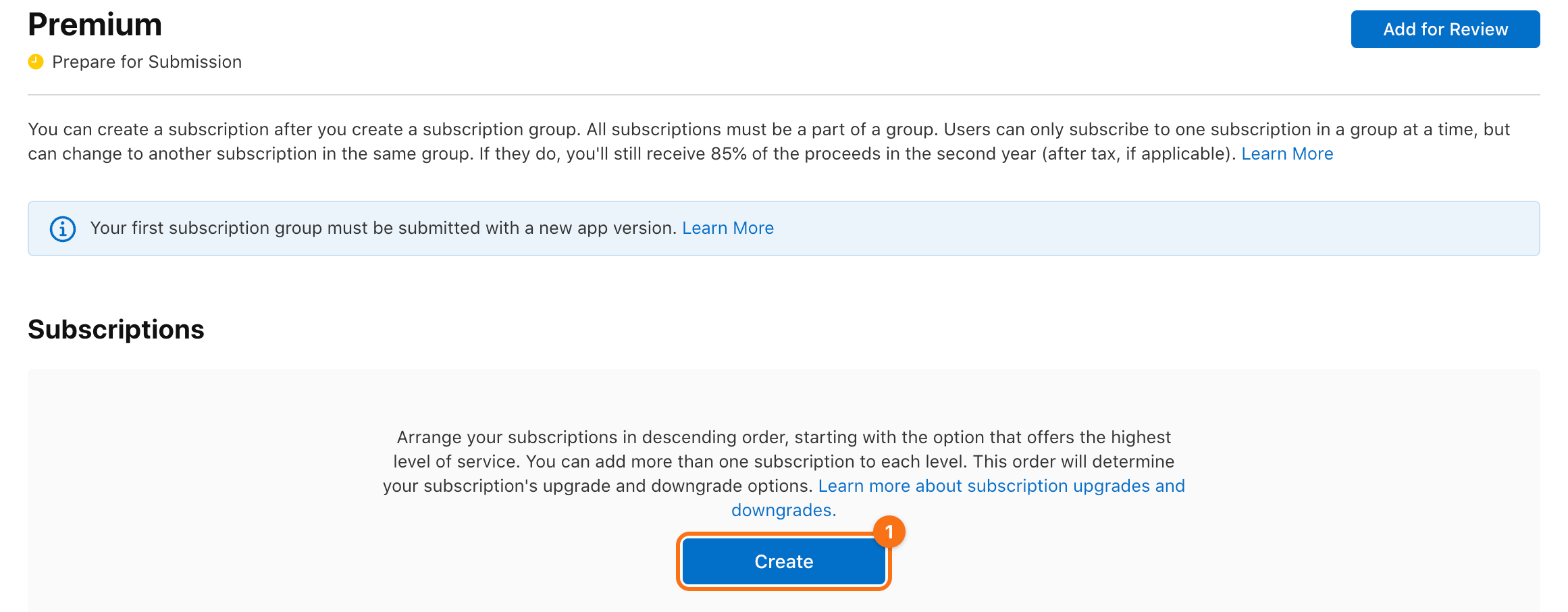
A user can take one introductory offer in a group, and moves between the plans of a group rather than having two at once, so put the subscriptions of the premium access into this one group. Under Display Name and Description of the group, click Add and enter the name that the App Store shows for it.
2. Create a subscription. On the page of the group, click Create (1), or + next to Subscriptions once the group has one.
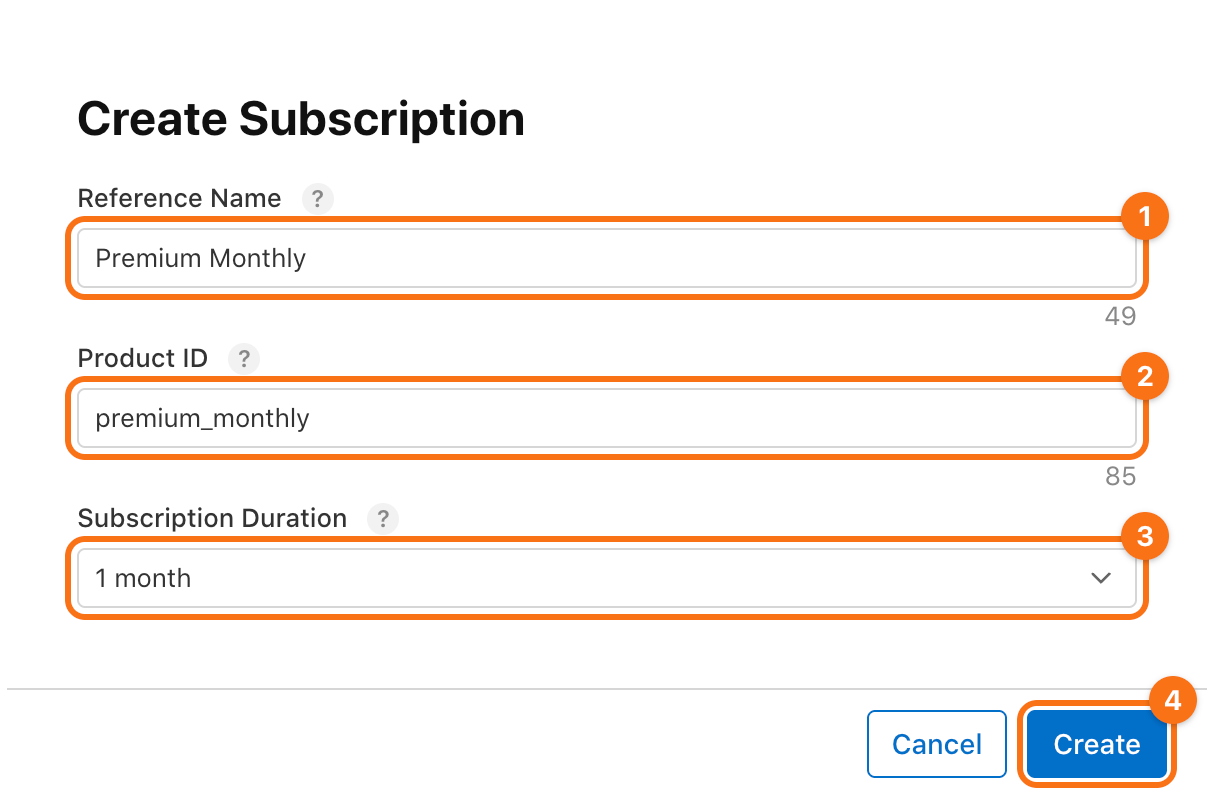
Enter a Reference Name (1), such as Premium Monthly, the Product ID (2), such as premium_monthly, and the Subscription Duration (3), such as 1 month, and click Create (4). Apple offers 1 week, 1, 2, 3 and 6 months, and 1 year. You cannot change the duration once the subscription is submitted.
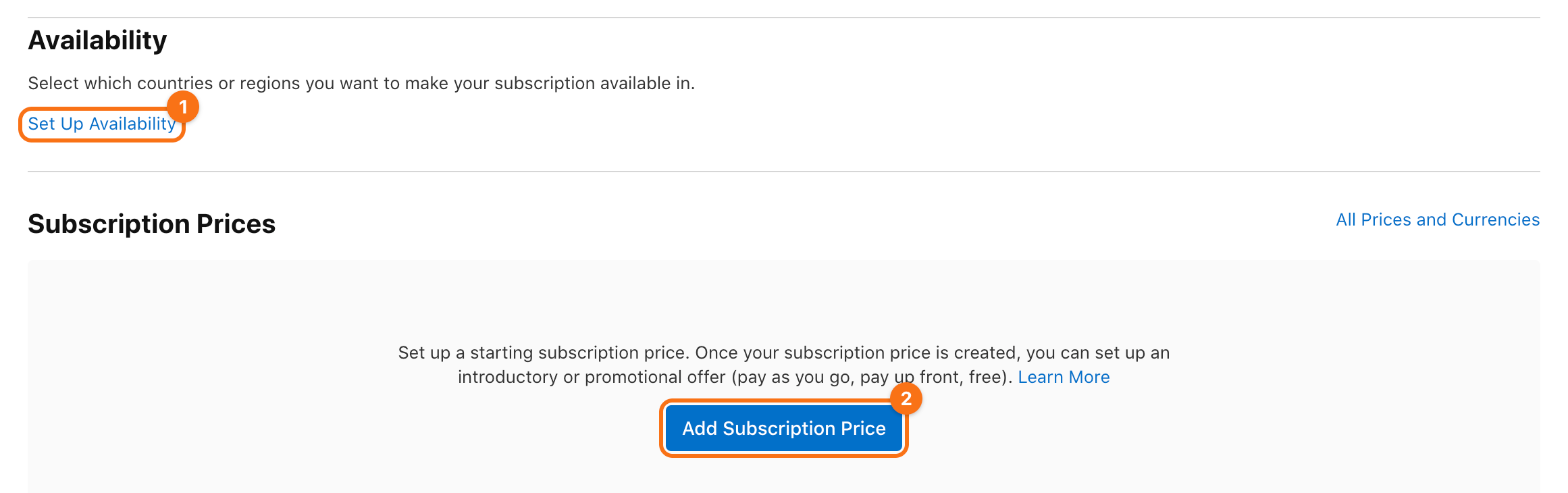
On the page of the subscription, under Availability, click Set Up Availability (1) and choose the countries or regions where you sell. Under Subscription Prices, click Add Subscription Price (2).
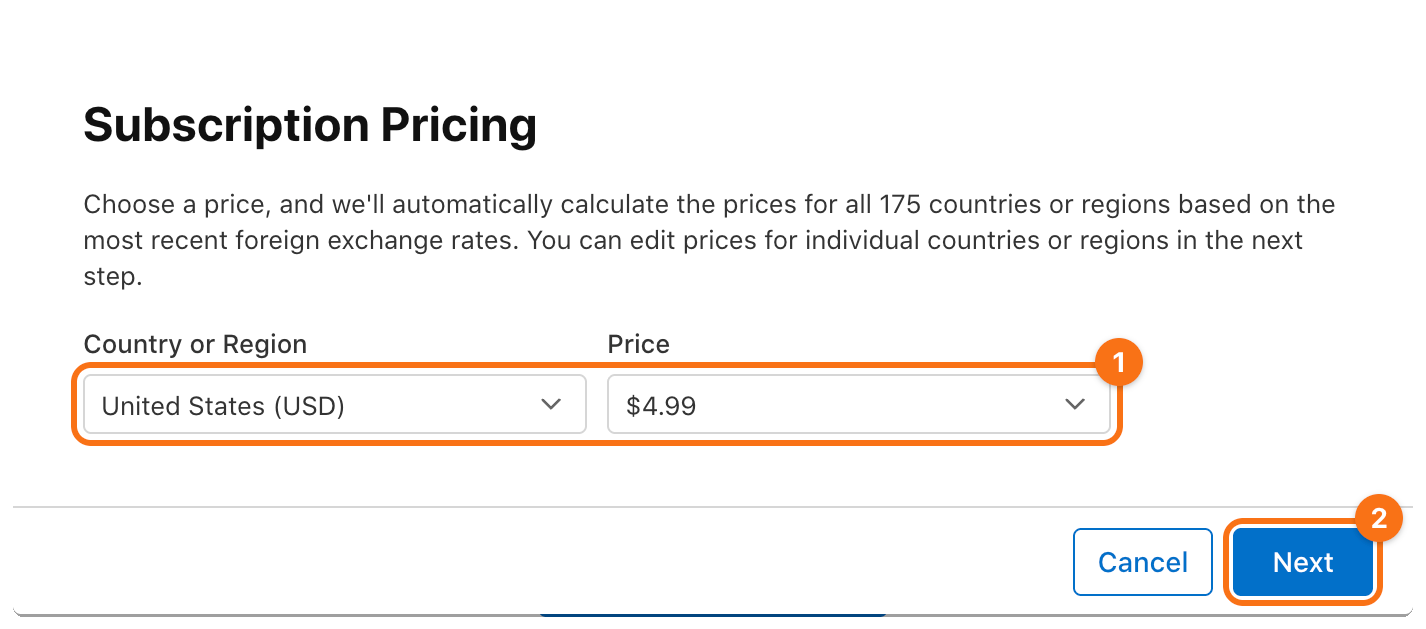
Choose a country or region and its price (1), such as United States and $4.99, and click Next (2). App Store Connect computes the prices of the other countries and regions from it. Change any of them on the next page, click Next, then Confirm.
Then fill in:
- Display Name and Description: click Add and enter what the App Store shows.
- Review Information: a screenshot of the paywall and notes for App Review.
Click Save. Repeat for the yearly plan.
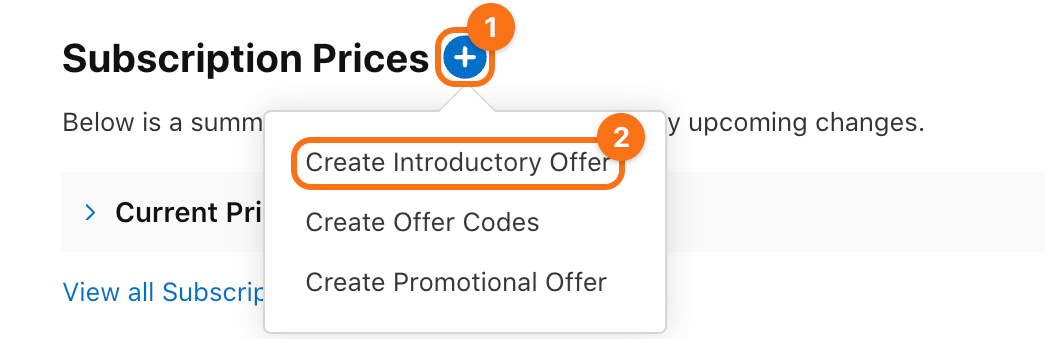
3. Add a free trial. On the page of the monthly subscription, click + next to Subscription Prices (1), then Create Introductory Offer (2). App Store Connect shows the + once the subscription has a price.
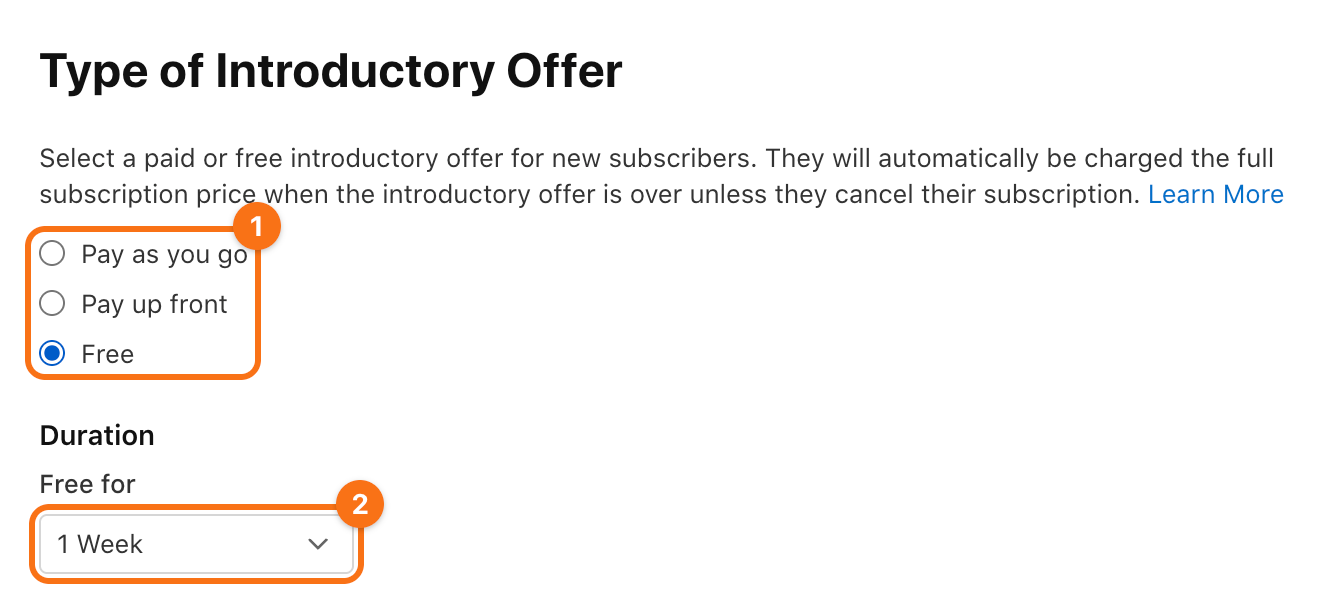
Choose the countries or regions and click Next. Choose the start date, choose No End Date under End Date, and click Next. Choose the type Free (1) and its duration under Free for (2), such as 1 week. Click Next, then Confirm. Pay as you go and Pay up front give a lower price at first instead. An introductory offer cannot be edited later, only deleted and created again.
4. Create the lifetime purchase. In the sidebar, under Monetization, click In-App Purchases, then + next to the heading. Choose the type Non-Consumable (1), enter a reference name (2) and the Product ID (3), such as premium_lifetime, and click Create (4).
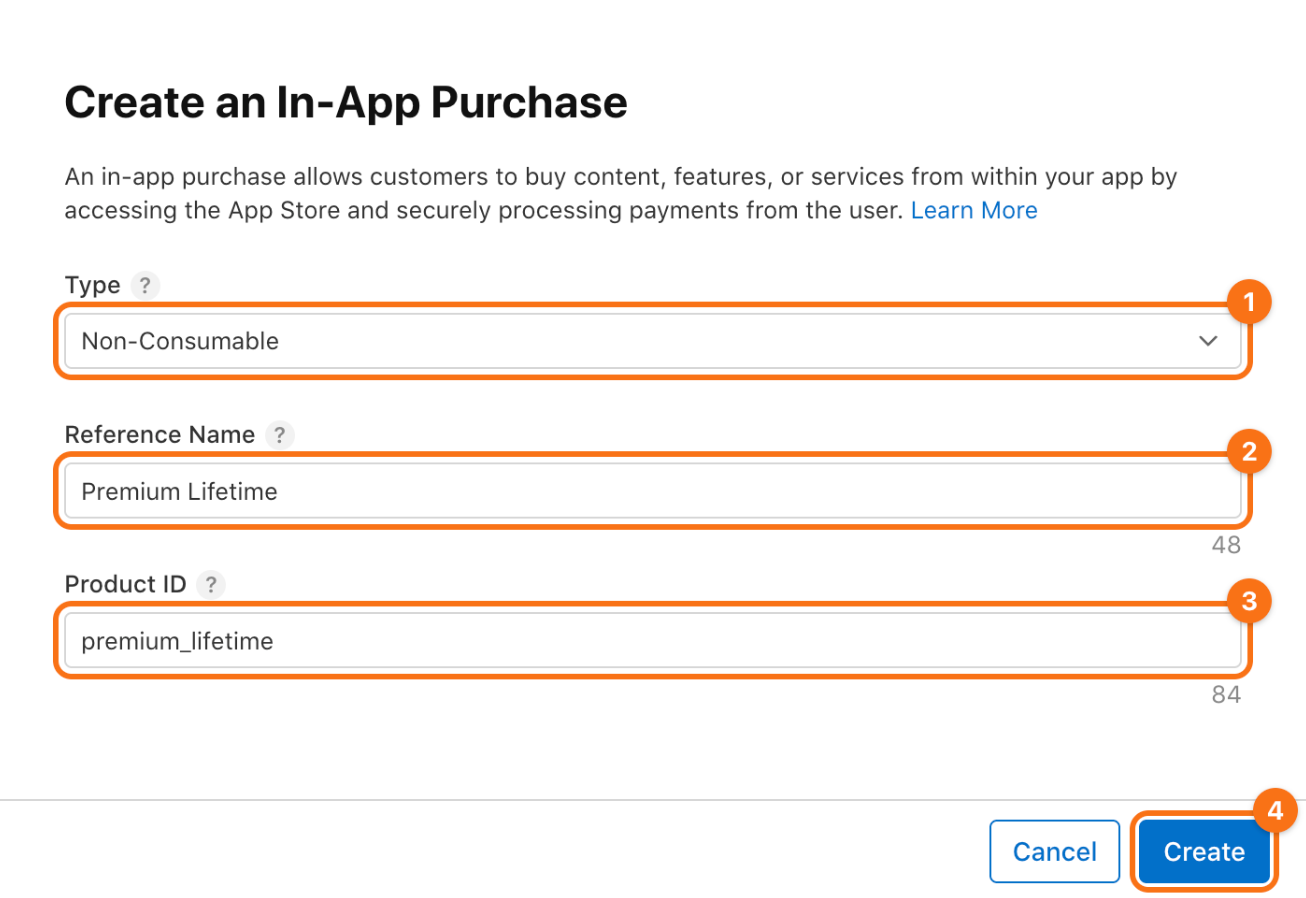
On the page of the purchase, set a price in the section Price Schedule. In the section Display Name and Description, add a display name and a description. Add a screenshot under Review Information, and click Save.
5. Send them with the app. The first subscription and the first in-app purchase of an app go to App Review with a new version of the app. On the page of each product, click Add for Review, and submit them with the version.
Google Play Console
6. Upload a build. Play Console lets you create products only once a version of the app with the Google Play Billing Library is on a track. The app has the library through RevenueCat, and the library declares the permission com.android.vending.BILLING itself, so the manifest needs no change. Build an app bundle, signed with your upload key, since Google Play takes no bundle that is signed with the debug key; see Sign the app in the documentation of Flutter:
flutter build appbundle --dart-define-from-file=.env
In Google Play Console, open the app, then Test and release > Testing > Internal testing. Click Create new release (1) and upload build/app/outputs/bundle/release/app-release.aab to it.

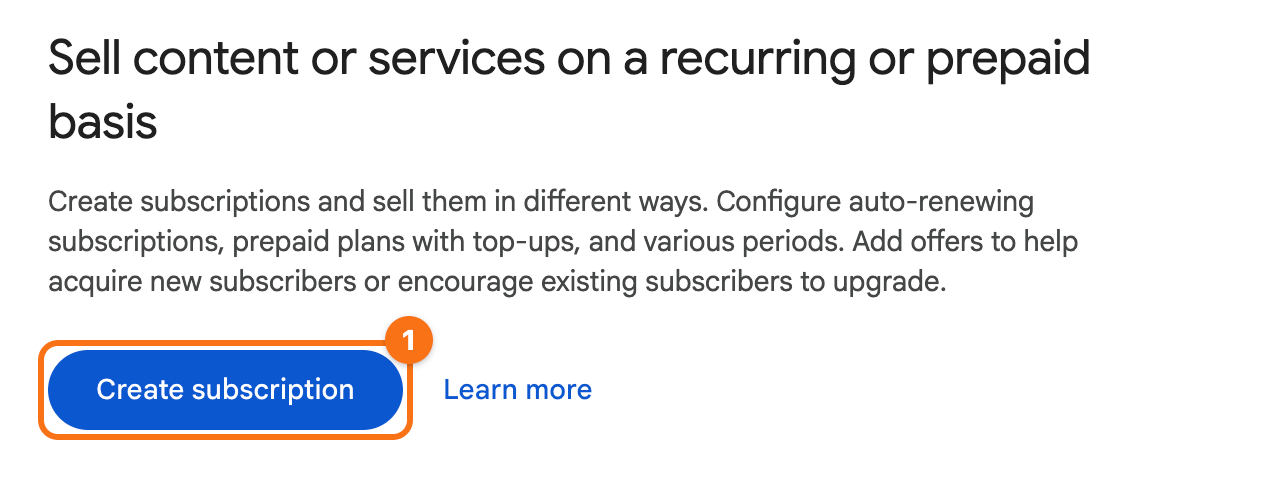
7. Create a subscription. Open Monetize with Play > Products > Subscriptions and click Create subscription (1).
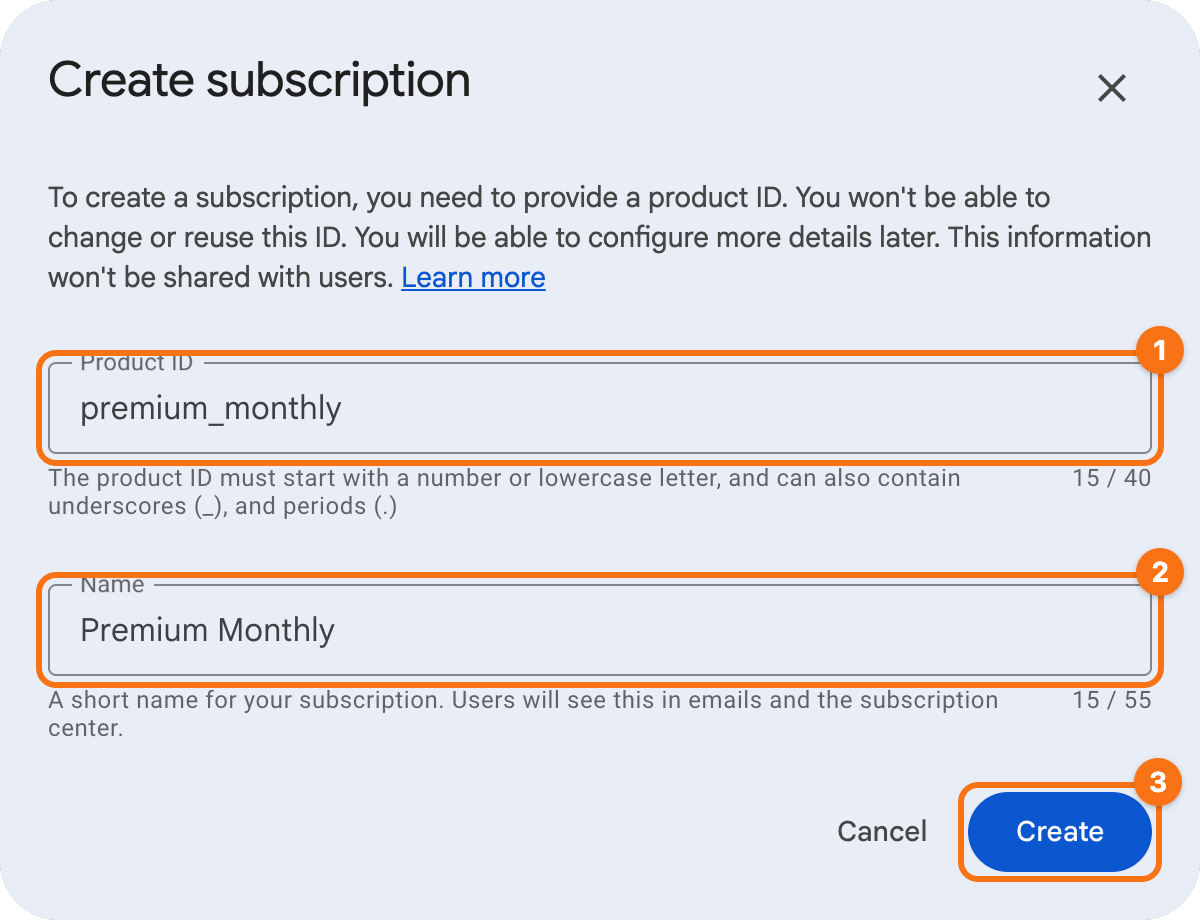
Enter the Product ID (1), such as premium_monthly, and a Name (2), and click Create (3).
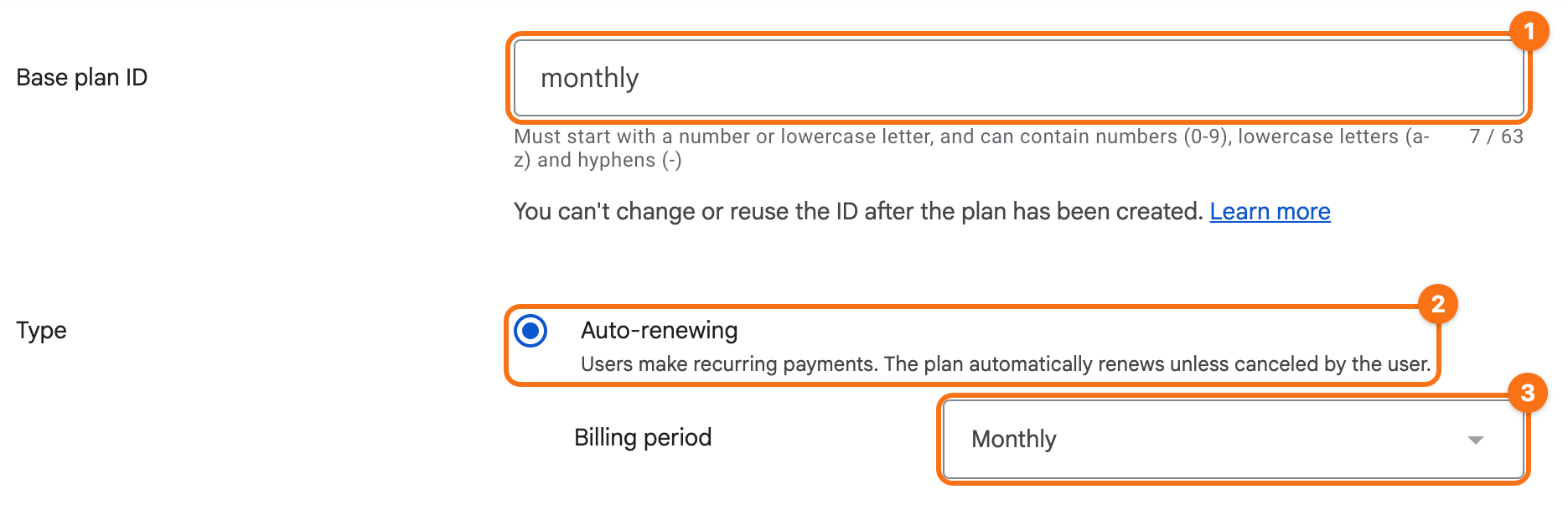
On the page of the subscription, under Base plans and offers, click Add base plan. Enter a Base plan ID (1), such as monthly, with lowercase letters, digits and hyphens. Choose the type Auto-renewing (2) and the Billing period (3), such as Monthly.
Under Price and availability, click Set prices, check the countries and regions where you sell (the box in the header of the table checks all of them), and click Set price. Enter the price and its currency, such as 4.99 USD, and click Update. Click Save, then Activate.
Repeat for the yearly plan: a subscription premium_yearly with a base plan yearly whose billing period is Yearly.
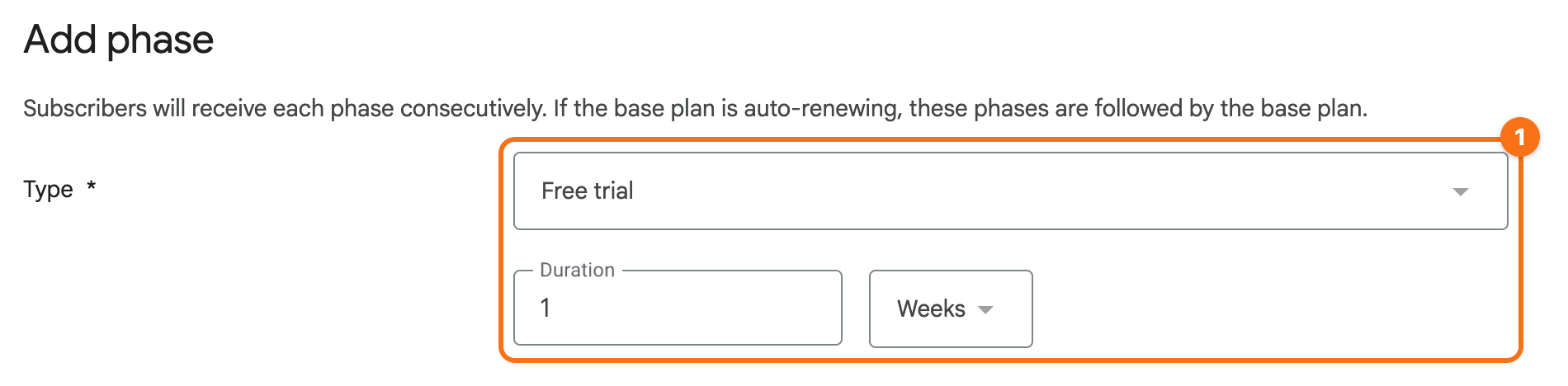
8. Add a free trial. In the monthly subscription, under Base plans and offers, click Add offer, choose the base plan and click Add offer. Enter an Offer ID, such as free-week, and under Eligibility criteria choose New customer acquisition. Under Phases, click Add phase, choose the type Free trial and its duration (1), such as 1 week, and click Apply. Click Save, then Activate.
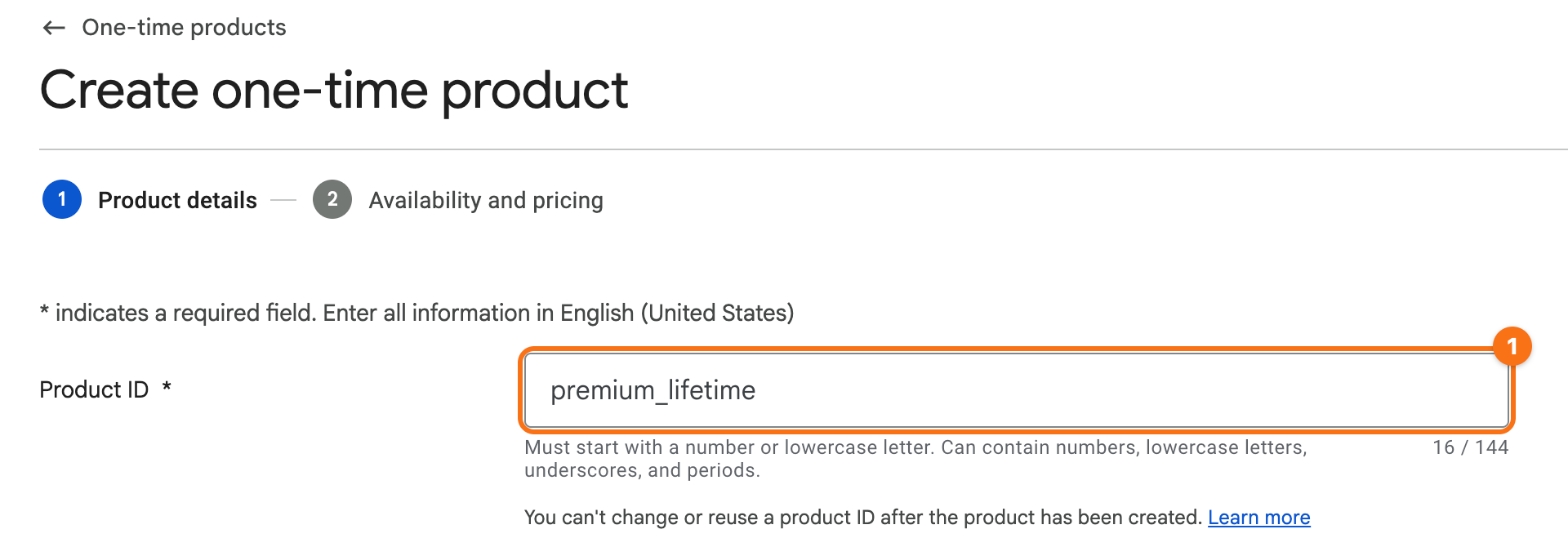
9. Create the lifetime product. Open Monetize with Play > Products > One-time products and click Create one-time product. On Product details, enter the Product ID (1), such as premium_lifetime, a Name and a Description, and click Next.
On Availability and pricing, add a purchase option with an ID and the purchase type Buy, set its prices, and click Activate. A one-time product that is bought once and kept for good is a non-consumable, and the step in RevenueCat marks it so.
Check. App Store Connect lists the subscriptions in their group and the non-consumable purchase, each with a price. Play Console lists the subscriptions with active base plans, the offer of the free week, and the one-time product as active.
To buy them on a device before a release, add testers: in App Store Connect under Users and Access > Sandbox, and in Play Console under Manage account > Play apps settings > License testing.
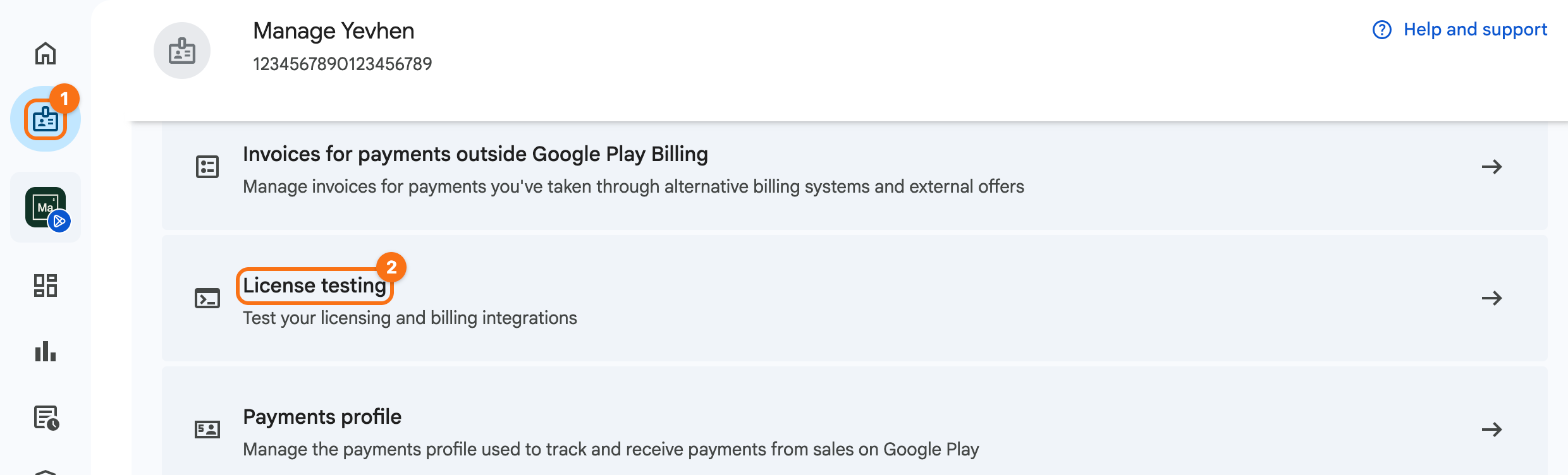
A license tester installs the app from the internal testing track and pays with a test card. In a debug build, leave REVENUECAT_TEST_KEY empty, so that the app sells through the store rather than the Test Store of RevenueCat.