Give Firebase your Apple push key (APNs key)
Firebase sends push messages to iPhones through the Apple Push Notification service (APNs). For that it needs a key from your Apple Developer account. Without the key the app still gets its address for push messages, but Firebase cannot send anything to it.
You need a paid Apple Developer account and access to your Firebase project. You make the key once for your team, and it works for all of its apps.
The screenshots use example values: the Team ID SAYMYFRAME, the Key ID SMFAPNSKEY, the bundle id com.example.my-app and the Firebase project my-app-12345. You will see your own. The orange frames mark what to click, in the order of their numbers.
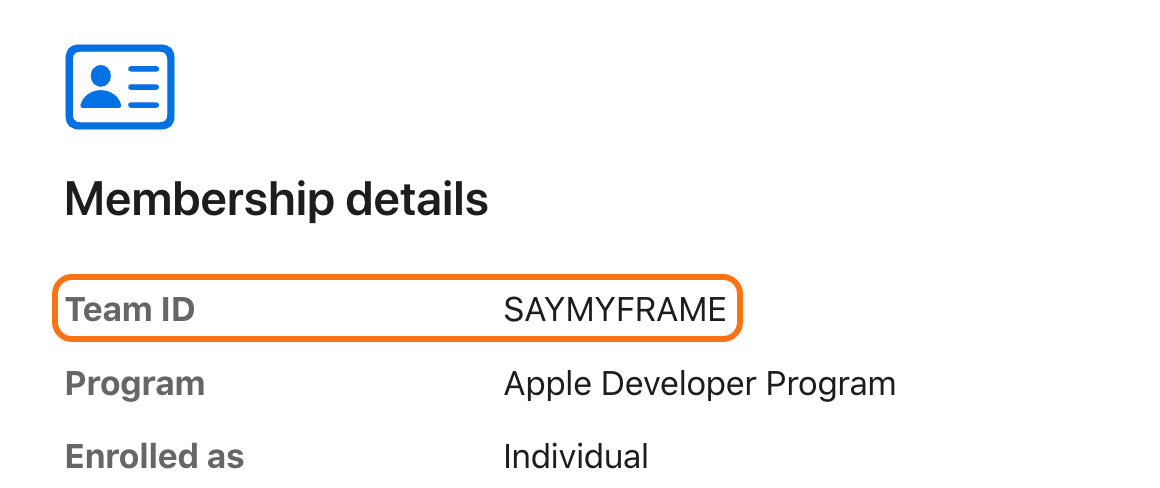
1. Find your Team ID. Open your Apple Developer account and scroll to Membership details. Copy the Team ID: ten letters and digits.
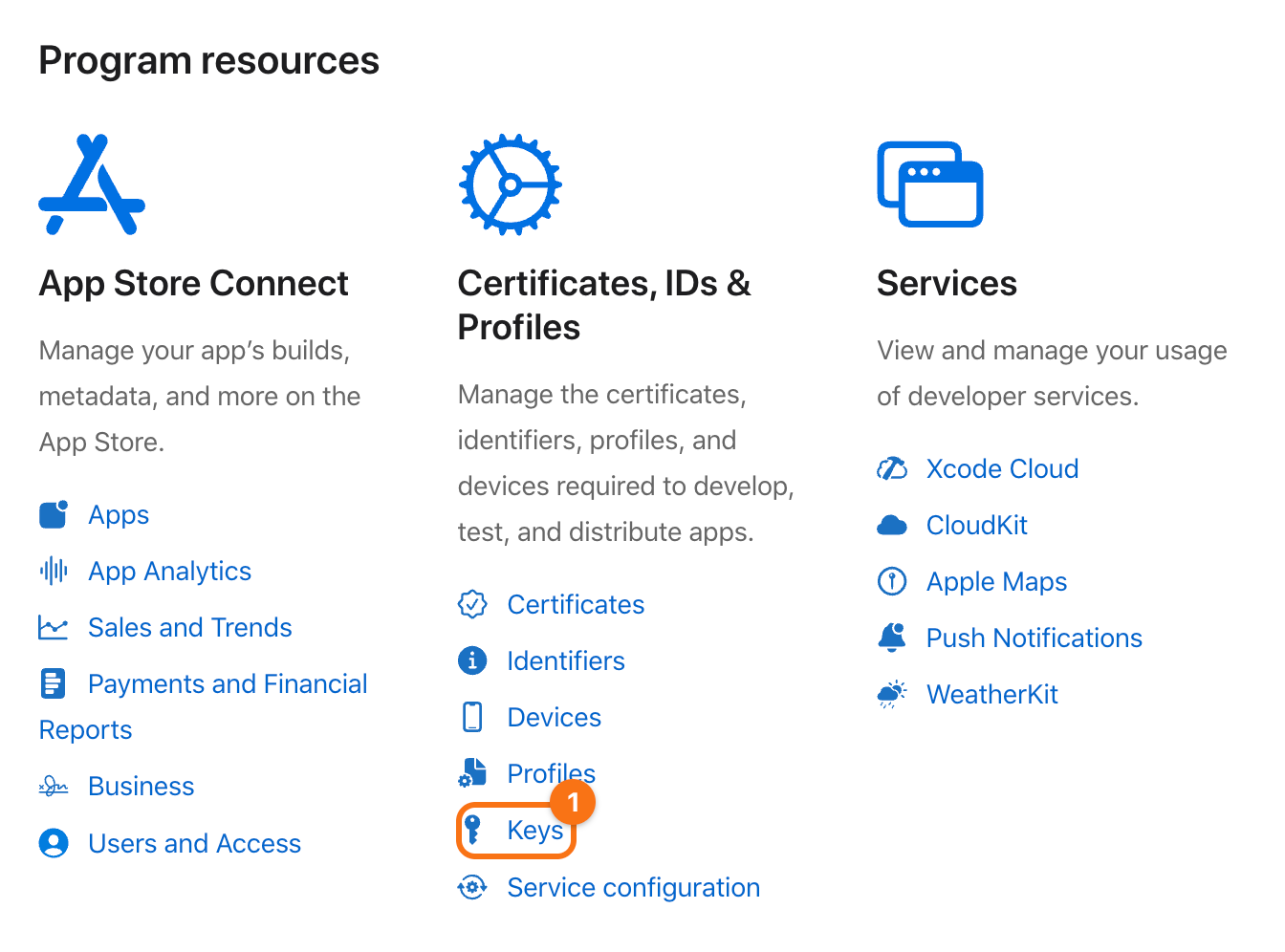
2. Create the key. In the account, under Certificates, IDs & Profiles, click Keys (1).
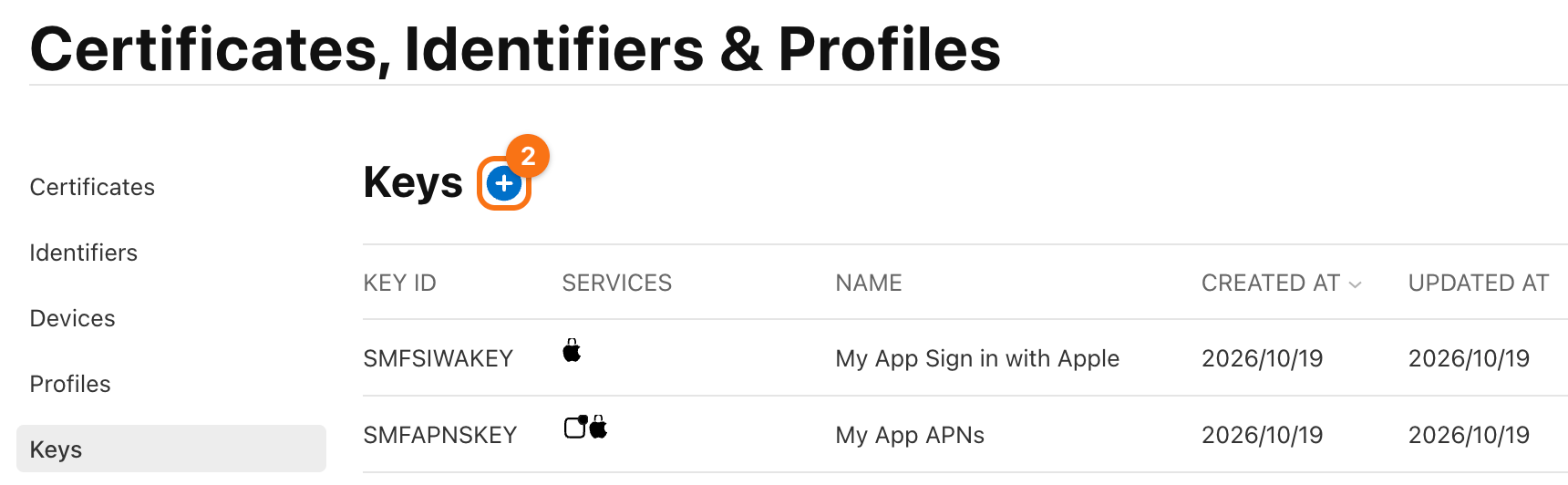
Click the + next to the title (2).
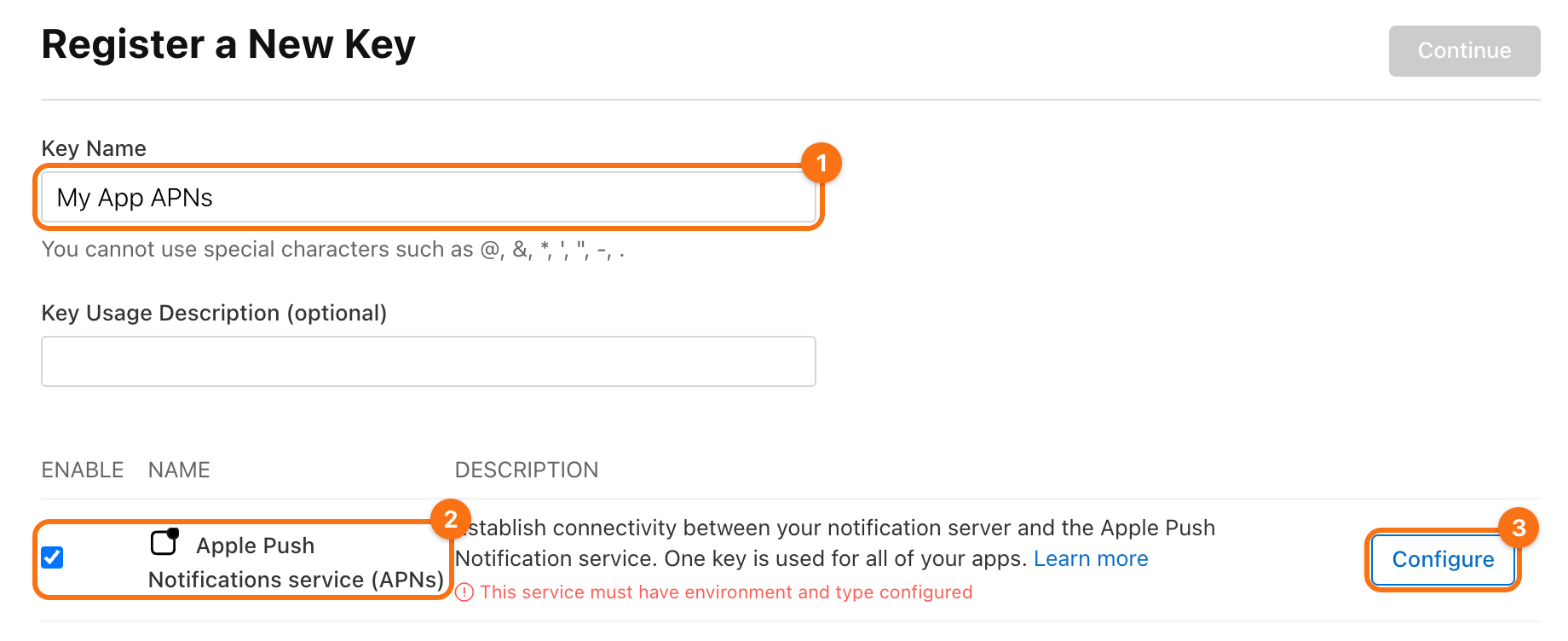
Give the key a name (1), such as My App APNs, and check Apple Push Notifications service (APNs) (2). Then click Configure (3) in the same row.
Set Environment to Sandbox & Production (1) and Key Restriction to Team Scoped (All Topics) (2), then click Save (3). One key then serves debug builds and App Store builds alike. Apple does not let you change these two settings later.
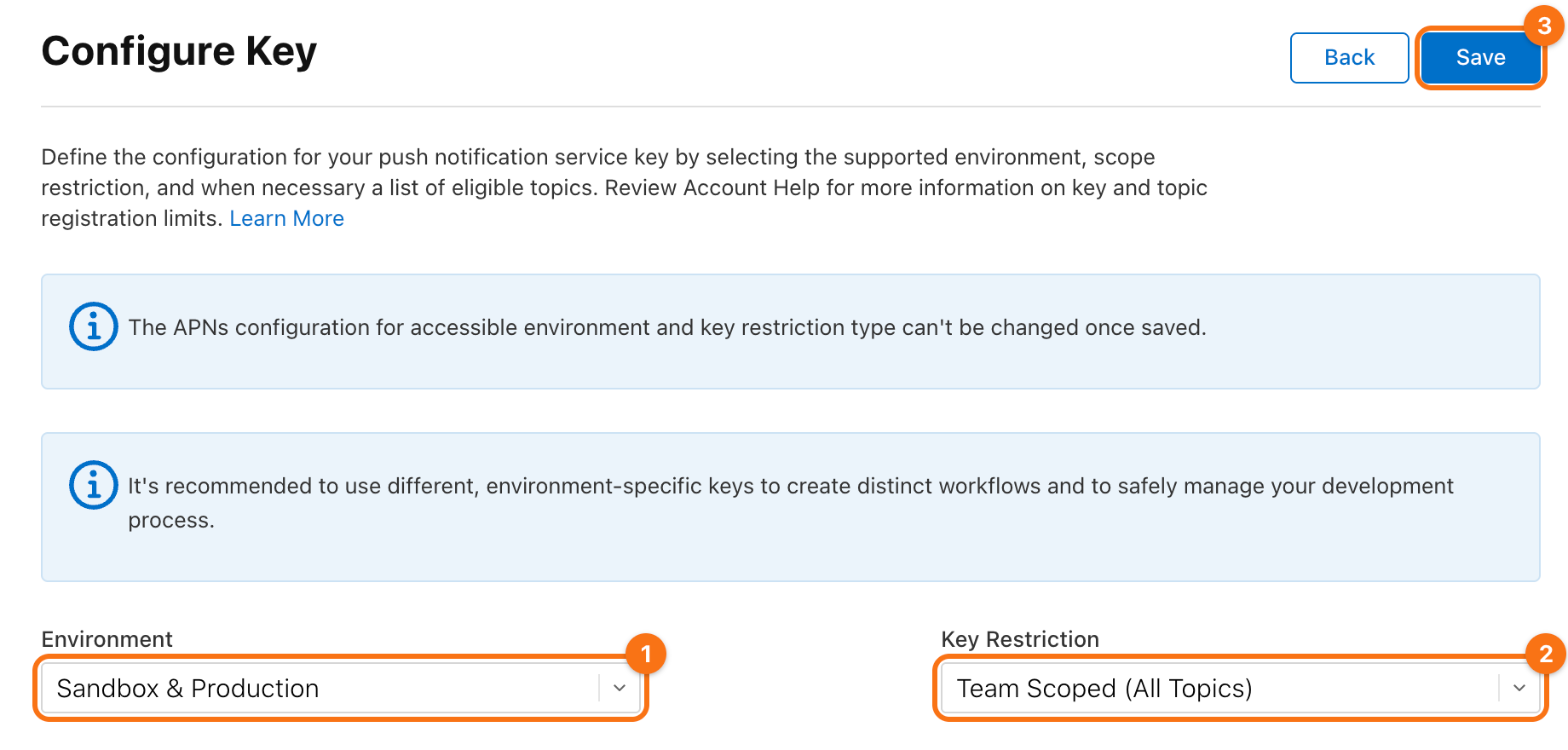
Click Continue, then Register.
3. Download the key. On the page of the key, click Download (1). You get a file named AuthKey_<Key ID>.p8. Copy the Key ID (2) from the same page.
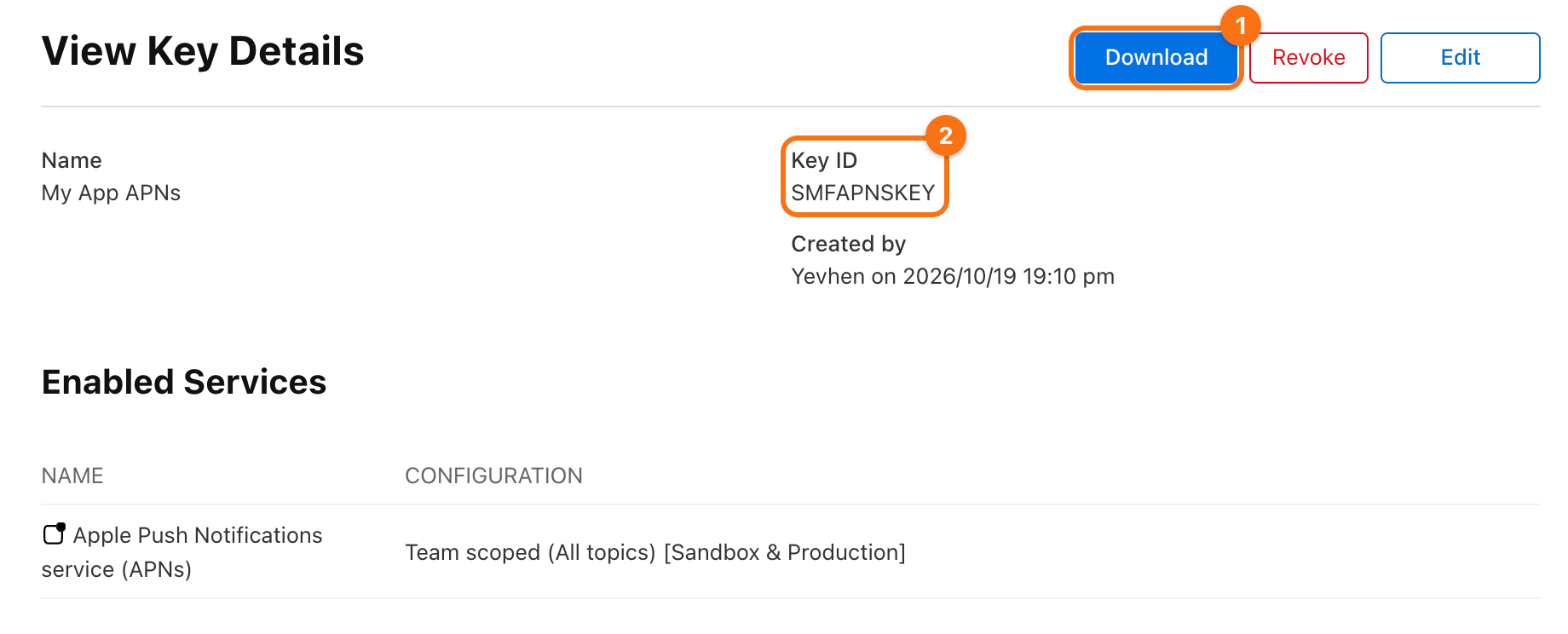
Apple lets you download the file only once. Keep it in a password manager. The file is a secret: never put it into the app or its repository. If you lose it, revoke the key and create a new one.
4. Open Cloud Messaging in Firebase. In the Firebase console, open your project. In the menu on the left, point at Settings (1) and click General (2). On the page Project settings, open the tab Cloud Messaging.
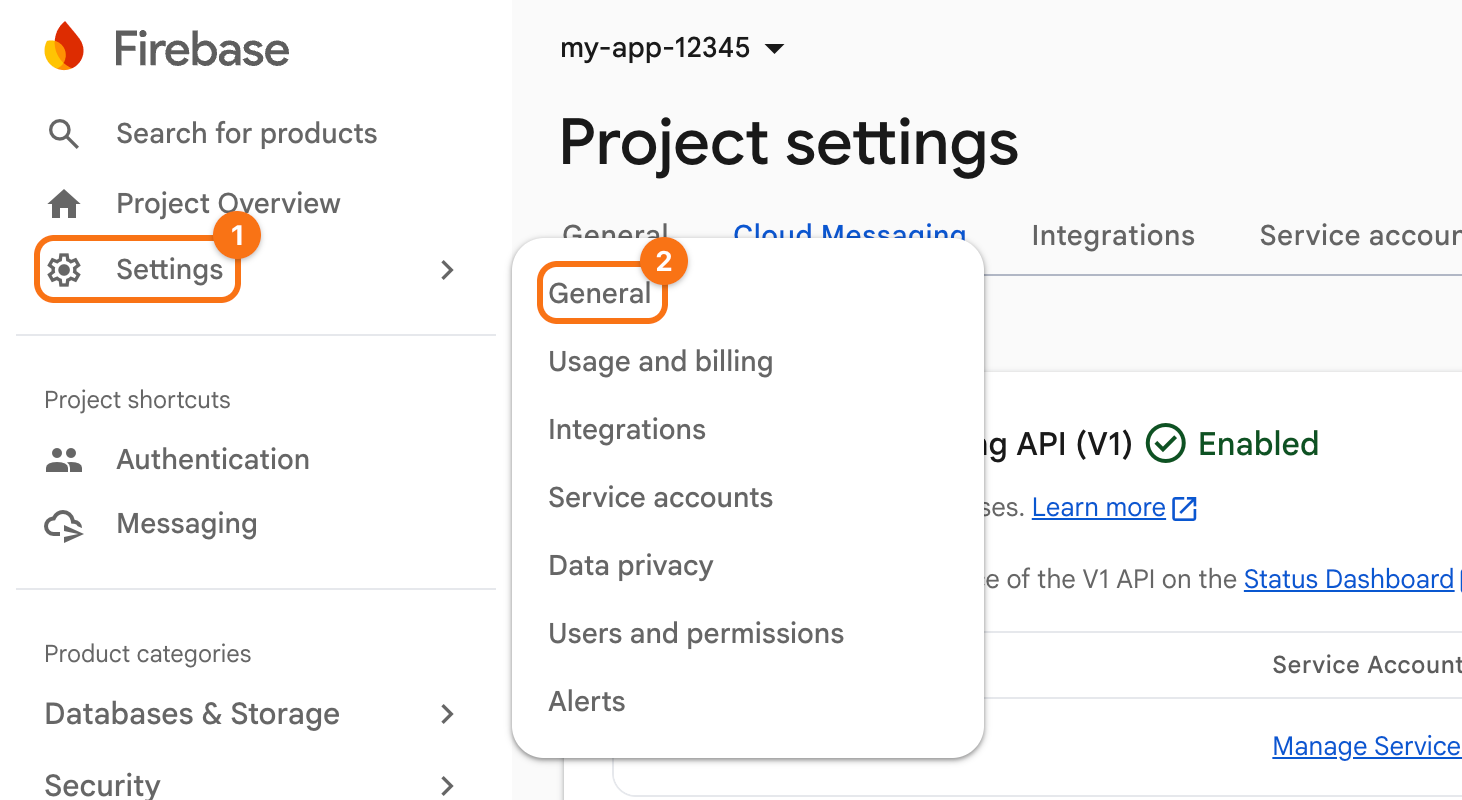
Scroll to Apple app configuration and select your iOS app on the left. Under APNs Authentication Key, click Upload (1) in the row No development APNs auth key.
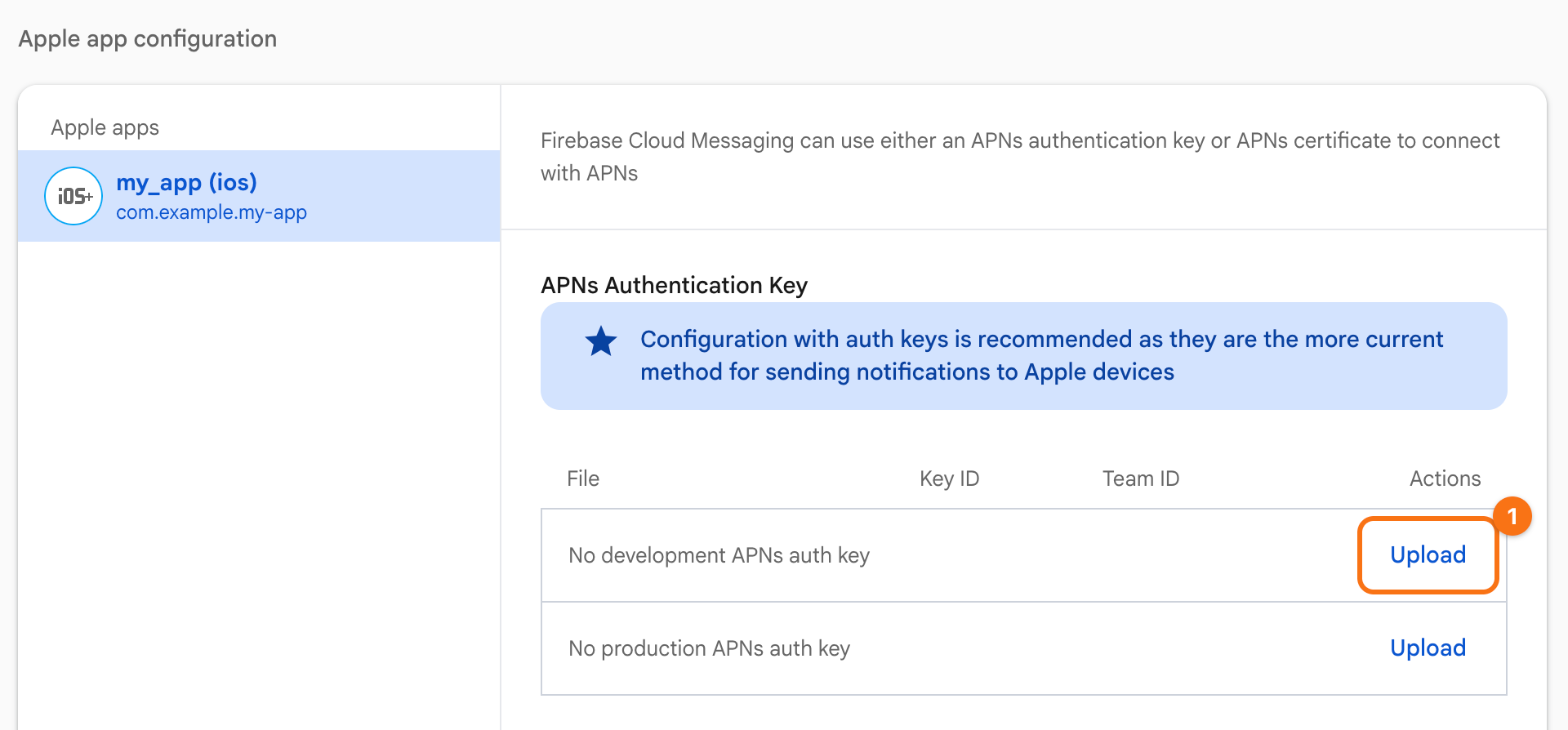
5. Upload the key. Click Browse (1) and choose the .p8 file, or drag the file onto the dashed area. Enter the Key ID (2) and your Team ID (3), and click Upload (4).
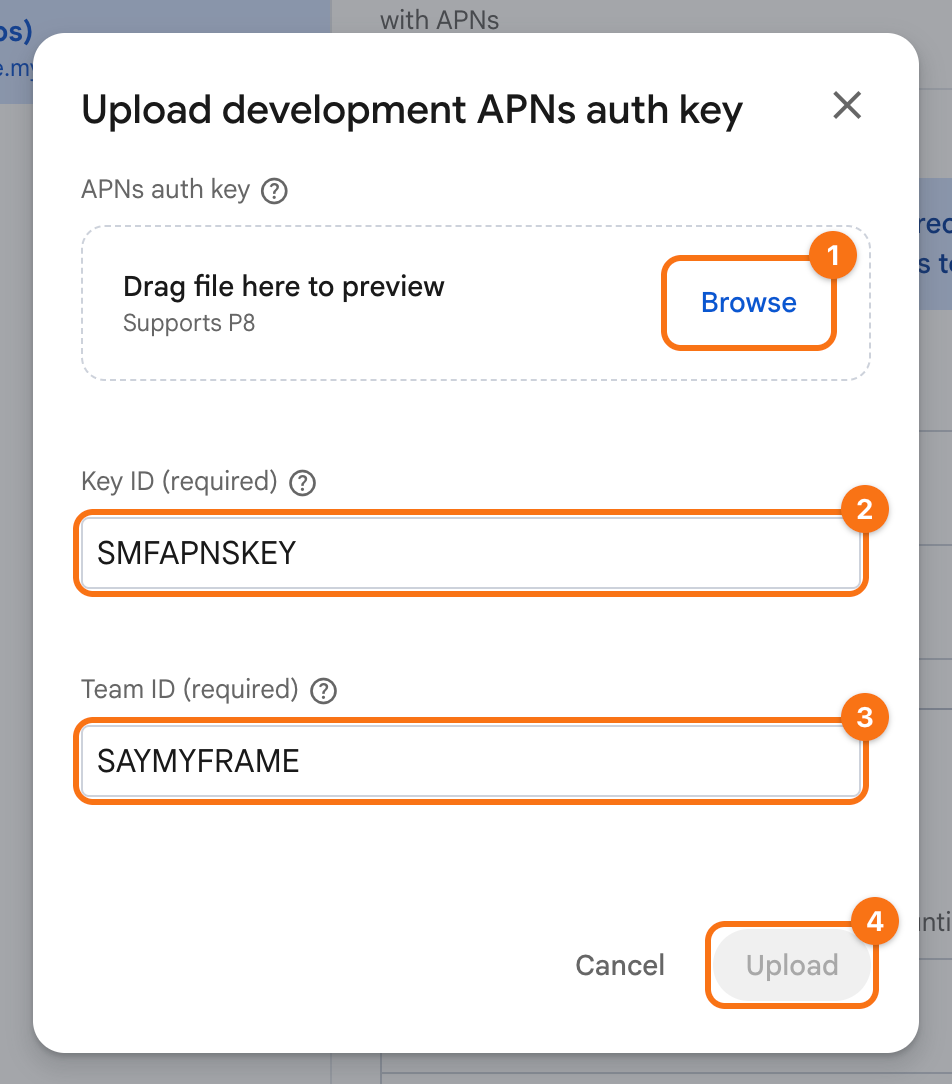
Do the same in the row No production APNs auth key, with the same file and the same ids.
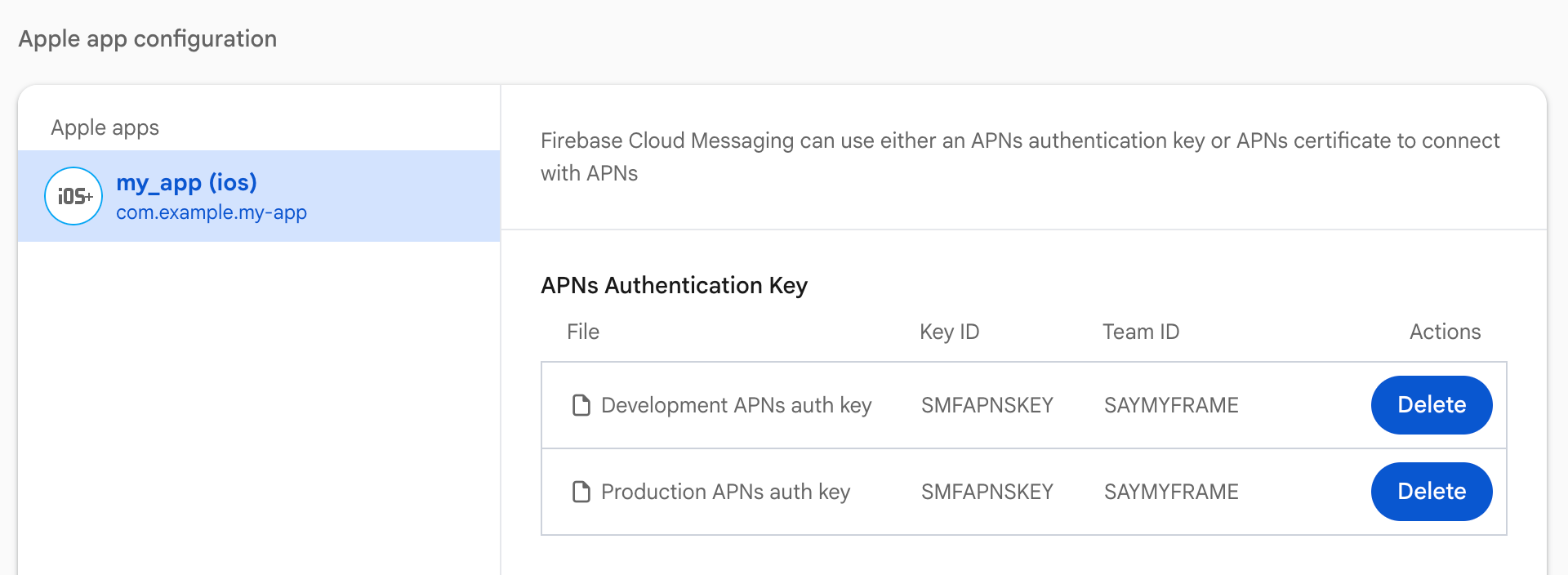
Check. Both rows now show the key with its Key ID and Team ID.
To see that it works, run the app on an iPhone, copy the address that it prints in debug mode, and send it a test message from Messaging in the Firebase console. A test message tells how.
The key reaches only the apps of its team. So the iOS app also needs an App ID of the same team with Push Notifications, which signing the app in Xcode gives it; see the step about the App ID.