Give Firebase your Sign in with Apple key, so that deleting an account works
firebase_authWhen a user who signs in with Apple deletes the account, the app revokes the tokens that Apple gave it, as the App Store asks of every app with Sign in with Apple (App Store Review Guideline 5.1.1(v)). Firebase revokes them with a key for Sign in with Apple and a Services ID of your team. Until you give Firebase both, deleting such an account fails with the reason notConfigured, and the account stays. Firebase then answers Code flow is not enabled for Apple.
You make a key and a Services ID in your Apple Developer account, then enter both in the settings of the Apple provider in Firebase. Turn on the Apple provider first; see the step about it.
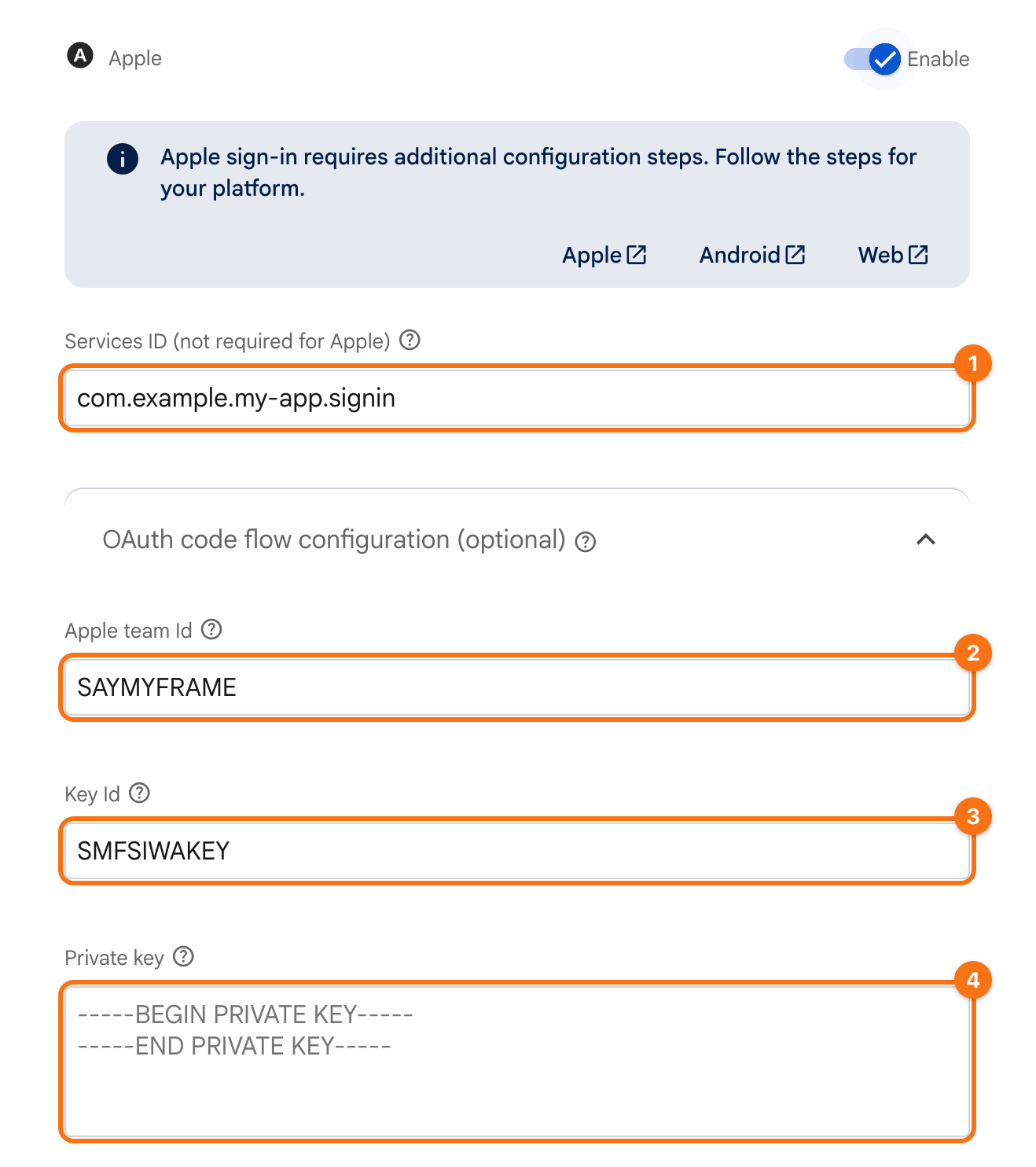
The screenshots use example values: the Team ID SAYMYFRAME, the Key ID SMFSIWAKEY, the bundle id com.example.my-app, the Services ID com.example.my-app.signin and the Firebase project my-app-12345. Your Team ID is under Membership details in your Apple Developer account. The orange frames mark what to click or fill in, in the order of their numbers.
1. A key for Sign in with Apple
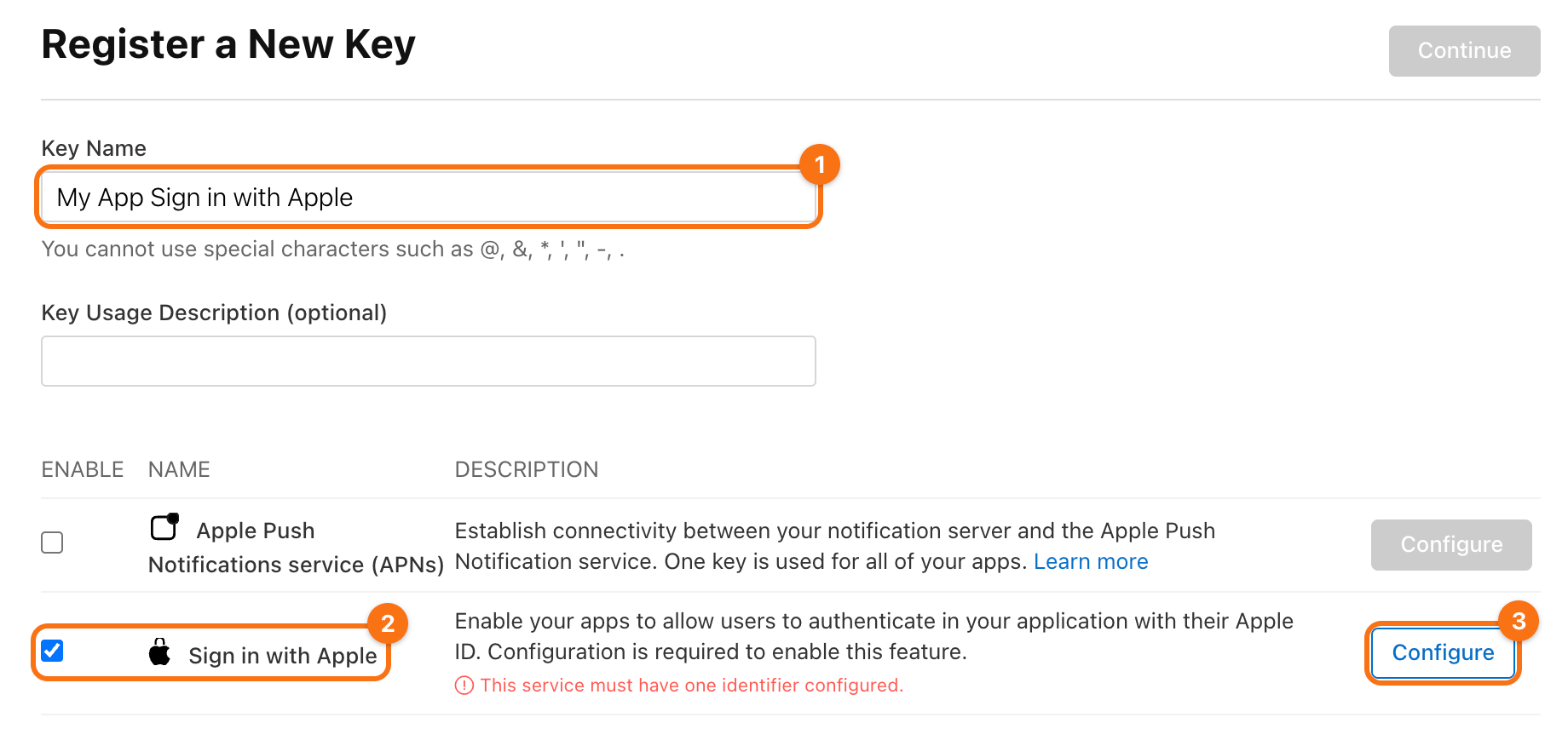
In your Apple Developer account, open Certificates, IDs & Profiles, then Keys, and click the + next to the title. Name the key (1), such as My App Sign in with Apple, check Sign in with Apple (2) and click Configure (3) in its row.
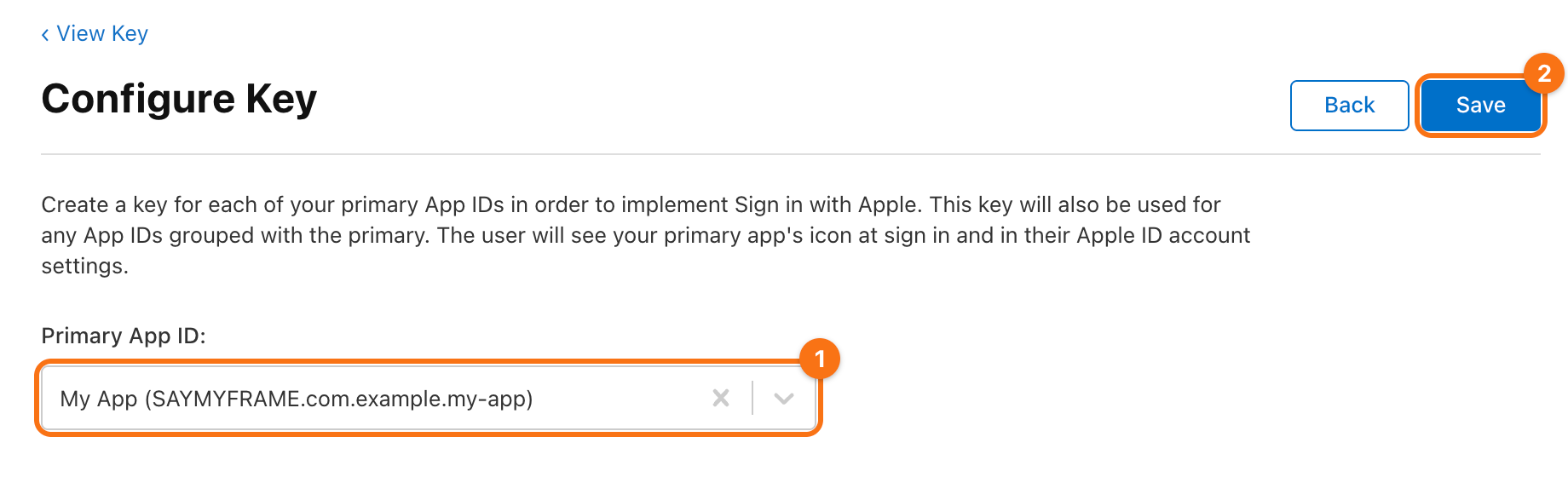
Choose the App ID of the app as the Primary App ID (1) and click Save (2).
Click Continue, then Register. On the page of the key, copy the Key ID and click Download for the .p8 file.
Apple lets you download the file only once. Keep it in a password manager. The private key in it is a secret: you paste it into the Firebase console yourself, and it never goes into the app or its repository.
2. A Services ID
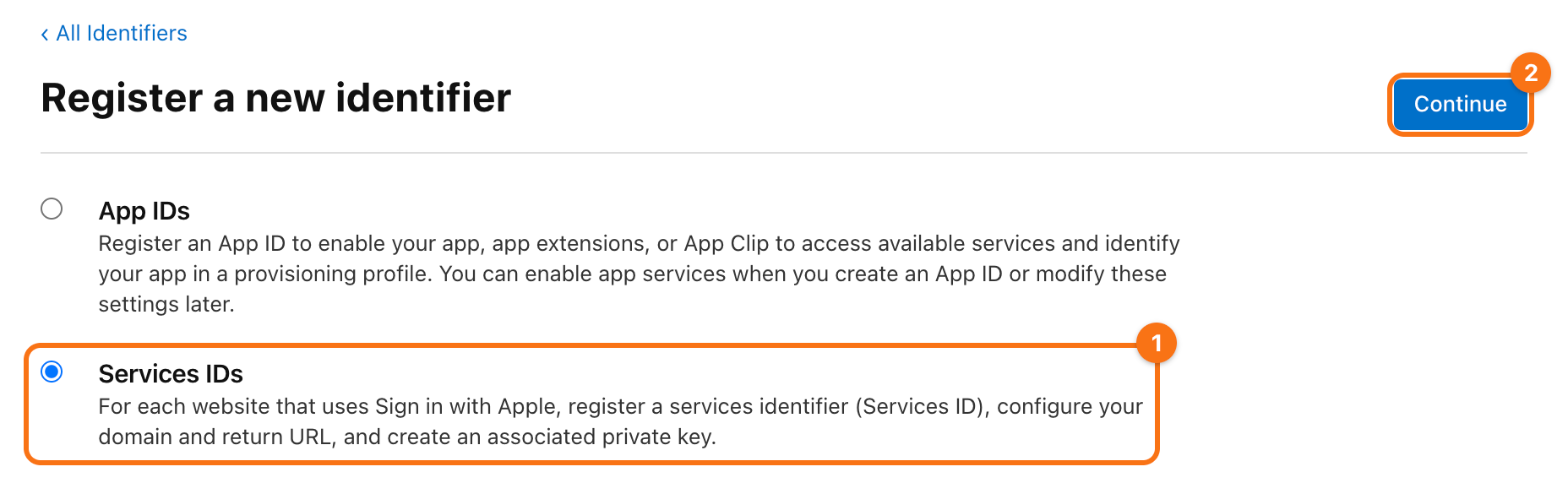
Open Identifiers and click the + next to the title. Choose Services IDs (1) and click Continue (2).
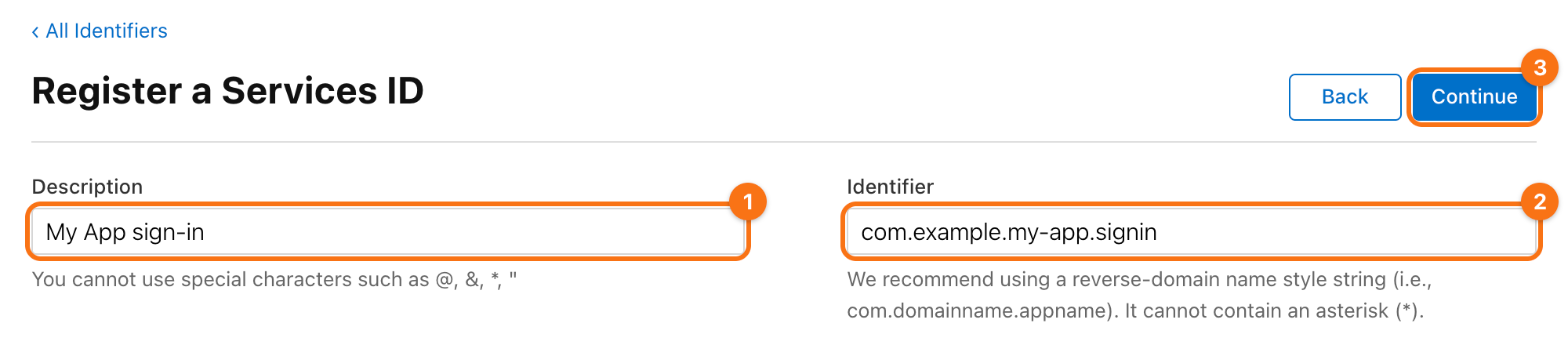
Enter a description (1), such as My App sign-in, and an identifier (2). The bundle id of the app with .signin at the end is a good choice; it cannot be the bundle id itself. Click Continue (3), then Register.
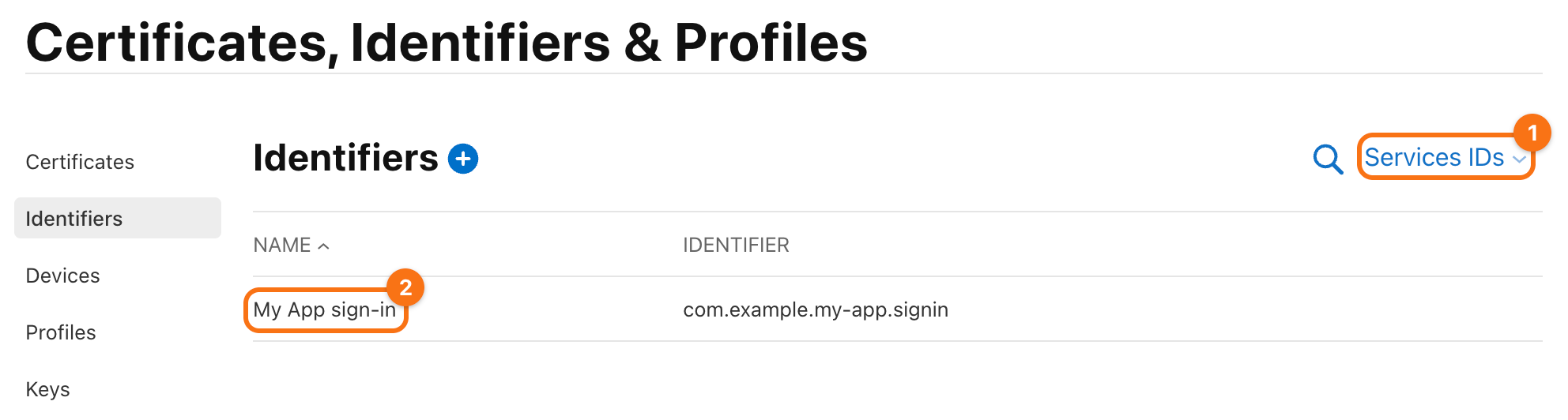
Switch the filter at the top right of the list from App IDs to Services IDs (1) and click the new Services ID (2).
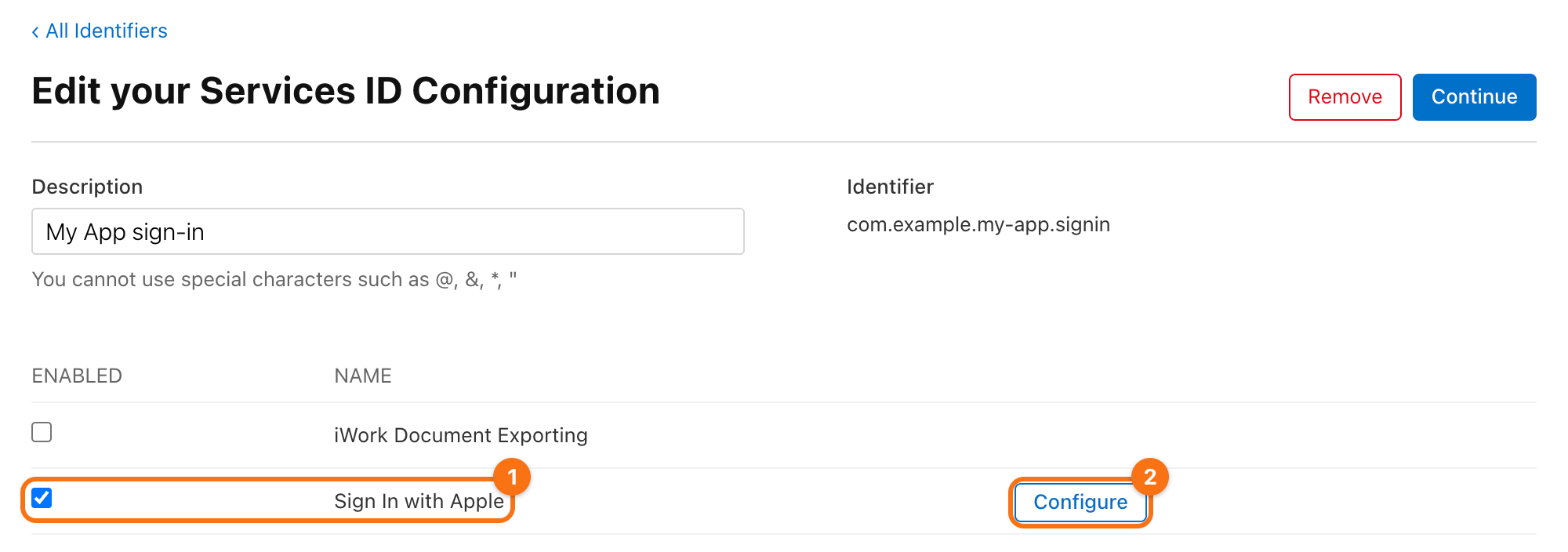
Check Sign In with Apple (1) and click Configure (2).
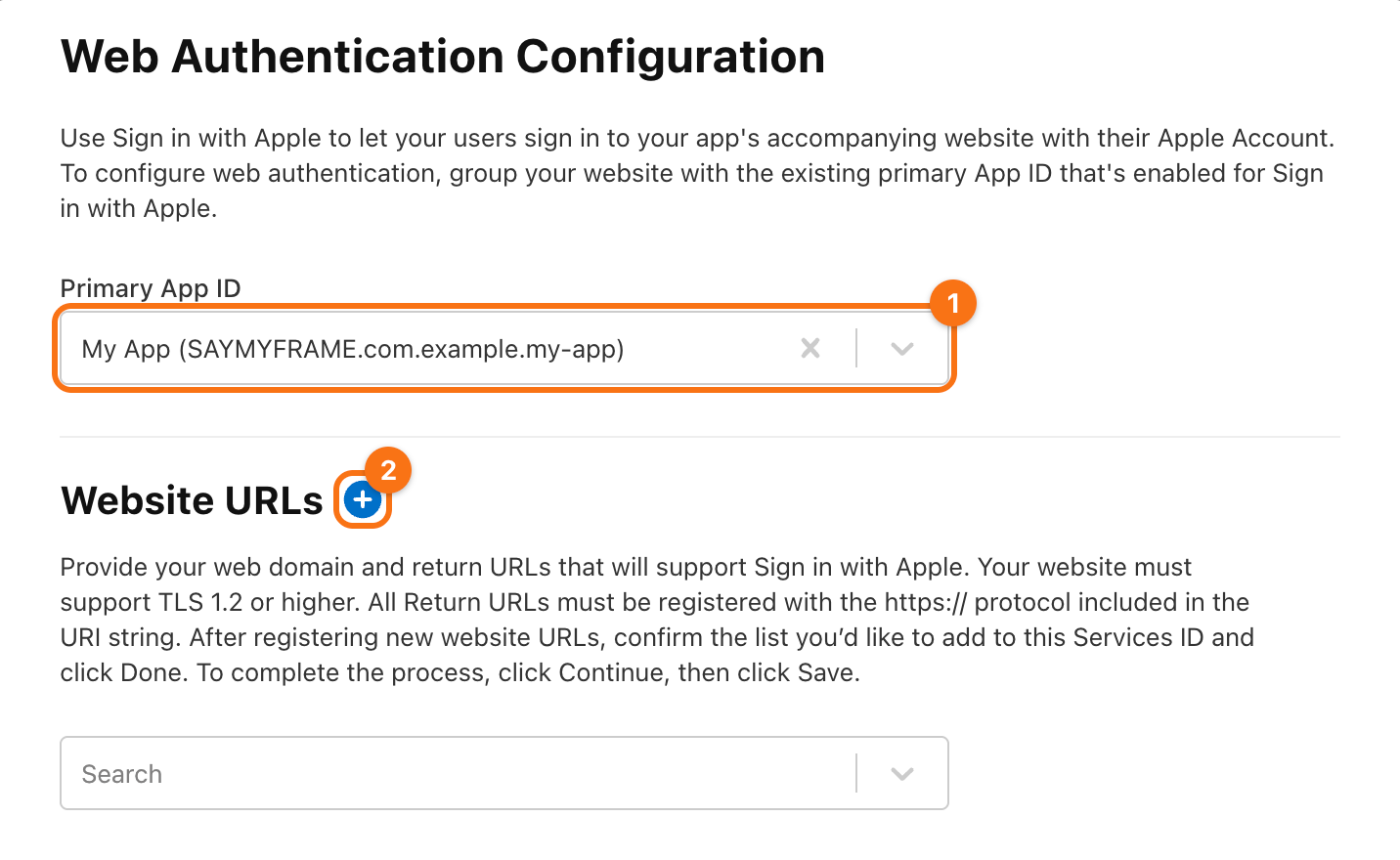
Choose the App ID of the app as the Primary App ID (1), then click the + next to Website URLs (2).
Enter the domain (1) and the return URL (2) of your Firebase project, with the id of your project in place of my-app-12345:
- Domains and Subdomains:
my-app-12345.firebaseapp.com - Return URLs:
https://my-app-12345.firebaseapp.com/__/auth/handler
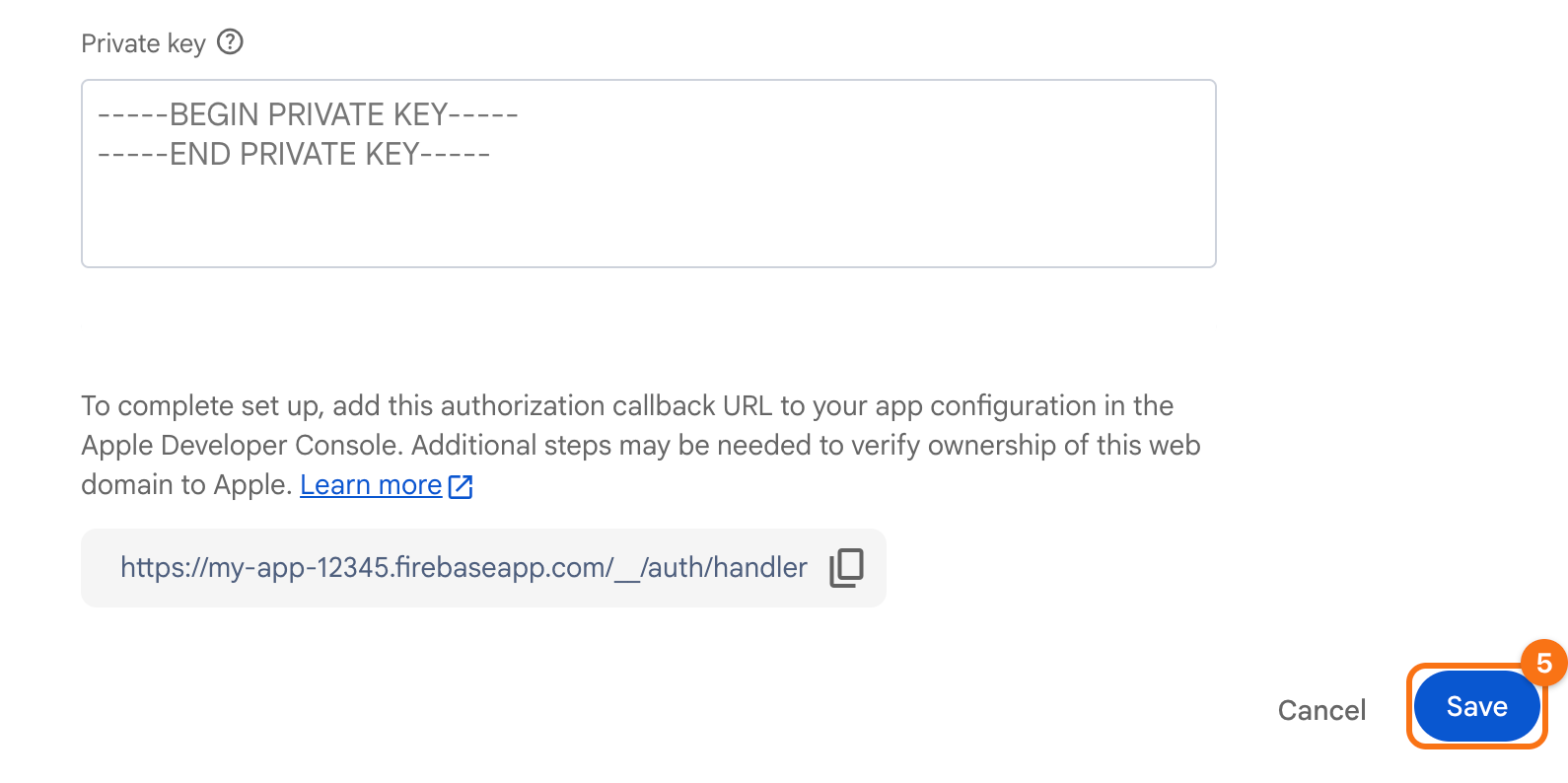
The settings of the Apple provider in Firebase show this return URL too, with a button that copies it.
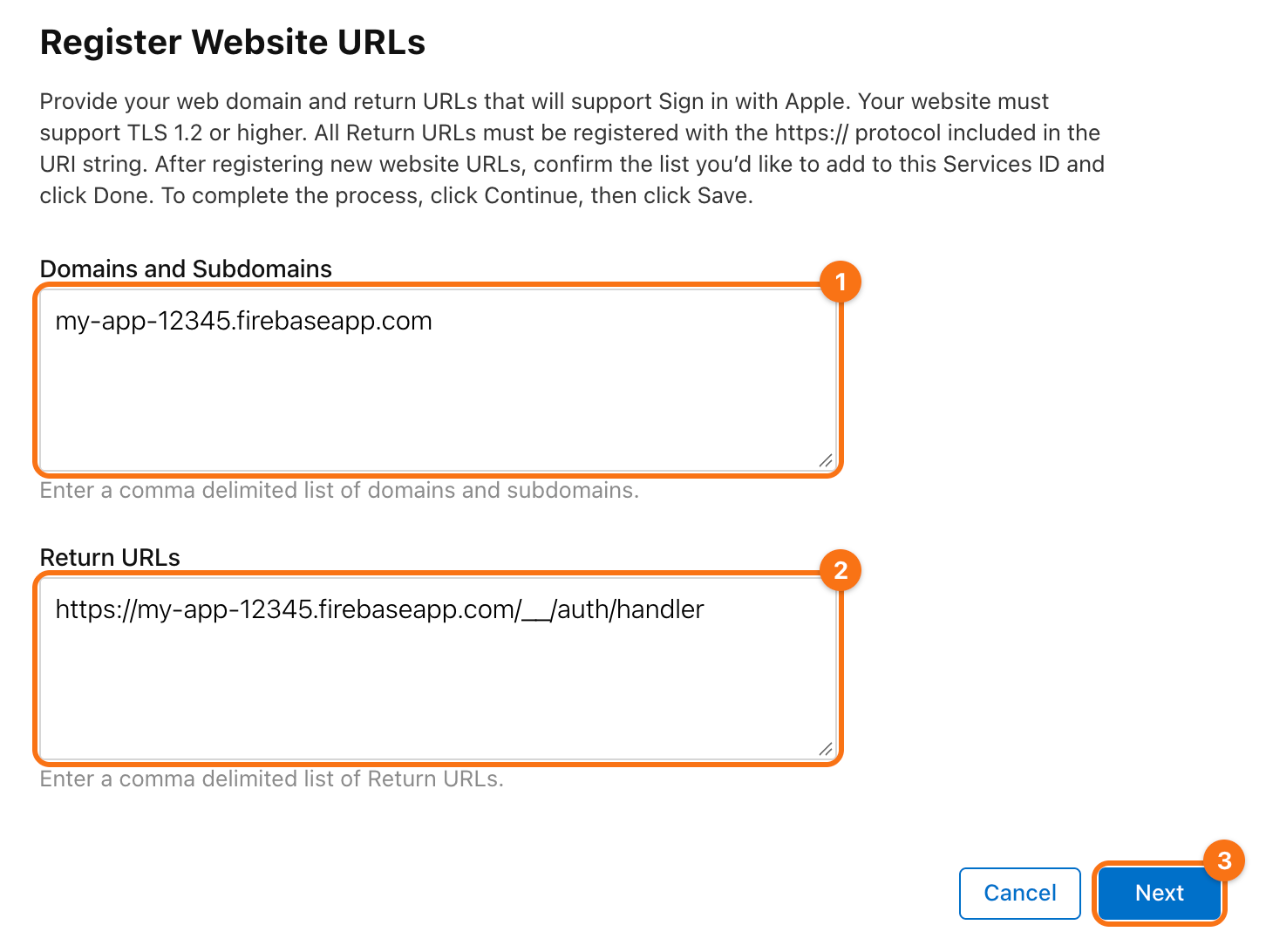
Click Next (3), then Done, then Continue, and Save.
3. Both in Firebase
In the Firebase console, open Authentication, the tab Sign-in method, and click Apple in the list of providers. Open OAuth code flow configuration, then fill in:
- Services ID: the identifier from part 2, such as
com.example.my-app.signin. - Apple team ID: your Team ID.
- Key ID: the Key ID from part 1.
- Private key: open the
.p8file in a text editor and paste all of it, from-----BEGIN PRIVATE KEY-----to-----END PRIVATE KEY-----.
Then click Save (5). The return URL that part 2 gives Apple is the one under the fields, which the button next to it copies.
Check. Sign in with Apple in the app, then delete the account on the screen of the account. The app deletes the account and returns to the sign-in, and the user is gone from the tab Users of Authentication.