onboarding
| Package | Kind | Provides the role | Needs | Choose with |
|---|---|---|---|---|
smf_onboarding | feature | none | a router, preferences | -m onboarding |
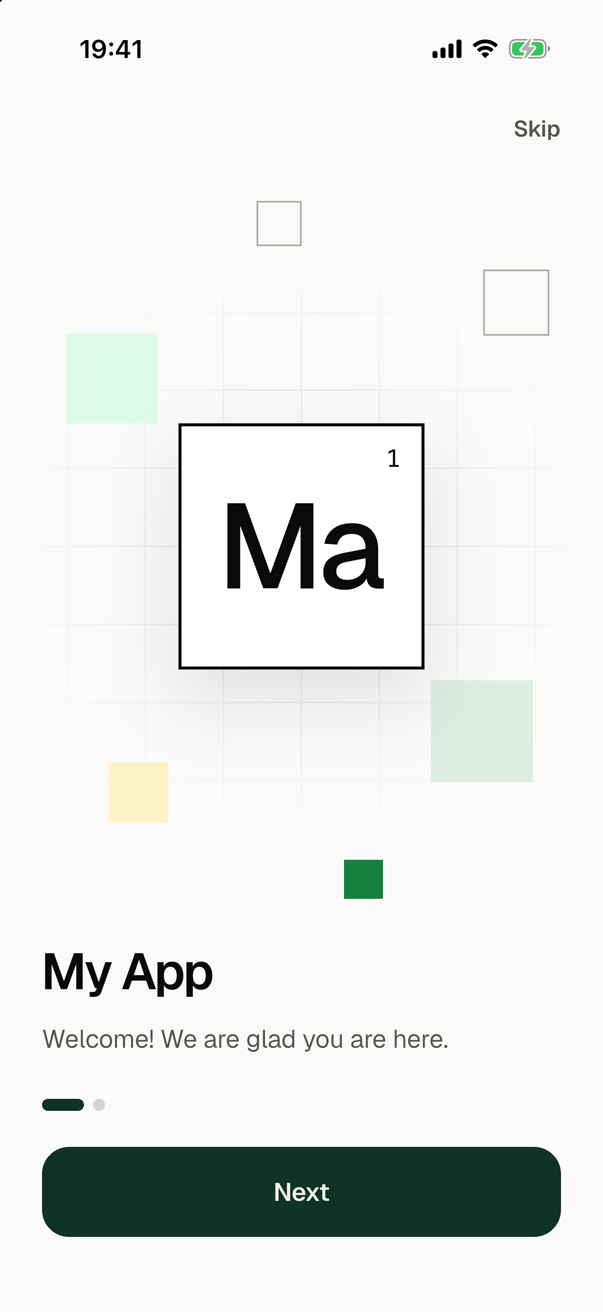
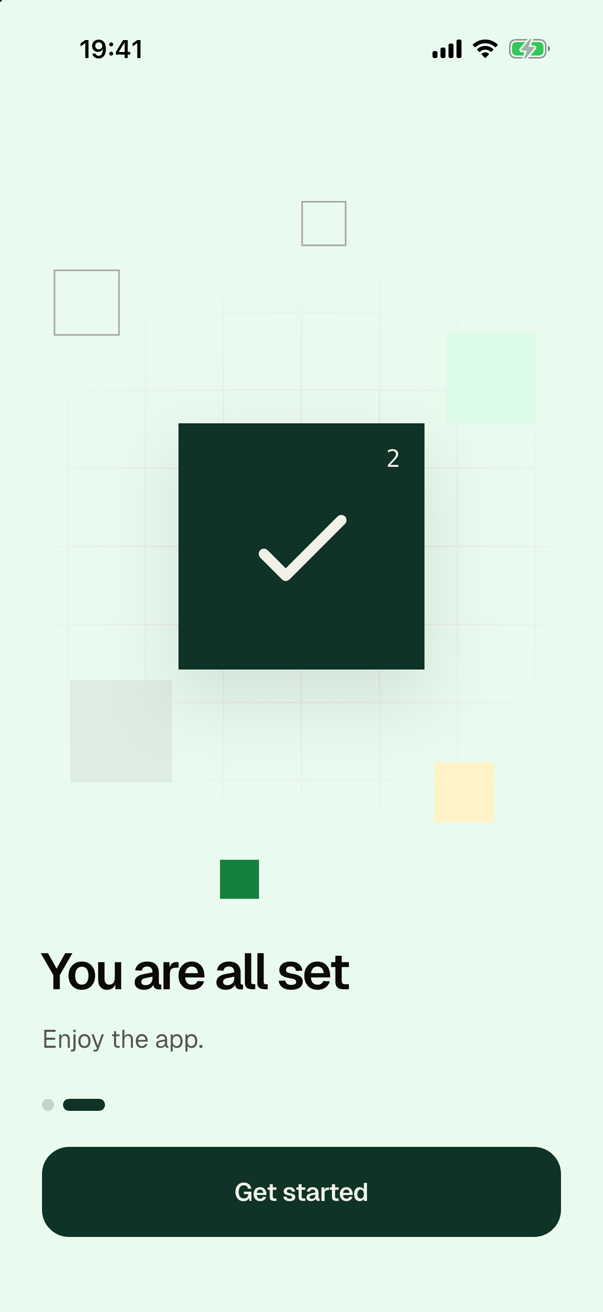
On its first launch, the app shows the onboarding in place of every other screen. It has two pages: a welcome with the name of the app, and a page that ends it. A page is a picture with a title and a text below it. The picture is a cell of the periodic table among smaller cells, over a grid that fades at its edges.
Skip is above the pages. Below them are a mark for each page and one button of the whole width: Next, and Get started on the last page, where Skip is gone. Skip and Get started finish the onboarding. The app then shows the screen that it starts on, and later launches open there.
What it adds to the app
Three files in lib/features/onboarding/:
| File | What it holds |
|---|---|
onboarding_screen.dart | OnboardingScreen, which shows the pages one at a time, with Skip, the marks and the button around them. |
onboarding_pages.dart | The pages: the list that onboardingPages() returns, the widget OnboardingPage, and OnboardingPageScope, which tells a page how far the pages are turned. |
onboarding_status.dart | onboardingStatus, which knows whether the user has finished the onboarding. |
The module gives the roles of the app what they need to run the onboarding:
| Role | What the module gives it |
|---|---|
| Router | The route onboarding.onboarding at /onboarding, and the guard onboarding.firstRun, which keeps the user in the onboarding until it is finished. |
| Preferences | The restorer restoreOnboarding, which reads before the first frame whether the onboarding is finished. The key is onboarding.completed. |
| Localization | Its six texts, in English and in Ukrainian. In an app without a module that provides the localization, the screen shows them in English. |
The module adds no package and no asset to the app: the picture of a page is drawn in code. The page that the user sees is the state of a PageController in the screen, so the onboarding works with any module that manages state, or with none.
In the guide for coding agents of the app, the module writes the section "Onboarding": that no code navigates to the onboarding or away from it, where its pages are and what the screen keeps around them, that the animations of a page end, how code finishes the onboarding and starts it again, and what a test of another screen does first.
What the screen shows
The cell of the first page has the symbol of the app, as an element has one. smf create makes it from the name of the app: the first letter of its first word and the first letter of its second word, Ma for my_app, or the first two letters of a name of one word, No for notes. The cell of the last page has an icon on the primary color. The number in the corner of a cell is the place of its page.
| Colors and fonts | The screen takes its colors and its text styles from the theme of the app, in its light and in its dark mode, so it follows a theme of your own. It names no font but the monospaced one of the device, for the number in a cell. |
| Motion | When a page is first shown, its cells come in one after another. While the pages turn, by a swipe or by Next, the cells move at different speeds, the texts fade, the background blends into the color of the last page, and the marks follow. Each of these animations ends, so a widget test that waits for the screen with pumpAndSettle() returns. |
| Less motion | On a device that asks for less motion, the cells are there at once, and Next shows the next page without the turn. |
| Large text | A page scrolls when it is too small for what it shows, as with a large text size on a small phone, and the buttons grow with their texts. The letters and the number in a cell keep their size, since they are part of the picture. |
| Screen readers | A screen reader announces the title of each page as a header and passes over the picture and the marks. |
The screen never navigates
onboarding is a feature with a guard of routes. While it is not finished, the router shows /onboarding in place of every other location: the one the app starts on, a link from the platform, and each go(), push() and replace(). So nothing navigates to the onboarding, and the screen navigates nowhere. Skip and Get started only change what the guard reads. This is the button below the pages:
                      FilledButton(
                        onPressed: isLast ? onboardingStatus.complete : _next,
                        child: AnimatedSwitcher(
                          duration: fade,
                          child: Text(
                            isLast ? 'Get started' : 'Next',
                            key: ValueKey(isLast),
                          ),
                        ),
                      ),
Once the onboarding is finished, the router leaves it for the location that the user asked for, or for the screen that the app starts on.
Nothing is saved before the user finishes. An app that is closed in the middle of the onboarding starts it from its first page the next time.
Finish it and start it again
onboardingStatus in onboarding_status.dart is the one status of the app:
onboardingStatus.completed | A ValueListenable<bool>: whether the user has finished the onboarding. |
onboardingStatus.complete() | Finishes the onboarding at once and saves that. The router leaves the onboarding. |
onboardingStatus.restart() | Starts the onboarding again at once and saves that. The router shows it in place of the screen that the user is on. |
To show the onboarding again, call restart() where the user asks for it, such as in the handler of a tap on a row of the settings, and navigate nowhere:
onPressed: onboardingStatus.restart,
Once the user finishes the onboarding again, they are back on the screen that they were on. From a page pushed over another screen, they come back to the screen below the pushed pages.
Do not navigate to /onboarding to show it: the guard decides when the app shows the onboarding. If something else shows its screen, such as a link to the route, the onboarding starts again too, as restart() has it.
Call both functions outside the build of a frame, such as in the handler of a tap, because the router navigates when the status changes. The future of each completes once the status is saved. If the preferences fail to save it, the future completes with their error. The app has left or shown the onboarding by then, and its next launch has what was saved before.
Replace the pages
The pages are a list in onboarding_pages.dart, in the order the user goes through them. To add, remove or reorder a page, change that list. The screen keeps what is around the pages: Skip, a mark for each page, and the button, which is Get started on the last page of the list. This list has a page of its own between the two of the module:
List<Widget> onboardingPages(BuildContext context) => [
  OnboardingPage(
    symbol: 'Ma',
    title: 'My App',
    text: 'Welcome! We are glad you are here.',
  ),
  OnboardingPage(
    icon: Icons.notifications_outlined,
    title: 'Stay in the loop',
    text: 'We tell you when something new arrives.',
  ),
  OnboardingPage(
    icon: Icons.check_rounded,
    title: 'You are all set',
    text: 'Enjoy the app.',
  ),
];
A page is any widget. OnboardingPage is the one of the module. It takes a title, a text, and a symbol or an icon for its cell: letters in an outlined cell, or an icon in a cell of the primary color. On every other page the smaller cells are on the other side, so two pages in a row do not look the same.
- In an app with a module that provides the localization, the pages read their texts as
context.l10n.onboardingWelcomeand so on, from the texts of the app. Add the texts of your pages there too; see Languages. The label of the button on the last page is the textonboardingDone. - A screen reader announces the title of an
OnboardingPageas a header, since the page wraps it inSemantics(header: true). Do the same for the title of a page of your own. - Let every animation of a page of your own end. A widget test that waits for the app to settle with
pumpAndSettle()never returns on a screen that animates without end.
A page that moves with the pages
The screen puts an OnboardingPageScope around each page. Its turned tells how far the pages are turned away from the page: zero while the page is the one on the screen, up to one once the user has turned on to the next page, and down to minus one before the user has reached it. Its controller is the PageController of the pages, which notifies while they turn. OnboardingPage builds itself from the two, and a page of your own can do the same:
Widget build(BuildContext context) {
final scope = OnboardingPageScope.maybeOf(context);
if (scope == null) return _build(context, turned: 0, index: 0);
return AnimatedBuilder(
animation: scope.controller,
builder: (context, _) =>
_build(context, turned: scope.turned, index: scope.index),
);
}
maybeOf returns null for a page that is shown outside the screen of the onboarding, as in a widget test of the page alone.
See the pages again
The app shows the onboarding once for each install. To see it again while you edit the pages, clear the data of the app or install it anew. You can also call onboardingStatus.restart() in main() after bootstrap(), and take the call out once the pages are done. Before bootstrap() the call has no lasting effect, because the start-up takes what the preferences have saved.
In tests
A test that starts the app to look at another screen finishes the onboarding before the app starts. Otherwise it sees the onboarding:
SharedPreferencesAsyncPlatform.instance =
    InMemorySharedPreferencesAsync.empty();
await onboardingStatus.complete();
await tester.runAsync(app.main);
Before the app opened its preferences, complete() changes only memory and saves nothing. The first statement puts the preferences of shared_preferences into memory, which every test that starts such an app needs; see shared_preferences.
Choosing it
smf create asks which features the app has. To choose this one without the question, here with a start screen:
smf create my_app -m home,onboarding
The feature requires a router and preferences, and smf create adds each when only one module provides it:
Adding flutter_core: the only provider of the app entry role, which every app needs.
Adding go_router: the only provider of the router role, which home requires.
Adding shared_preferences: the only provider of the preferences role, which onboarding requires.