sign_in
| Package | Kind | Provides the role | Needs | Choose with |
|---|---|---|---|---|
smf_sign_in | feature | none | a router, sign-in, a settings screen, a state manager | -m sign_in |
sign_in is the screens of sign-in. On three of them a user signs in to an account with an email address and a password, creates an account, and asks for the message that resets a password. The fourth is the screen of the account, where the user signs out or deletes the account, and the settings screen gets an entry that leads to it.
The module keeps no accounts. It requires a module that provides sign-in, such as firebase_auth, and reaches it only through appSession, the session of the app. So the screens are the same whichever module that is. Sign-in describes the session and the sign-in mode of the app.
The screens
| Screen | Path | What it has |
|---|---|---|
| Sign-in | /sign_in | A field for the email address and one for the password, Forgot password?, the button Sign in, and Create account. |
| Sign-up | /sign_in/sign_up | The same two fields for a new account, the button Create account, and I already have an account. The device may suggest a password and offer to keep it. |
| Password reset | /sign_in/reset_password | A field for the email address of an account, and the button Send link. Once the message is sent, the screen shows the address that it went to. It says the same whether the address has an account or not, so nobody learns from the app which addresses have one. |
The sign-up and the password reset are routes below the sign-in, so each shows over it and its back button leads there.
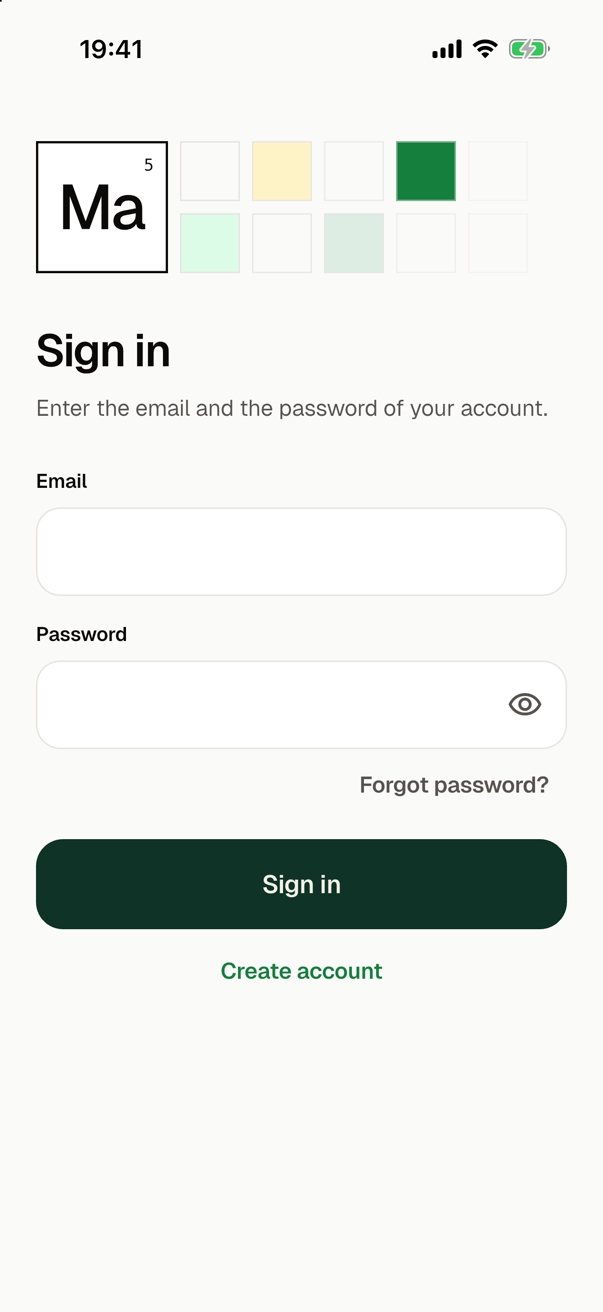
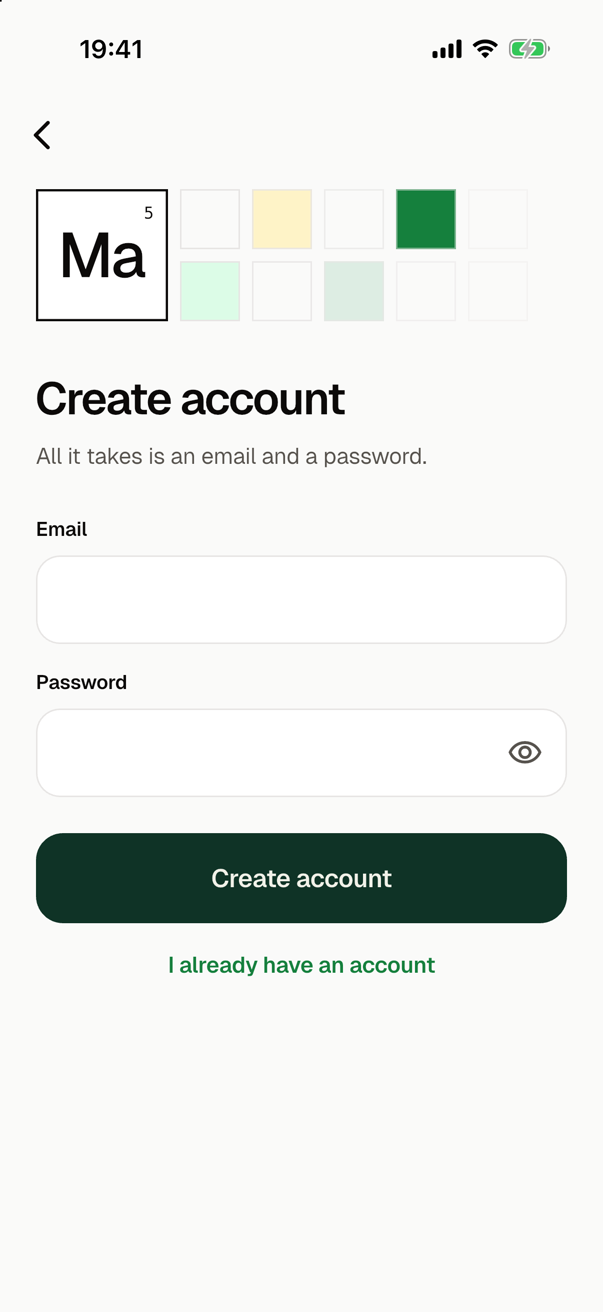
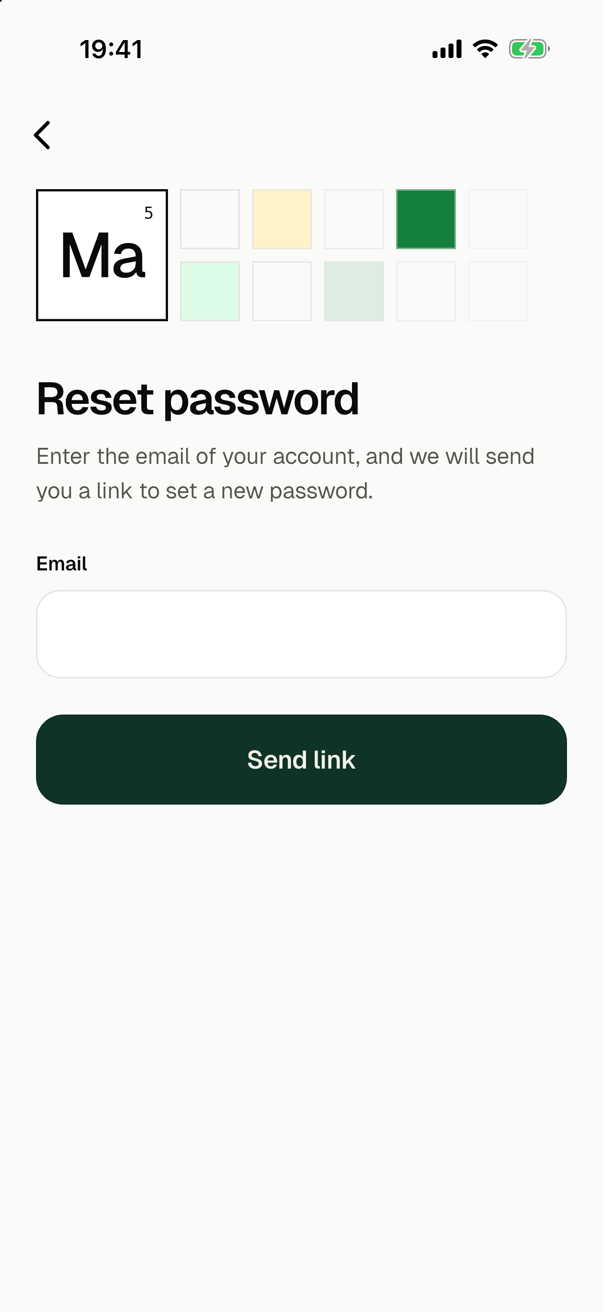
Each screen shows the cell of the app, with the symbol that SMF makes from its name, Ma for my_app, next to the cells of a table that light up one after another. Below it are a title, a line of text and the form. A field has its label above it, and the password field has a button that shows the password. The button that submits is as wide as the form.
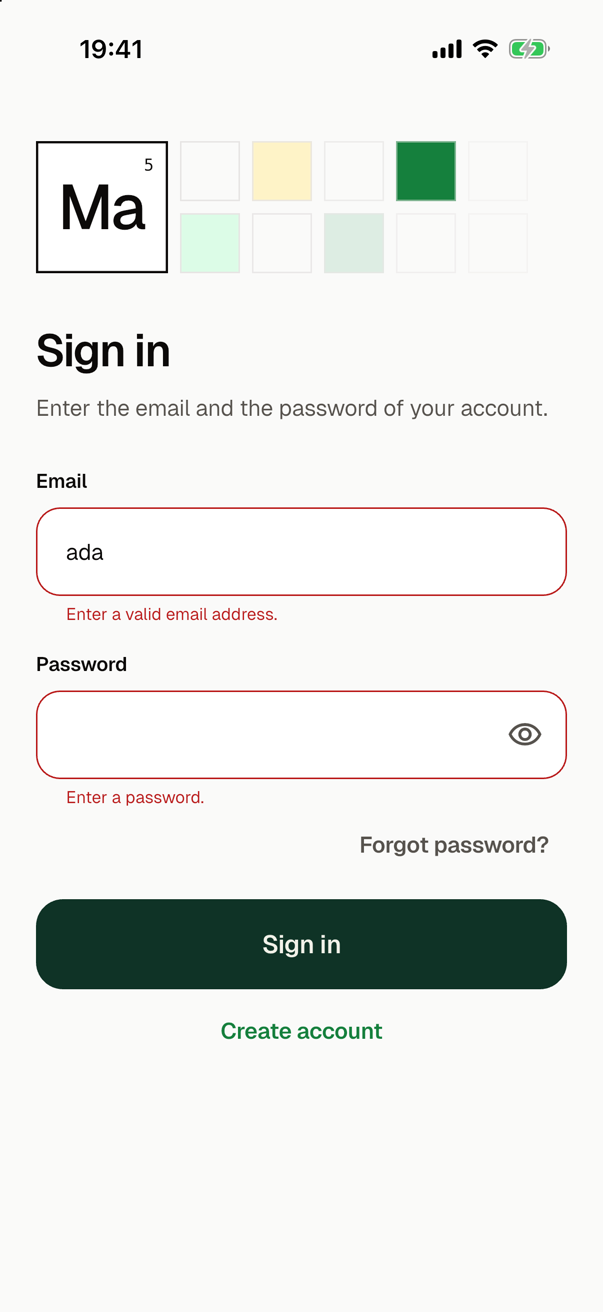
| While a call is on its way | The button that submits spins, and the form takes no input. A field takes no typing, though one that has the focus keeps it, and the actions of the screen take neither a tap nor a key. |
| A failure | It shows above the button, in a text of its own for each reason, such as a wrong password or no connection. |
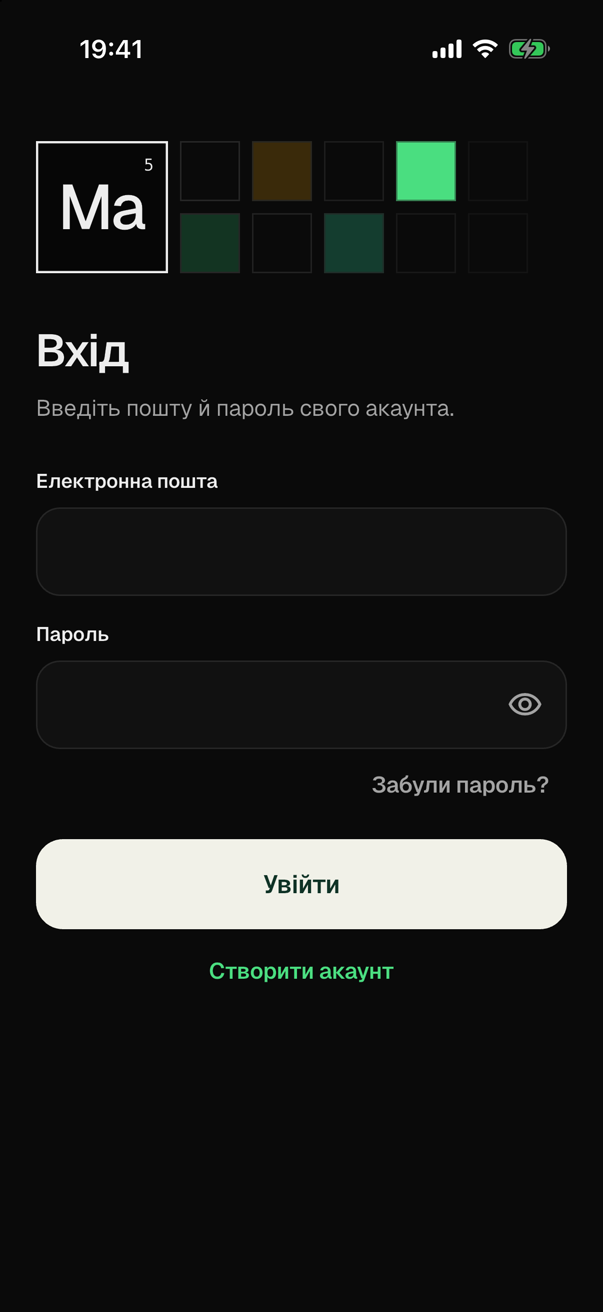
| Colors and fonts | The fields, the buttons and the cards are those of the theme of the app, in its light and in its dark mode. The screens give a field no color, border or padding of their own, so for another look of the fields, change the theme. The cells of the picture take their colors from the theme too. |
| The second way on | The action that leads to the other screen, Create account on the sign-in and I already have an account on the sign-up, is a text button of the theme in the accent of the color scheme, colorScheme.secondary. |
| Motion | The parts of a screen rise in one after another, once. On a device that asks for less motion they are there at once, and a busy button is disabled and keeps its label. |
| Large text | A screen scrolls when it is too small for what it shows, as with the keyboard open or with a large text size on a small phone. A title grows only by half. A title and the label of a button break between their words and never inside one. The letters in the cell keep their size, since they are part of a picture. |
| Screen readers | A screen reader announces the title as a header, each field by its label, and a failure when it appears. |
The account
The screen of the account is at /sign_in/account. It shows the email address of the account that the user is signed in to, the button Sign out, and the action Delete account.
Delete account is a text button in the color that the theme has for an error. It asks first, in a sheet over the page: the sheet says that the deletion cannot be undone, and has the buttons Delete and Cancel. The screen closes the sheet before it deletes the account. A provider of sign-in may refuse to delete an account whose user signed in long ago. The screen then stays, with a text that tells the user to sign out and sign in again.
The settings screen of the app has an entry for the account, a row with the title Account. Below the title it shows the email address of the account, or Not signed in. A tap on it opens the screen of the account over the settings screen.
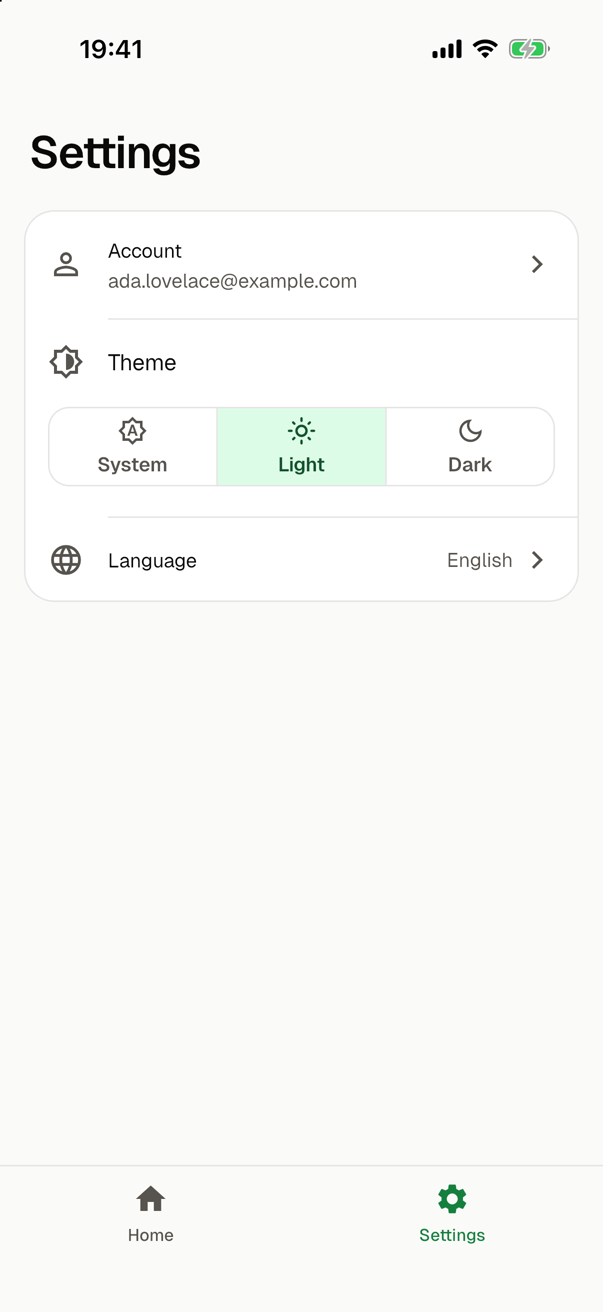
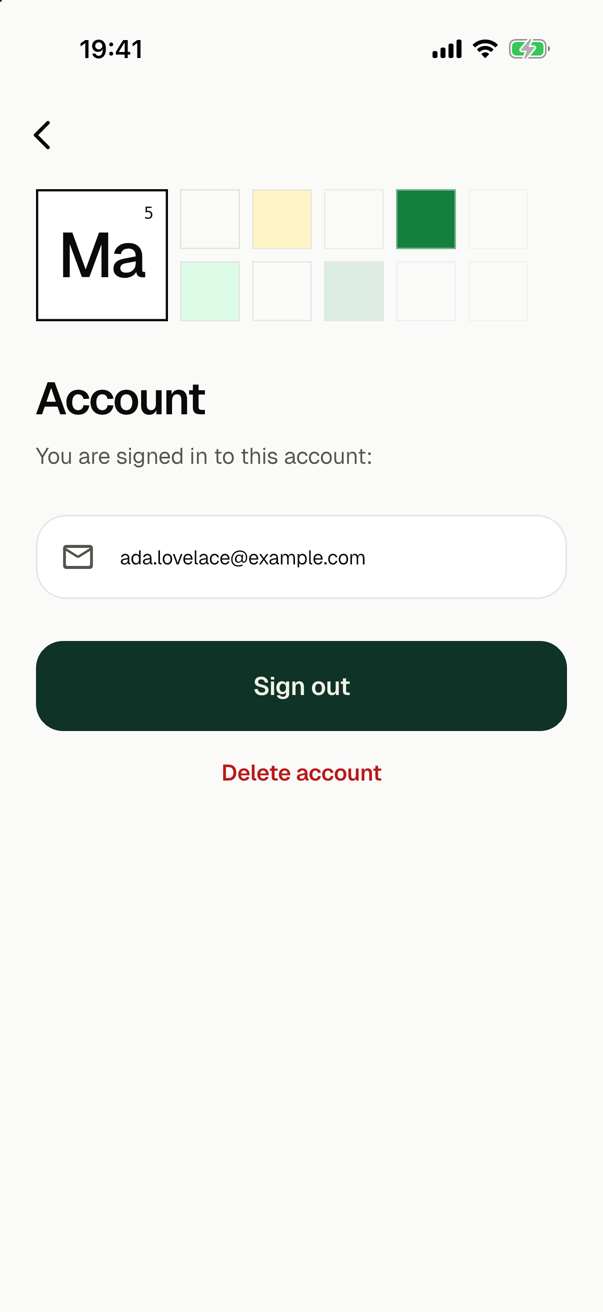
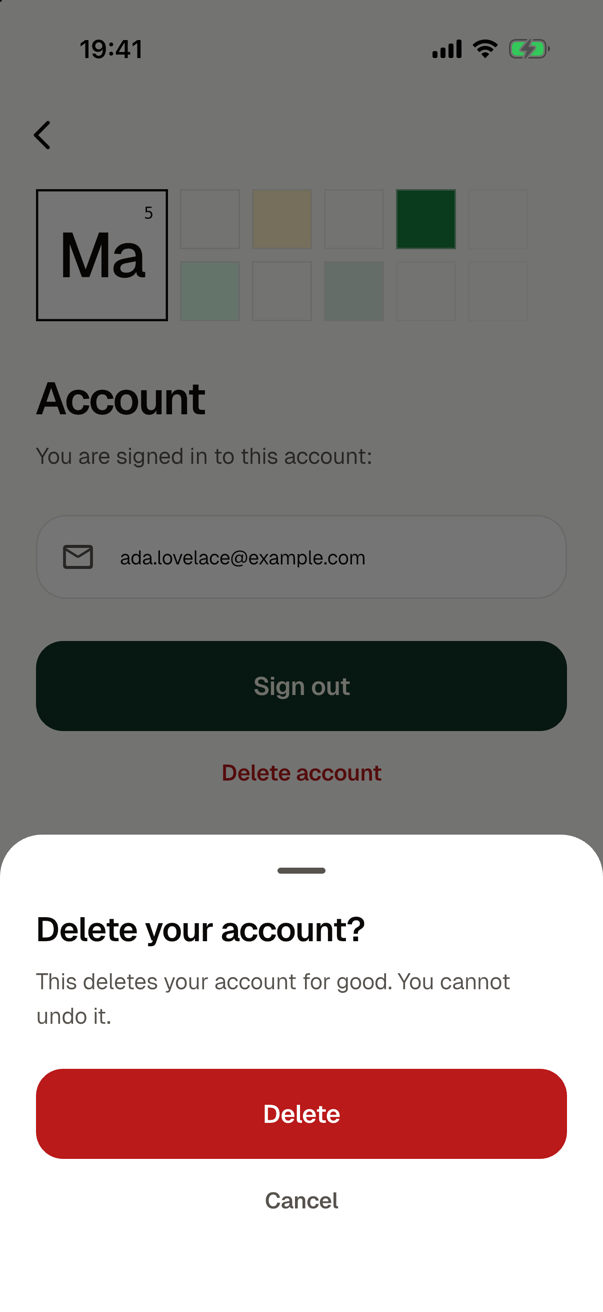
The route of that screen needs an account. So for a user without one, in an app that everyone may use, the router opens the sign-in over the settings screen first, and shows the screen of the account once the user is signed in. In an app that signs in anonymous users, such a user creates the account on the sign-up and keeps everything that the anonymous user had.
Where the entry is within reach
The entry is within reach where the settings screen is. A module that provides the main navigation of the app, such as bottom_tabs, shows the settings screen among its destinations. In an app without a main navigation, no screen leads to the settings screen, and smf create warns of that unless the app starts on it. A screen of yours then opens it, or opens the account directly:
context.nav.settings.settings().push<void>()
context.nav.signIn.account().push<void>()
What shows the screens
The screens neither close themselves nor navigate once the user is signed in or out. The module declares two guards of the routes, and the router shows the sign-in and leaves it by what they say. These are the guards of an app with the module, as the router role lists them:
final List<RouteGuard> routeGuards = [
  RouteGuard(
    'sign_in.gate',
    allows: guard0.signInAllowsApp(),
    redirectTo: const SignInSignInLocation(),
    flow: const {'sign_in.signIn', 'sign_in.signUp', 'sign_in.resetPassword'},
    resumes: false,
  ),
  RouteGuard(
    'sign_in.hasAccount',
    allows: guard0.signInHasAccount(),
    redirectTo: const SignInSignInLocation(),
    flow: const {'sign_in.signIn', 'sign_in.signUp', 'sign_in.resetPassword'},
    resumes: false,
    routes: const {'sign_in.account'},
  ),
];
| Guard | What it reads | What the router does while it does not allow |
|---|---|---|
sign_in.gate | appSession.allowsApp | It shows the sign-in in place of every other screen. |
sign_in.hasAccount | appSession.hasAccount | For a request for a route that needs an account, such as the screen of the account, it opens the sign-in over the page that the user is on. The rest of the app stays open, and back returns to that page. |
Which of the two keeps a user out is up to the sign-in mode of the app, which smf create asks for. The code of the module is the same in every mode.
| Mode | What the user sees |
|---|---|
required | The sign-in in place of every screen, until the user is signed in to an account. After a sign-out, the sign-in again. |
guest, anonymous | The app. The sign-in opens over a page when the user asks for a route that needs an account, or when a screen of the app opens it. After a sign-out on the screen of the account, the router closes that page and the user is on the page below it. |
- Once the user is signed in to an account, both guards allow, and the router leaves the sign-in. From then on a navigation to one of the three routes, such as a link, shows the screen that the app starts on.
- After a sign-out in an app that needs an account, the next user starts on the screen that the app starts on, wherever the last user was. Neither guard brings the user back.
- Both guards have the stage
identity. In an app with a guard of a first launch, such as that ofonboarding, that one comes first, whichever order the modules were named in. - A link to one of the three routes shows its screen while the user has no account. In an app that everyone may use, the router shows that screen over the screen that the app starts on, so that back leads into the app.
In an app that everyone may use, a screen of yours may also offer to sign in. Open the sign-in with push(), so that back leads back:
context.nav.signIn.signIn().push<void>()
In an app that needs an account, no code navigates to the sign-in: the gate shows it.
What it adds to the app
The module generates its files in lib/features/sign_in/. The look of the screens is the same in every app:
| File | What it holds |
|---|---|
sign_in_view.dart, sign_up_view.dart, reset_password_view.dart | SignInView, SignUpView and ResetPasswordView. A view is a plain Flutter widget: it keeps its form, gets the state of its call, and takes callbacks for what the user asks for. |
account_view.dart | AccountView, the look of the screen of the account, and confirmDeleteAccount(), which asks in the sheet. |
account_setting_row.dart | AccountSettingRow, the row of the entry on the settings screen. |
sign_in_page.dart | AuthPage, the frame of a screen: the cell, the title, the line of text, and the entrance. |
sign_in_widgets.dart | The fields, the button that submits, OtherScreenAction for the way to the other screen, DestructiveAction for what cannot be undone, and FailureMessage. Also authFailureText(), which has a text for every reason of a failure, and WholeWords, the text of a title or of the label of a button, which keeps its words whole. |
sign_in_state.dart | AuthActionState, ResetPasswordState and AccountState, the values of the state of a screen. |
sign_in_guards.dart | signInAllowsApp() and signInHasAccount(), the functions of the two guards. |
What keeps the state of a screen depends on the module that manages state in the app, so the module has a variant for each:
With bloc | With riverpod | |
|---|---|---|
| The state of each screen | A cubit: SignInCubit, SignUpCubit, ResetPasswordCubit and AccountCubit, each in a file of its name, such as sign_in_cubit.dart. | A provider that lasts as long as its screen: signInProvider, signUpProvider, resetPasswordProvider and accountProvider, each with its Notifier in a file such as sign_in_notifier.dart. |
| Where the state gets the session | sign_in_composition.dart creates the cubits with appSession. | appSessionProvider in session_provider.dart. |
| Who uses the app, for a widget | SessionCubit in session_cubit.dart, which the module puts around the root of the app. | sessionProvider in session_provider.dart. |
| Two pages of one screen open at once | Each has a cubit of its own. | A provider is one for the app, so both show the same state. |
The screens are SignInScreen, SignUpScreen, ResetPasswordScreen and AccountScreen, in sign_in_screen.dart, sign_up_screen.dart, reset_password_screen.dart and account_screen.dart in both variants. AccountSetting in account_setting.dart is the entry of the settings screen.
The module gives the roles of the app what they need to show the screens:
| Role | What the module gives it |
|---|---|
| Router | The routes sign_in.signIn, sign_in.signUp and sign_in.resetPassword, the route sign_in.account, which asks for the condition AuthRole.account, and the two guards. None of the routes is a destination, and the app cannot start on them. |
| Settings screen | The entry AccountSetting. |
| Localization | Its 42 texts, in English and in Ukrainian. In an app without a module that provides the localization, the screens show them in English. |
| App entry | With bloc, the BlocProvider of the SessionCubit around the root of the app. |
The module adds the package of the state manager to the app, in the version that the module of that state manager asks for, and no other package. It registers nothing in a DI container and needs none.
In the guide for coding agents of the app, the module writes the section "Sign-in": where the screens are and what shows them, which files are the look and which the state, where a failure gets its text, what a widget test minds while a call is on its way, and, by the variant, where the state of a screen is.
Look and state
A screen only gives its view the state. This is the screen of the sign-in with bloc:
class SignInScreen extends StatelessWidget {
/// Creates the screen.
const SignInScreen({super.key});
Widget build(BuildContext context) => BlocProvider(
create: (_) => createSignInCubit(),
child: BlocBuilder<SignInCubit, AuthActionState>(
builder: (context, state) => SignInView(
busy: state.busy,
failure: state.failure,
onSubmit: (email, password) => context.read<SignInCubit>().signIn(
email: email,
password: password,
),
onCreateAccount: () => context.nav.signIn.signUp().push<void>(),
onForgotPassword: () => context.nav.signIn.resetPassword().push<void>(),
),
),
);
}
With riverpod, the same screen watches a provider, and SignInView and the other files of the look are the same:
class SignInScreen extends ConsumerWidget {
/// Creates the screen.
const SignInScreen({super.key});
Widget build(BuildContext context, WidgetRef ref) {
final state = ref.watch(signInProvider);
return SignInView(
busy: state.busy,
failure: state.failure,
onSubmit: (email, password) => ref
.read(signInProvider.notifier)
.signIn(email: email, password: password),
onCreateAccount: () => context.nav.signIn.signUp().push<void>(),
onForgotPassword: () => context.nav.signIn.resetPassword().push<void>(),
);
}
}
Neither screen navigates once the user is signed in, and the state does not tell the screen that the sign-in succeeded. The state signs in through appSession:
  Future<void> signIn({required String email, required String password}) async {
    if (state.busy) return;
    _calling = true;
    emit(const AuthActionState(busy: true));
    try {
      await _session.signIn(email: email, password: password);
    } on AuthFailure catch (failure) {
      _calling = false;
      // The user may have left the screen while the call was on its way.
      if (!isClosed) emit(AuthActionState(failure: failure));
      return;
    }
    _calling = false;
    _follow();
  }
| What happened | The state of the screen |
|---|---|
| A call is on its way. | Busy. It takes no second call. |
| The call failed. | Not busy, with the failure. |
| A sign-in or a sign-up succeeded. | Busy for as long as the session has the account: the user is signed in then, and the router takes the screen away. When the session has no account again before that, as when code of the app signs the user out at once, the form is back. |
| A sign-out or a deletion succeeded, on the screen of the account. | Busy for as long as the session has no account. The screen is back when the session has one again. |
The sign-up calls appSession.signUp() in every mode of the app. What an anonymous user gets is up to the session, which gives that user the account.
Who uses the app, in a widget
The module also gives the widgets of the app the session, so that a widget rebuilds when the user signs in or out. Both ways give an AppSession: nobody, an anonymous user, or the user of an account with its email address.
With bloc, the root of the app provides a SessionCubit, which follows appSession:
runApp(BlocProvider(create: (_) => createSessionCubit(), child: const App()));
final session = context.watch<SessionCubit>().state;
With riverpod, a widget reads sessionProvider:
final session = ref.watch(sessionProvider);
The entry of the settings screen reads the session this way:
Widget build(BuildContext context) {
final session = context.watch<SessionCubit>().state;
return AccountSettingRow(
signedIn: session is AccountSession,
email: session is AccountSession ? session.email : null,
onTap: () => context.nav.signIn.account().push<void>(),
);
}
Make the screens yours
- For another look of a field, a button or a card, change the theme of the app. The files of the feature give a field no color, border or padding.
- The texts are texts of the app. With a module that provides the localization, change them where that module keeps the texts; see Languages. Every reason of a failure has a text of its own, in
authFailureText()ofsign_in_widgets.dart. - When sign-in is not set up at the provider, the user reads only that sign-in is unavailable. What is wrong is in the
developerHintof the failure, whichFailureMessageshows below the text in debug mode only. - The title of a page and the label of each button are a
WholeWordsand not aText. Use it for the label of a button that you add to the feature too. - Keep the screens from closing themselves and from navigating after a sign-in or a sign-out. The router does both when the guards change; see what a screen does.
In tests
| A test of | Does this |
|---|---|
the state of a screen, with bloc | It creates the cubit with an AppSessionController of its own, since a cubit takes the session through its constructor. |
the state of a screen, with riverpod | It overrides appSessionProvider with an AppSessionController of its own. |
| a screen while its call is on its way | It shows frames with pump(). The button that submits spins for as long as the call takes, so pumpAndSettle() returns only once the call has ended. |
the app, started in real time, as with tester.runAsync() | It starts the app once in its file. A page starts its entrance when it is first built, and a second start in the same file fails an assertion of Flutter in that animation. |
In the mode required, a test that starts the app to look at another screen sees the sign-in unless an account is signed in. Sign-in shows how a test gives the app an account before it starts, and how it scripts what the provider answers.
Choosing it
smf create asks which features the app has. To choose this one without the question, here with a start screen, BLoC and tabs at the bottom:
smf create my_app -m home,sign_in,bloc,bottom_tabs
The feature requires a router, a module that provides sign-in, a settings screen and a module that manages state. smf create adds each when only one module provides it:
Adding flutter_core: the only provider of the app entry role, which every app needs.
Adding go_router: the only provider of the router role, which home requires.
Adding firebase_auth: the only provider of the authentication role, which sign_in requires.
Adding firebase_core: a dependency of firebase_auth.
Adding settings: the only provider of the settings screen role, which sign_in requires.
Two modules manage state, so the run asks which one, or takes it from -m. A run without a terminal stops without one:
Several modules provide the state management role, which sign_in requires: bloc, riverpod. Add one of them to -m.
The tabs of that app lead to the start screen and to the settings screen, where the entry of the account is. The app signs in with Firebase Authentication, so it needs a Firebase project before it runs; see Firebase.