Finish the setup
Some of the setup of an app happens in your Apple Developer account and in the Firebase console, where no command of SMF can reach: a key that only you can download, a switch in a console, the fingerprints of your release keys. smf create does everything else. At the end it says how many such steps are left and prints a link to this page, and the README of the app lists them in its section "Finish the setup".
Do the steps once the commands that smf create left for later have run, such as flutterfire configure. Mark each step as done as you go: this browser remembers the marks.
smf create prints a link to this page with the steps of your app, and the README of the app has it too. Open that link to see only those steps, in the order to do them. Here are the steps of every module.
Apps with apple_sign_in or firebase_messaging
1In Xcode, sign the iOS app with your paid Apple Developer team
For apple_sign_in, firebase_messaging
Push messages and Sign in with Apple are capabilities of the iOS app. Apple grants them to an App ID, the bundle id of the app registered in a team, and only a paid Apple Developer team can have such an App ID. A free personal team cannot sign the app with them, and Xcode stops with an error about the entitlement.
The easiest way to get the App ID is to let Xcode sign the app once with your paid team: Xcode registers the bundle id and turns on the capabilities that the app asks for.
A bundle id is unique across all Apple developers, and ids under com.example are usually taken. Generate the app with your own organization, such as smf create my_app --org com.yourcompany, so that the bundle id is yours. The screenshots show the example bundle id com.example.my-app and the example Team ID SAYMYFRAME. The orange frames mark what to click or check, in the order of their numbers.
1. Sign the app in Xcode. Open ios/Runner.xcworkspace of the app in Xcode. Select Runner in the project navigator, then the target Runner (1), then the tab Signing & Capabilities (2). Keep Automatically manage signing checked and choose your paid team under Team (3). If the team is missing, add your Apple Account in Xcode > Settings > Accounts.
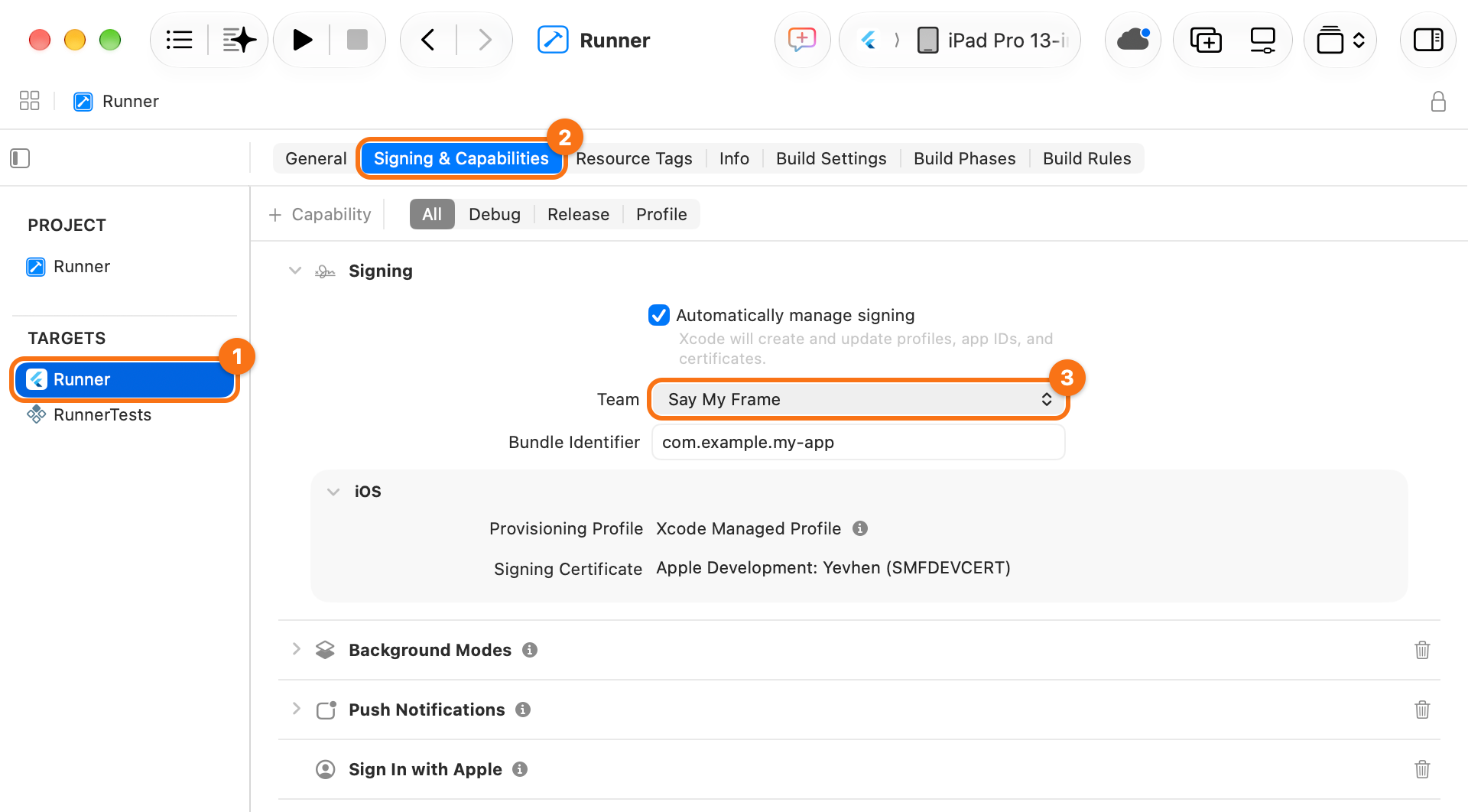
Xcode registers the App ID and shows no error once the signing works. The capabilities of the app, such as Push Notifications and Sign in with Apple, are listed below the signing.
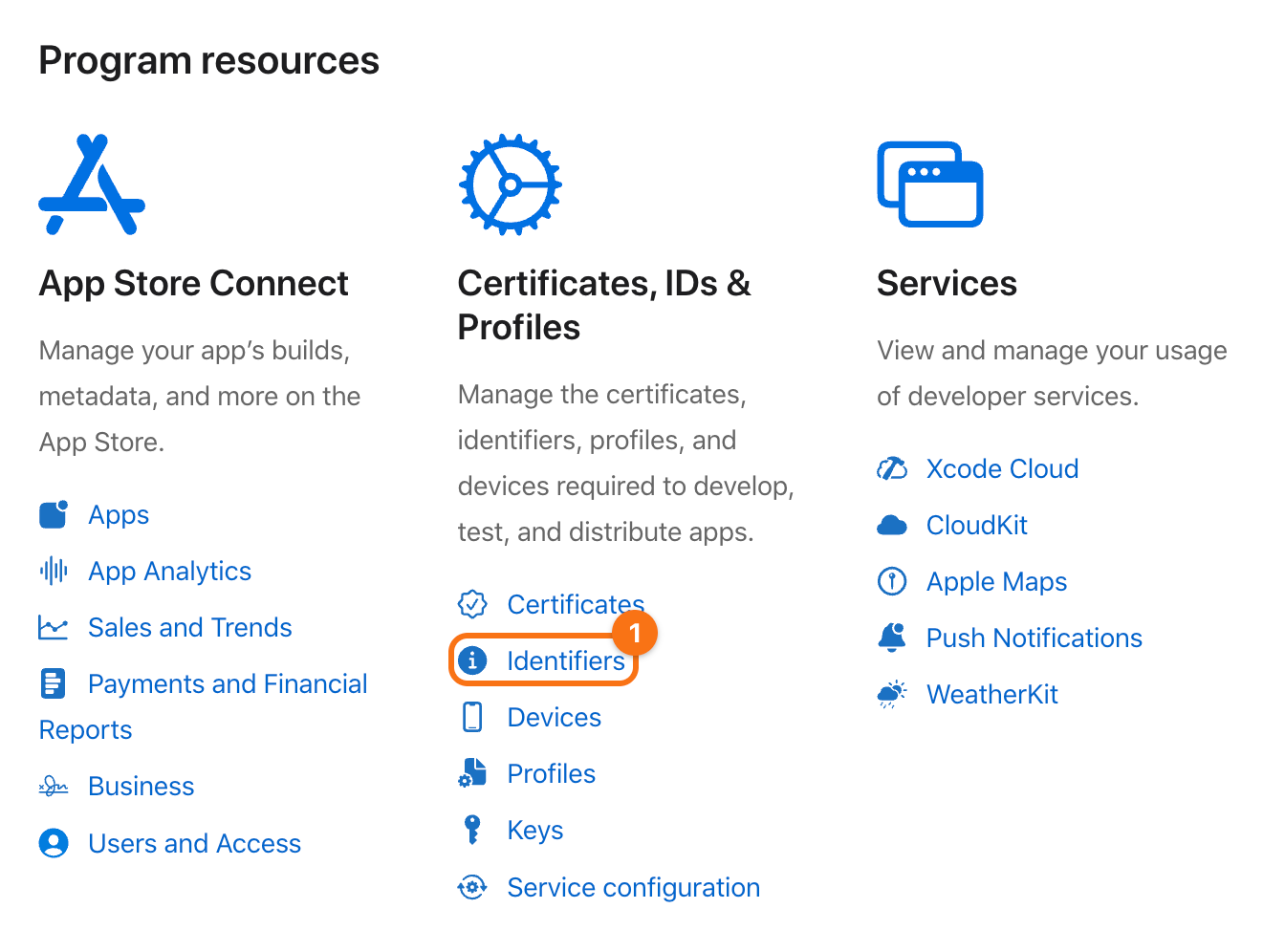
2. Check the App ID. In your Apple Developer account, under Certificates, IDs & Profiles, click Identifiers (1).
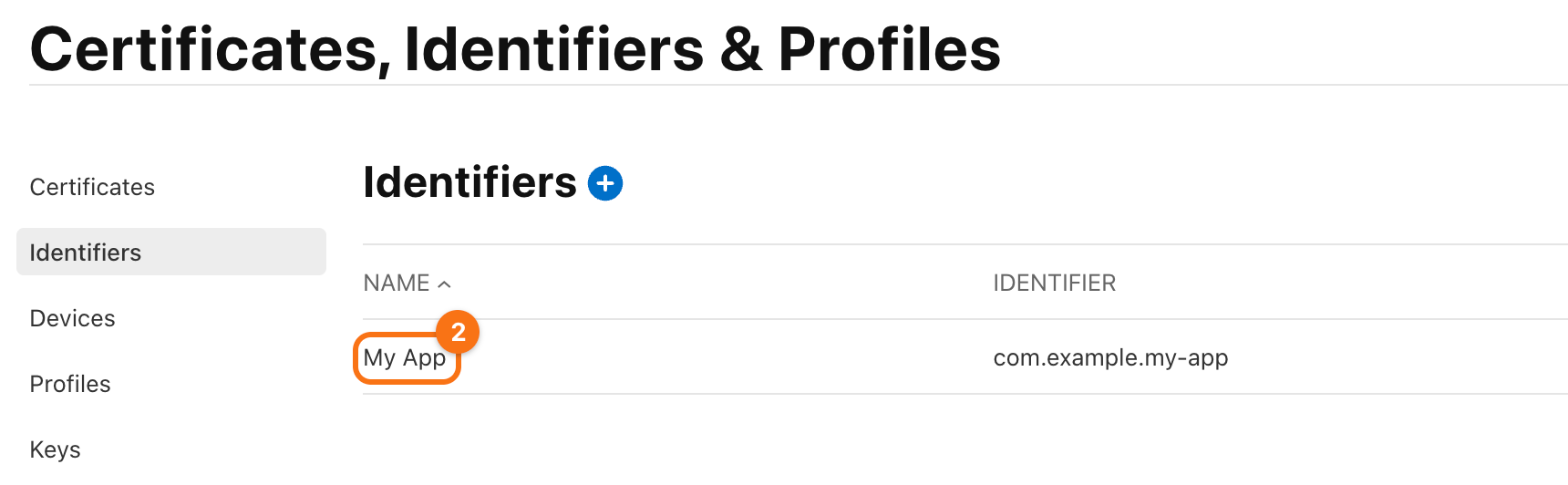
The bundle id of the app is in the list. An App ID that Xcode registered has a name that starts with XC. Click it (2).
The capabilities that the app uses are checked: Push Notifications (1) for push messages and Sign In with Apple (2) for Sign in with Apple.
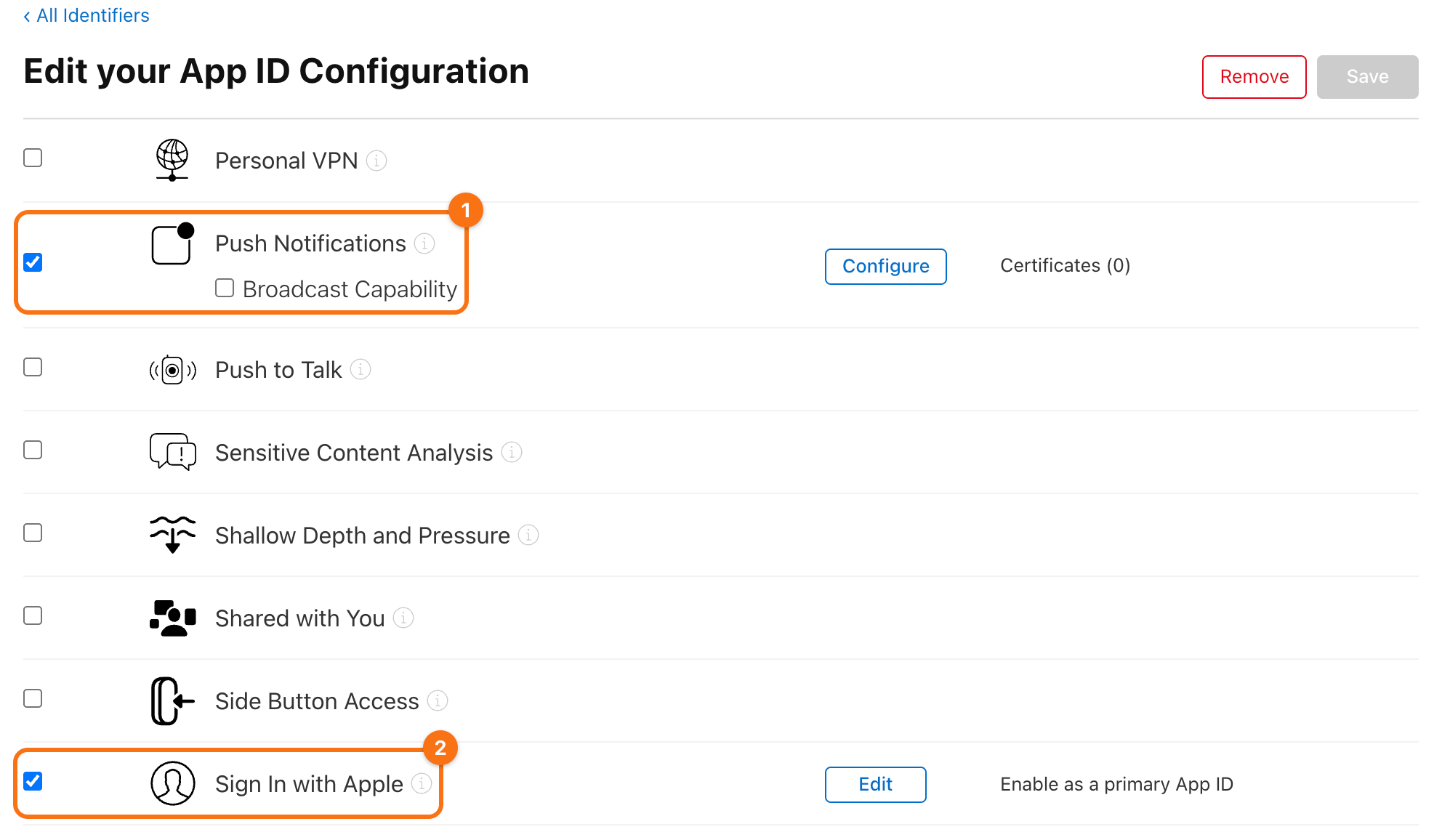
If one is not checked, check it and click Save, then sign the app in Xcode again.
Without Xcode
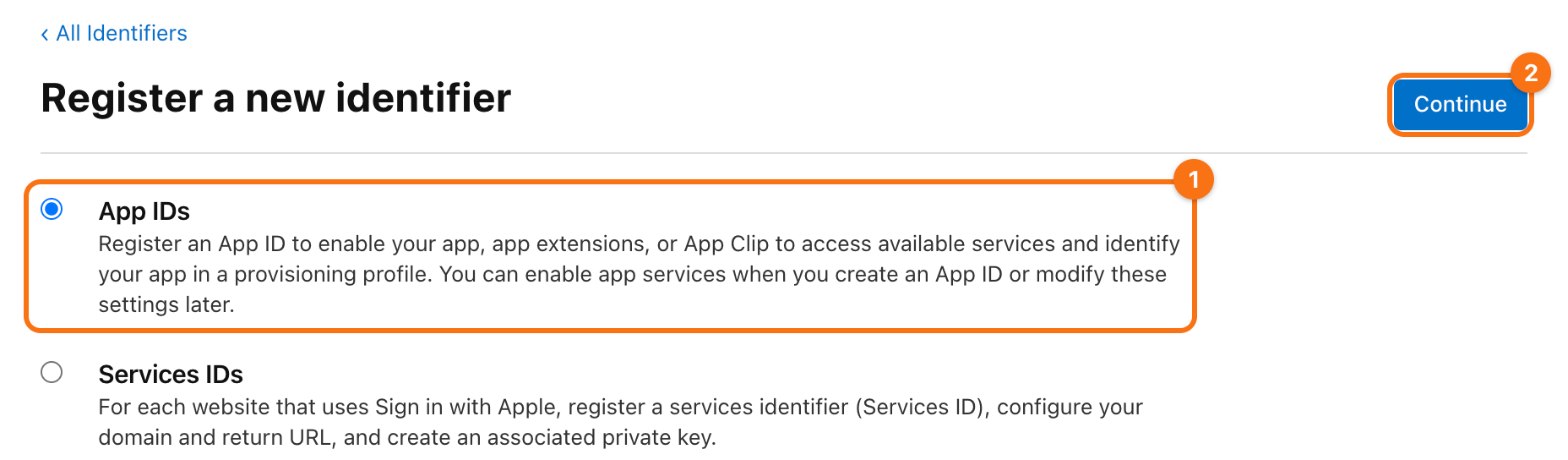
You can also register the App ID yourself and then choose the team in Xcode. On the Identifiers page, click the + next to the title. Choose App IDs (1) and click Continue (2), then choose App and click Continue again.
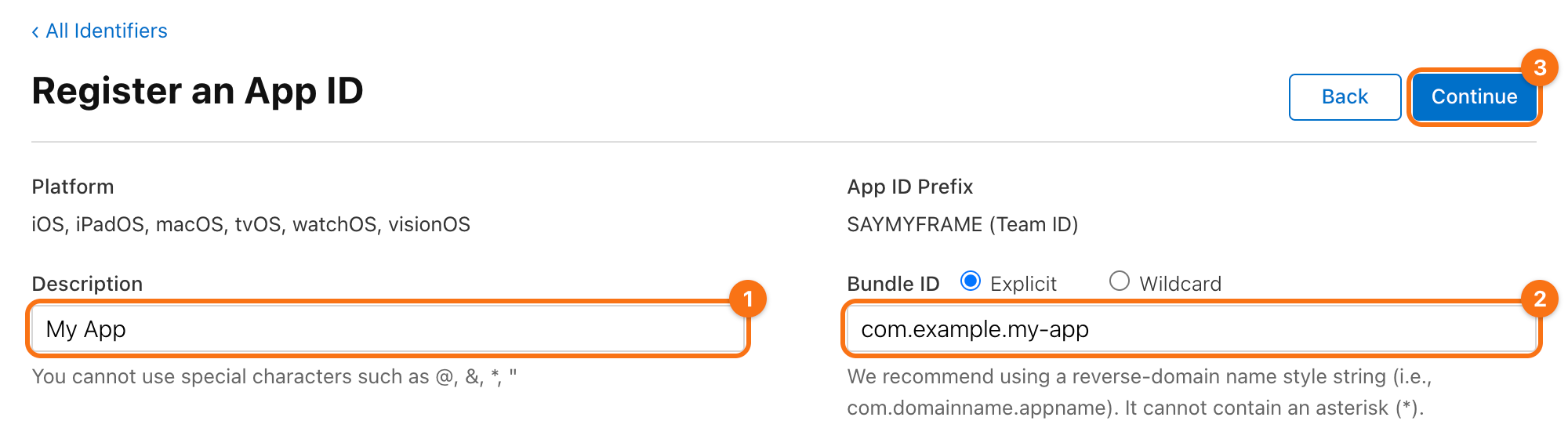
Enter a description (1), such as My App. Keep Explicit and enter the bundle id of the app (2), which Xcode shows under Bundle Identifier on the tab Signing & Capabilities. Then check the capabilities that the app uses in the list below the form, click Continue (3) and Register.
Module firebase_analytics
2Turn on Google Analytics in the Firebase project, unless it is on already
Firebase Analytics keeps what the app records in Google Analytics. A Firebase project that flutterfire configure created has no Google Analytics, and a project created in the console may have been created without it. The app logs its events either way, but they appear nowhere until Google Analytics is on.
Skip this step if the Analytics pages of your Firebase project show data or a dashboard rather than a button to enable it.
The screenshots show the example Firebase project My App. The orange frames mark what to click, in the order of their numbers.
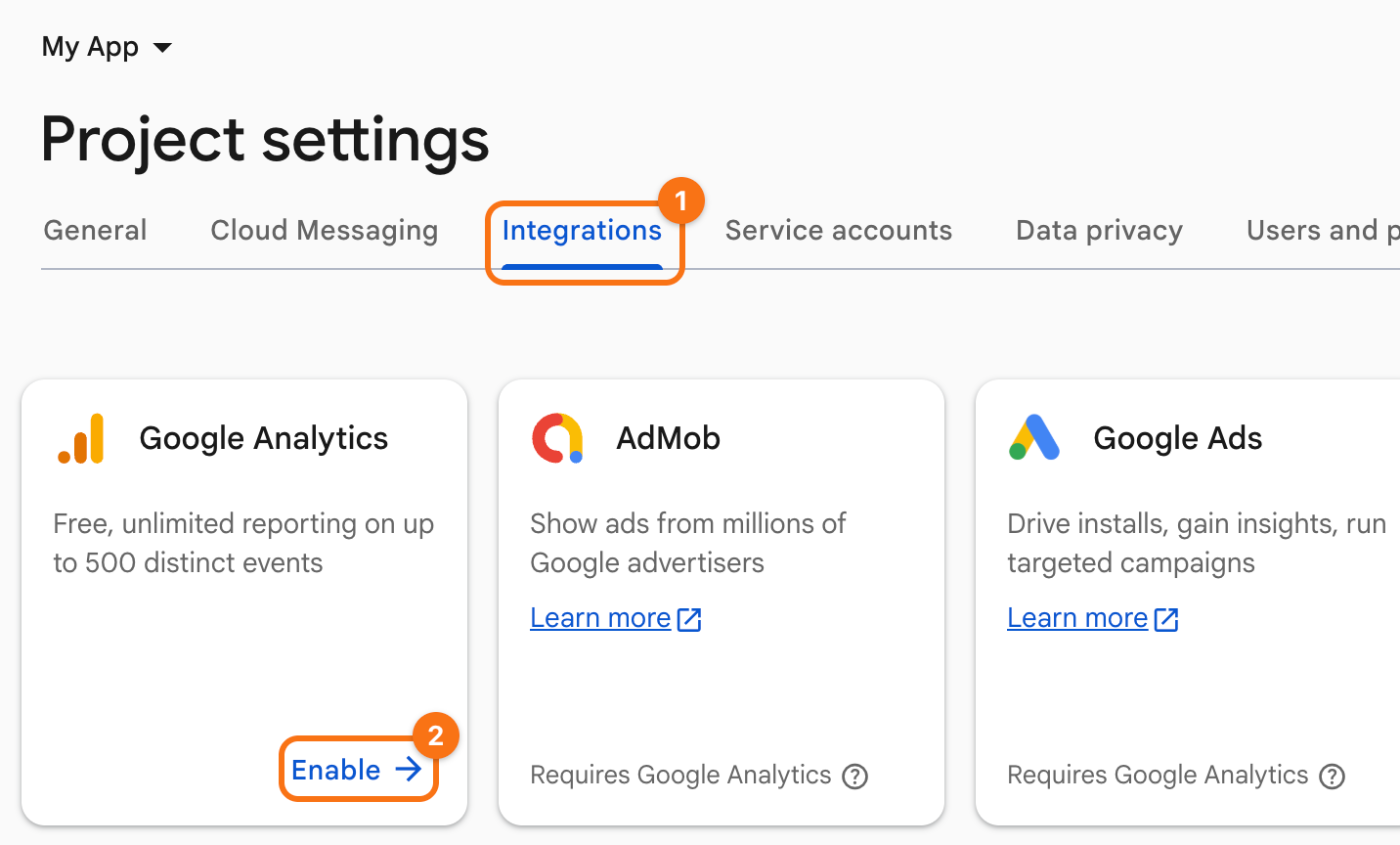
1. Open Integrations. In the Firebase console, open your project. In the menu on the left, point at Settings and click Integrations, which opens the tab Integrations (1) of the project settings. On the card Google Analytics, click Enable (2). A card that says Enabled and Manage means it is on already.
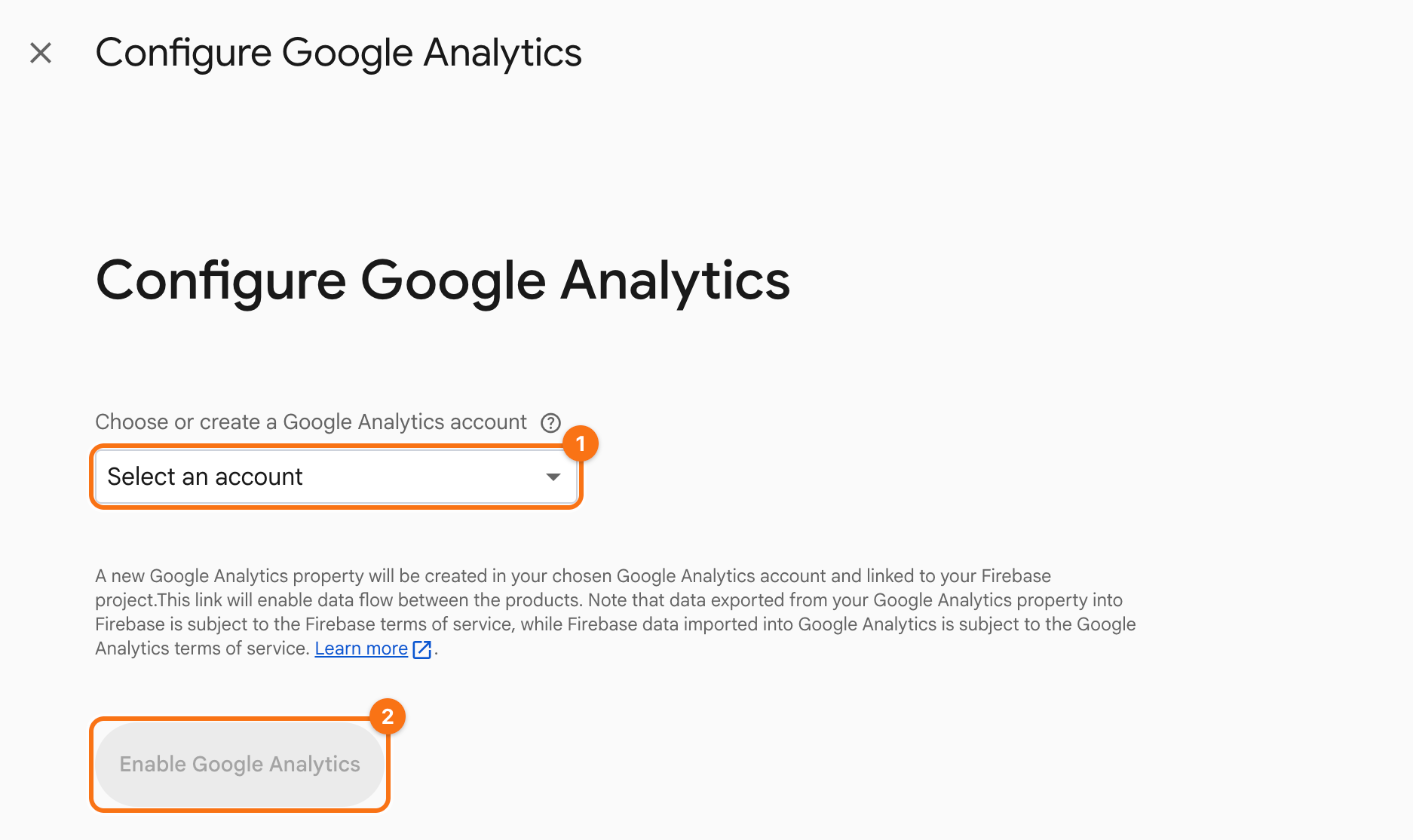
2. Choose an account. Choose a Google Analytics account in the list (1), or create one there, and click Enable Google Analytics (2). Firebase creates a property of Google Analytics in that account and links it to the project.
The app needs no new configuration for this: the Android and iOS apps of the project send their events to the new property.
Check. Run the app and open a few screens. Events arrive in Analytics > Realtime within a few minutes. To see them at once, turn on the DebugView of the device.
Module firebase_auth
3Turn on Sign in with Apple in Firebase Authentication
For firebase_auth
The app lets users sign in with Apple through Firebase Authentication. No command can turn Apple on there, so you do it once in the Firebase console. Until then, a sign-in with Apple fails with the reason notConfigured, and the message for the developer says what to enable.
The iOS app also needs Sign In with Apple on its App ID, which signing the app in Xcode with a paid team gives it; see the step about the App ID.
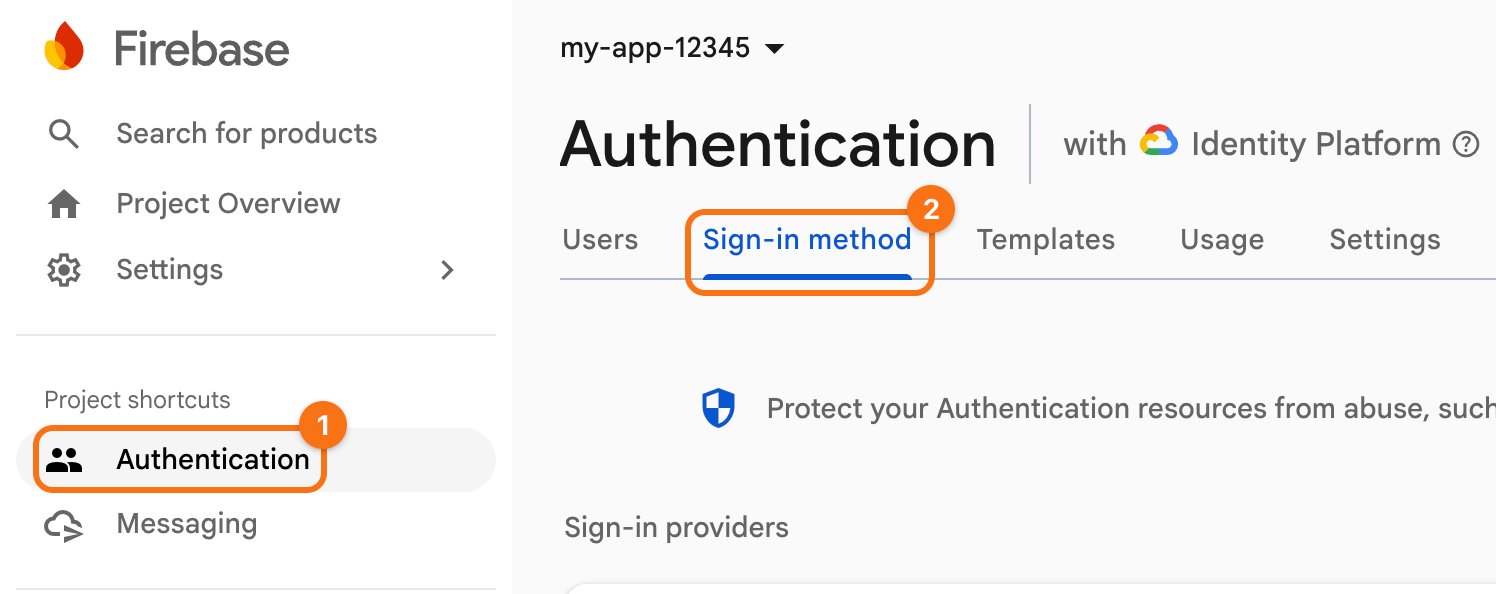
The screenshots show the example Firebase project my-app-12345. The orange frames mark what to click, in the order of their numbers.
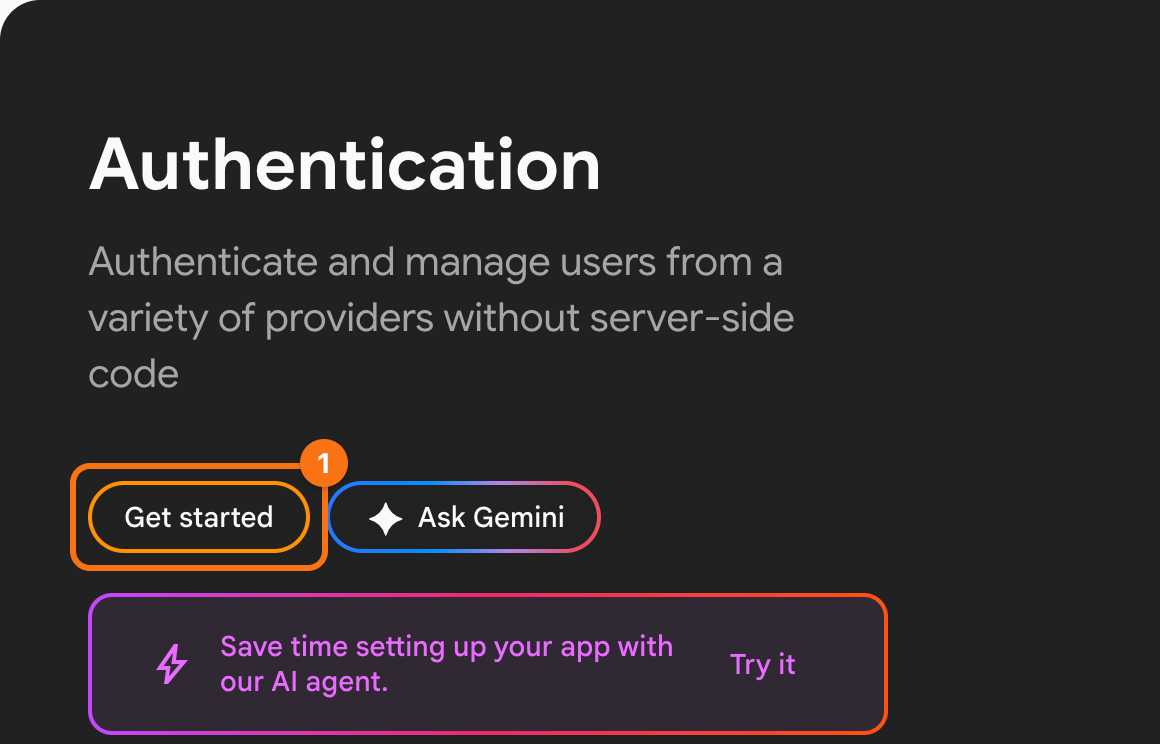
1. Open Authentication. In the Firebase console, open your project and click Authentication in the menu on the left (1). If it is not among the shortcuts there, it is under Security. Open the tab Sign-in method (2). If the page offers Get started instead, click it first: Authentication was never set up in this project.
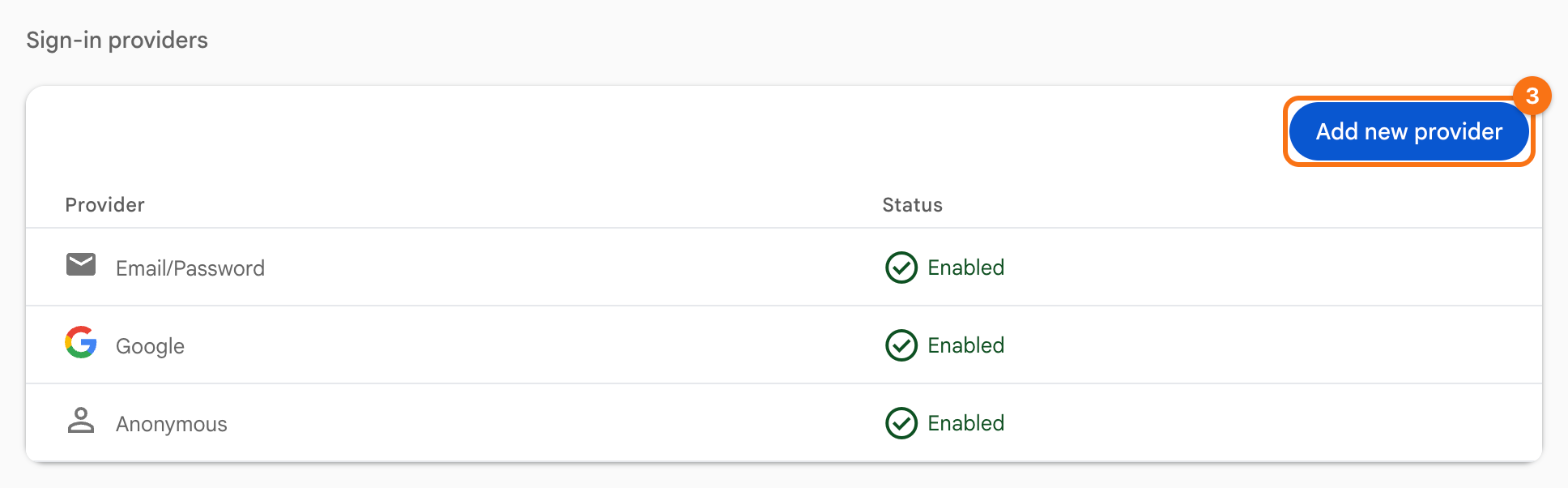
2. Add Apple. Click Add new provider (3).
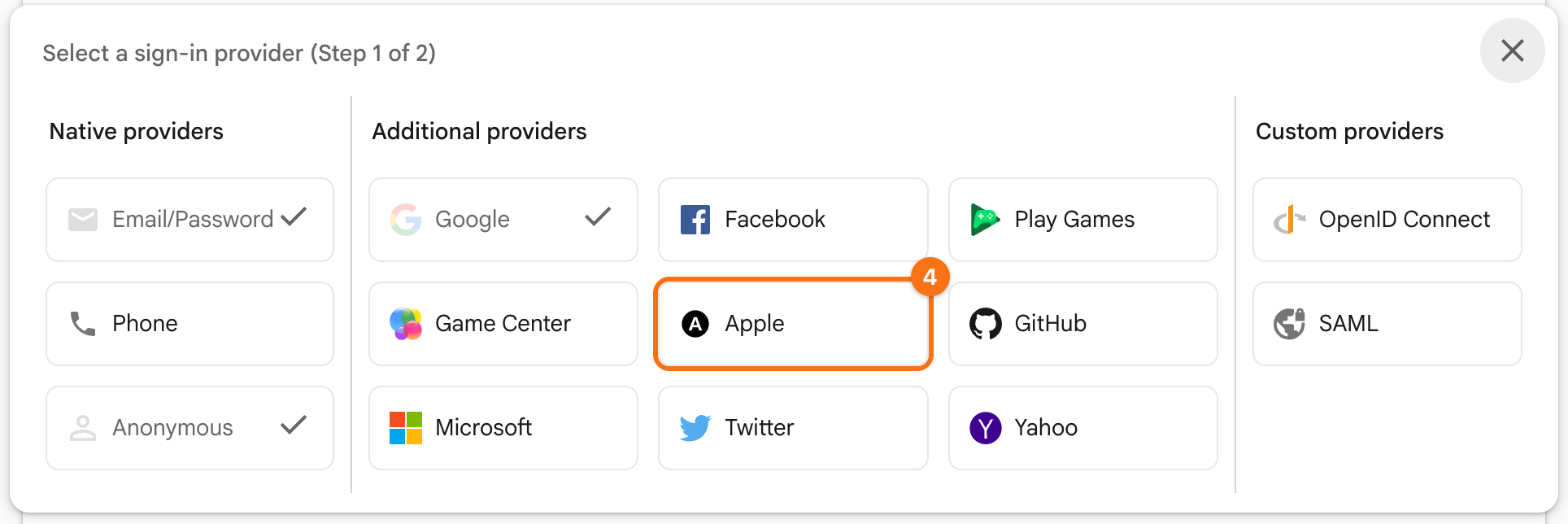
Under Additional providers, click Apple (4).
3. Enable it. Turn on Enable (1) and click Save (2). An iOS app needs nothing else here: leave Services ID empty for now. The step about deleting accounts fills it in.
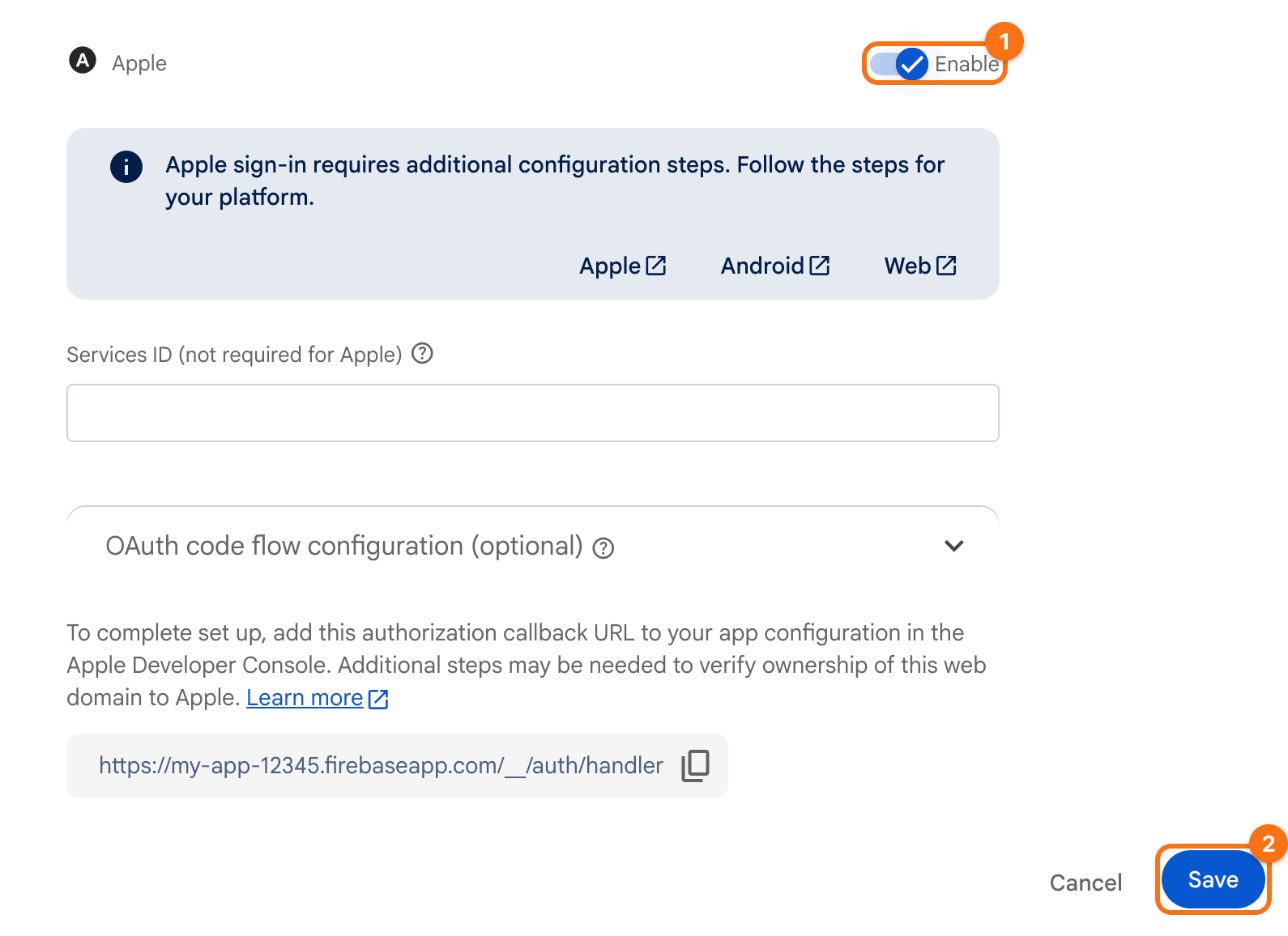
Check. Apple is in the list of providers with the status Enabled. Sign in with Apple in the app on an iPhone or a simulator with an Apple Account. On a simulator, sign in to the Apple Account in the Settings app of the simulator first.
4Give Firebase your Sign in with Apple key, so that deleting an account works
For firebase_auth
When a user who signs in with Apple deletes the account, the app revokes the tokens that Apple gave it, as the App Store asks of every app with Sign in with Apple (App Store Review Guideline 5.1.1(v)). Firebase revokes them with a key for Sign in with Apple and a Services ID of your team. Until you give Firebase both, deleting such an account fails with the reason notConfigured, and the account stays. Firebase then answers Code flow is not enabled for Apple.
You make a key and a Services ID in your Apple Developer account, then enter both in the settings of the Apple provider in Firebase. Turn on the Apple provider first; see the previous step.
The screenshots use example values: the Team ID SAYMYFRAME, the Key ID SMFSIWAKEY, the bundle id com.example.my-app, the Services ID com.example.my-app.signin and the Firebase project my-app-12345. Your Team ID is under Membership details in your Apple Developer account. The orange frames mark what to click or fill in, in the order of their numbers.
1. A key for Sign in with Apple
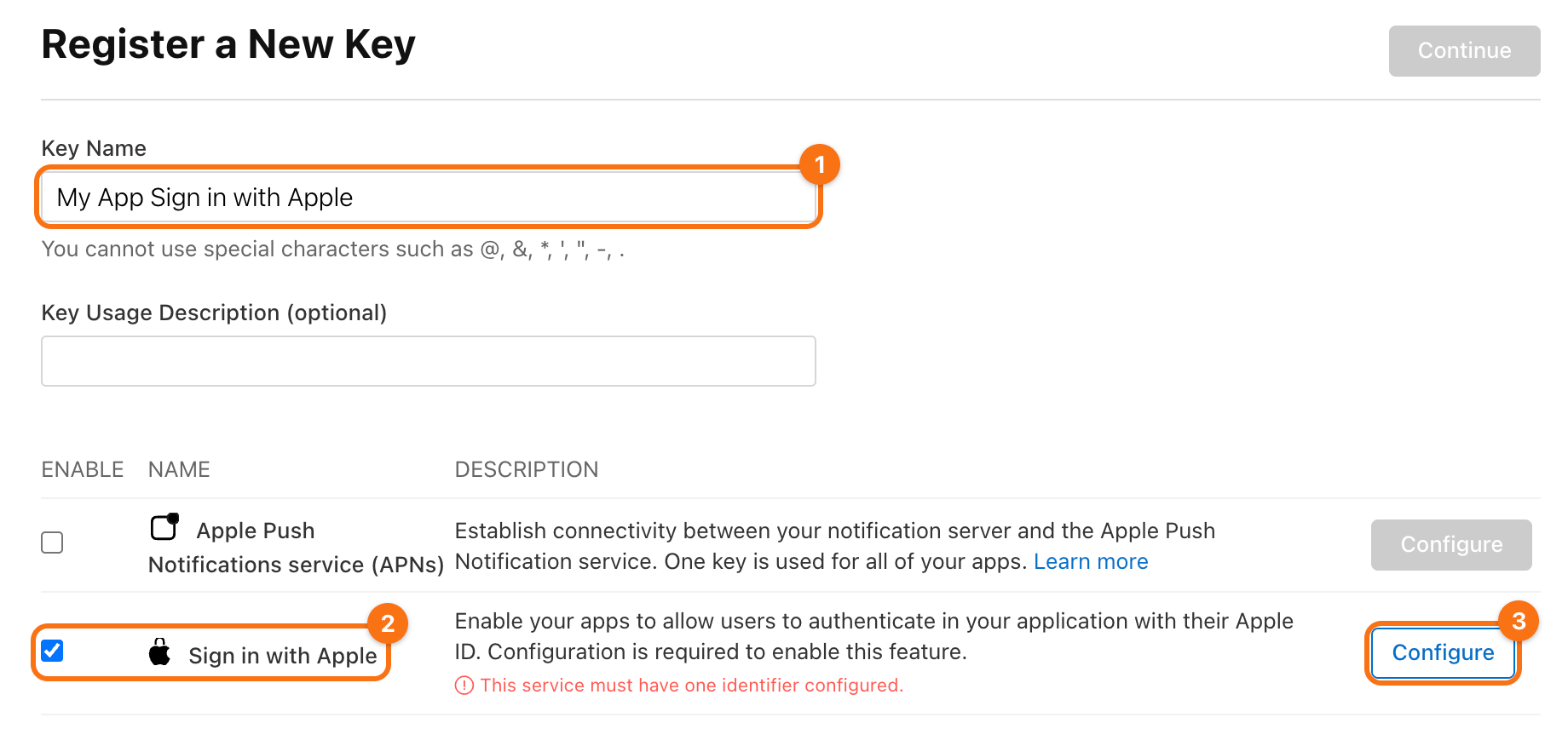
In your Apple Developer account, open Certificates, IDs & Profiles, then Keys, and click the + next to the title. Name the key (1), such as My App Sign in with Apple, check Sign in with Apple (2) and click Configure (3) in its row.
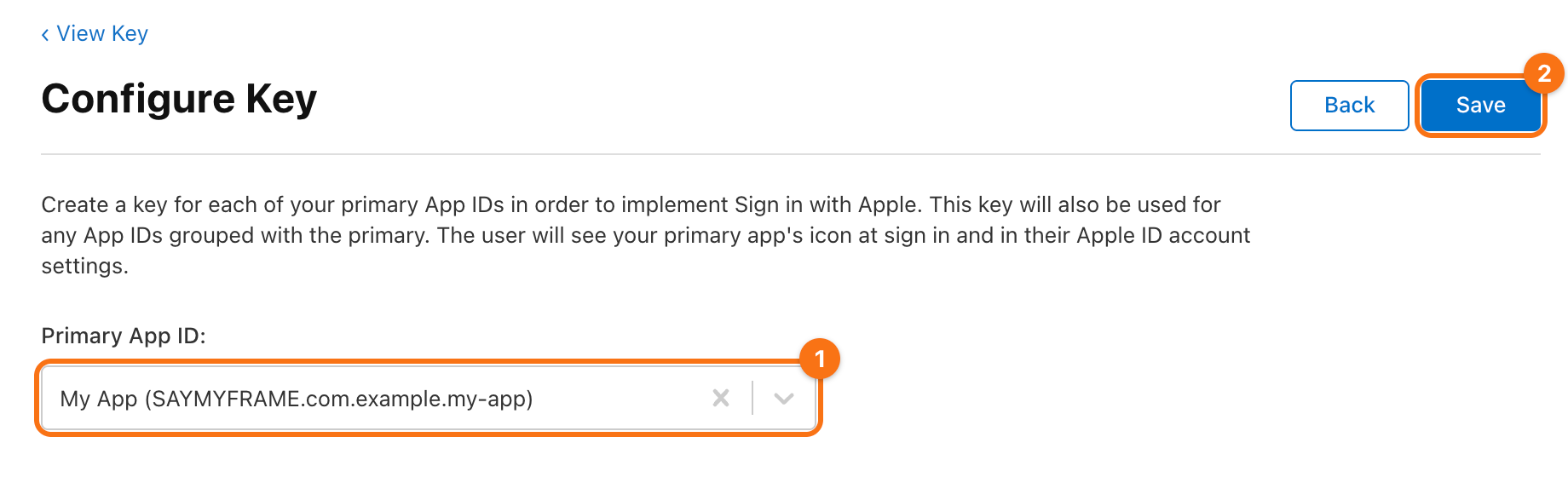
Choose the App ID of the app as the Primary App ID (1) and click Save (2).
Click Continue, then Register. On the page of the key, copy the Key ID and click Download for the .p8 file.
Apple lets you download the file only once. Keep it in a password manager. The private key in it is a secret: you paste it into the Firebase console yourself, and it never goes into the app or its repository.
2. A Services ID
Open Identifiers and click the + next to the title. Choose Services IDs (1) and click Continue (2).
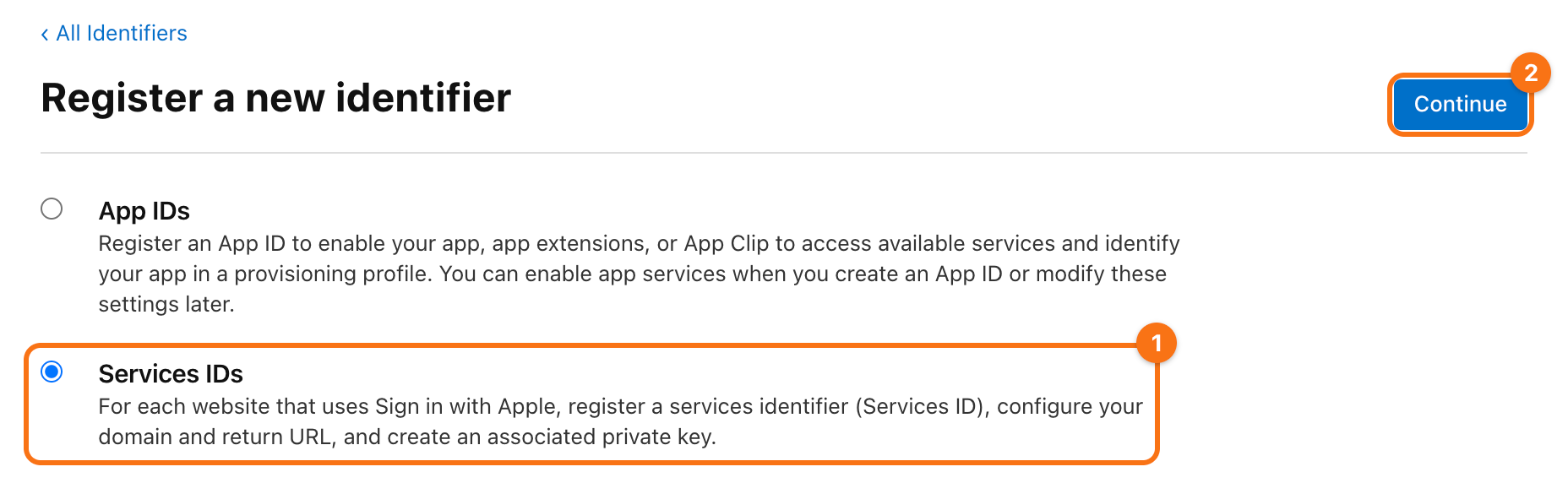
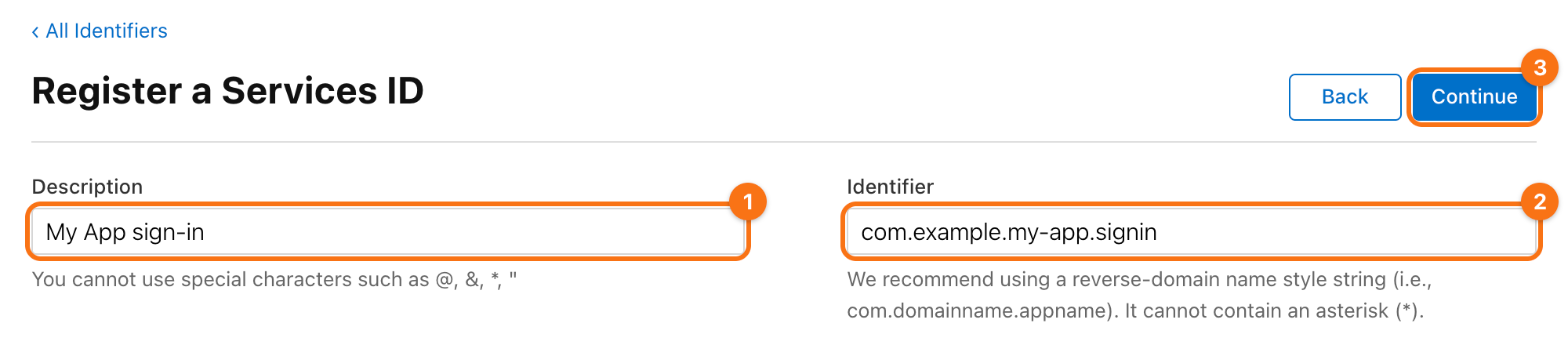
Enter a description (1), such as My App sign-in, and an identifier (2). The bundle id of the app with .signin at the end is a good choice; it cannot be the bundle id itself. Click Continue (3), then Register.
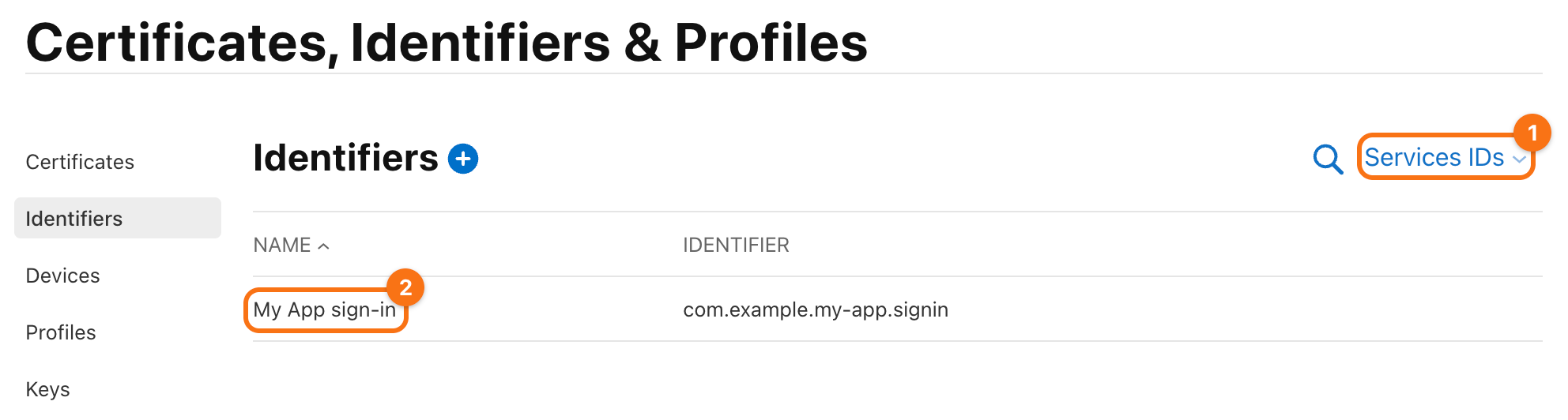
Switch the filter at the top right of the list from App IDs to Services IDs (1) and click the new Services ID (2).
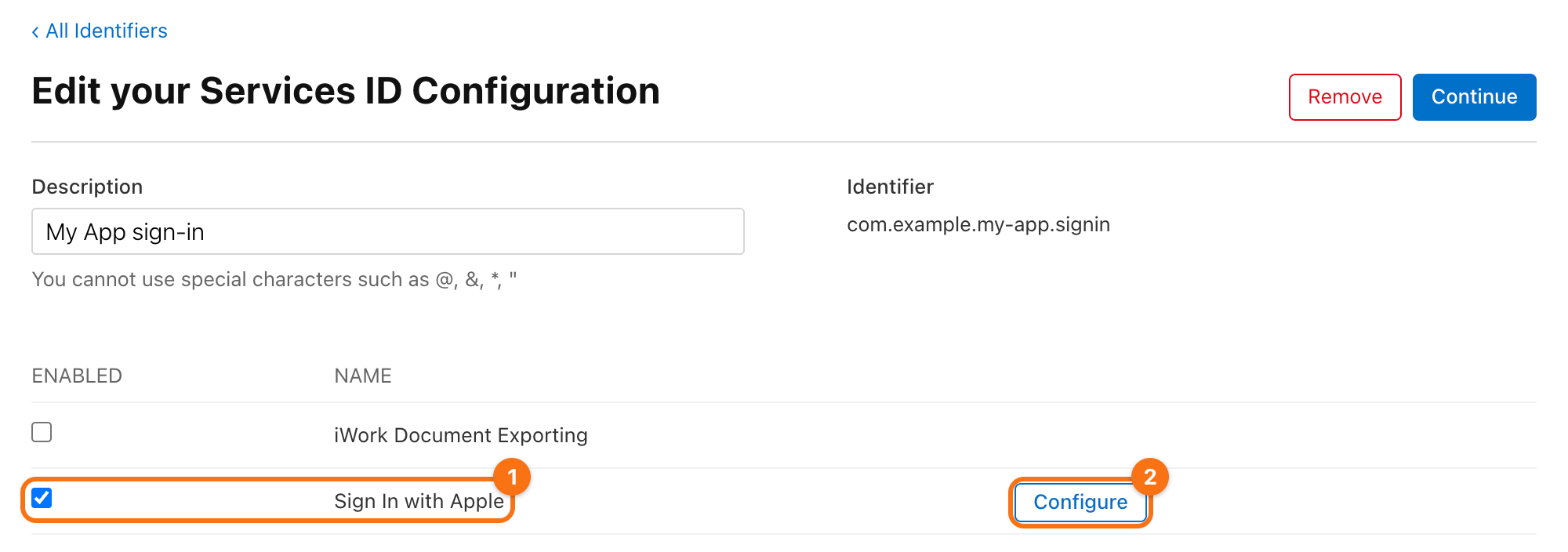
Check Sign In with Apple (1) and click Configure (2).
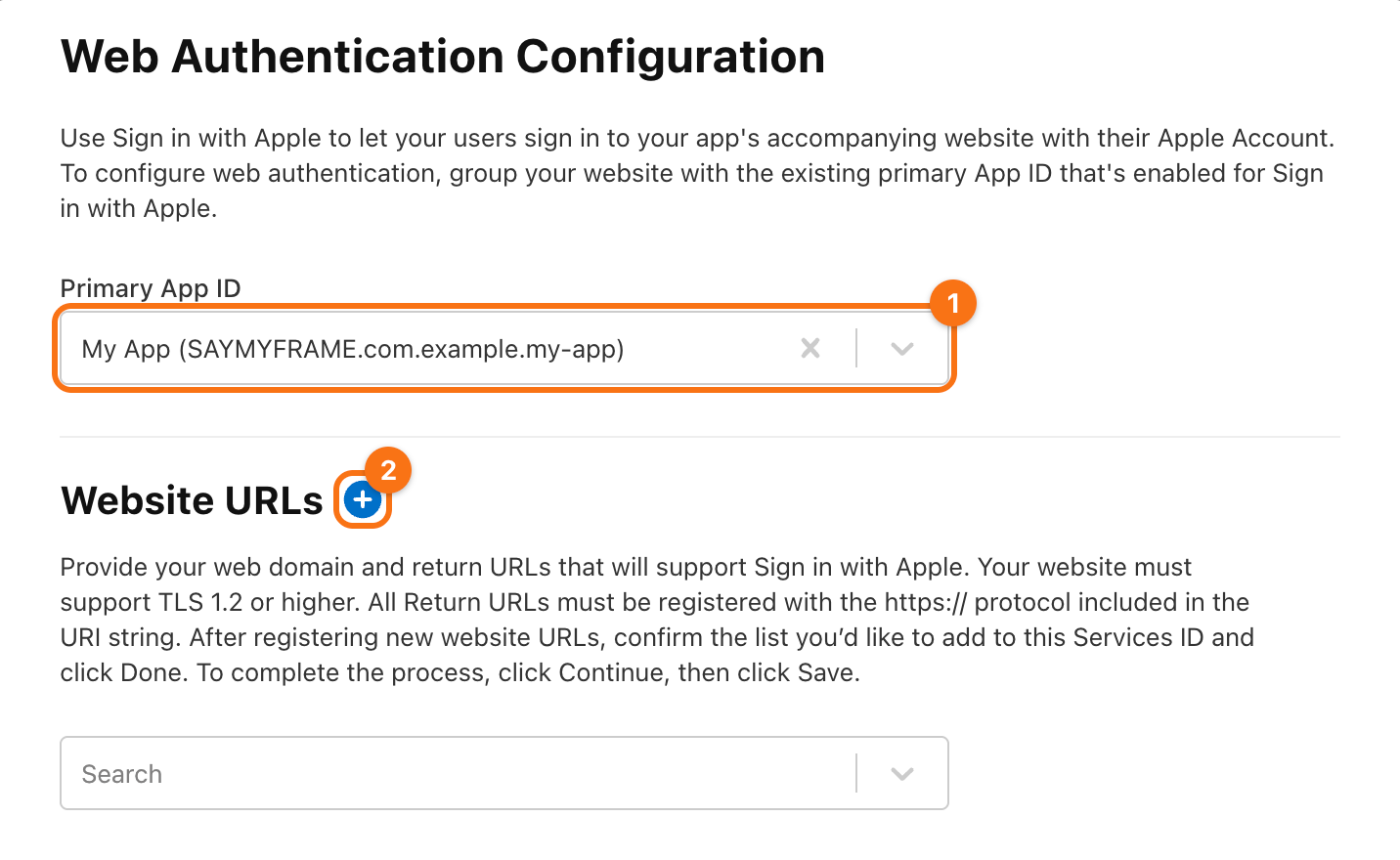
Choose the App ID of the app as the Primary App ID (1), then click the + next to Website URLs (2).
Enter the domain (1) and the return URL (2) of your Firebase project, with the id of your project in place of my-app-12345:
- Domains and Subdomains:
my-app-12345.firebaseapp.com - Return URLs:
https://my-app-12345.firebaseapp.com/__/auth/handler
The settings of the Apple provider in Firebase show this return URL too, with a button that copies it.
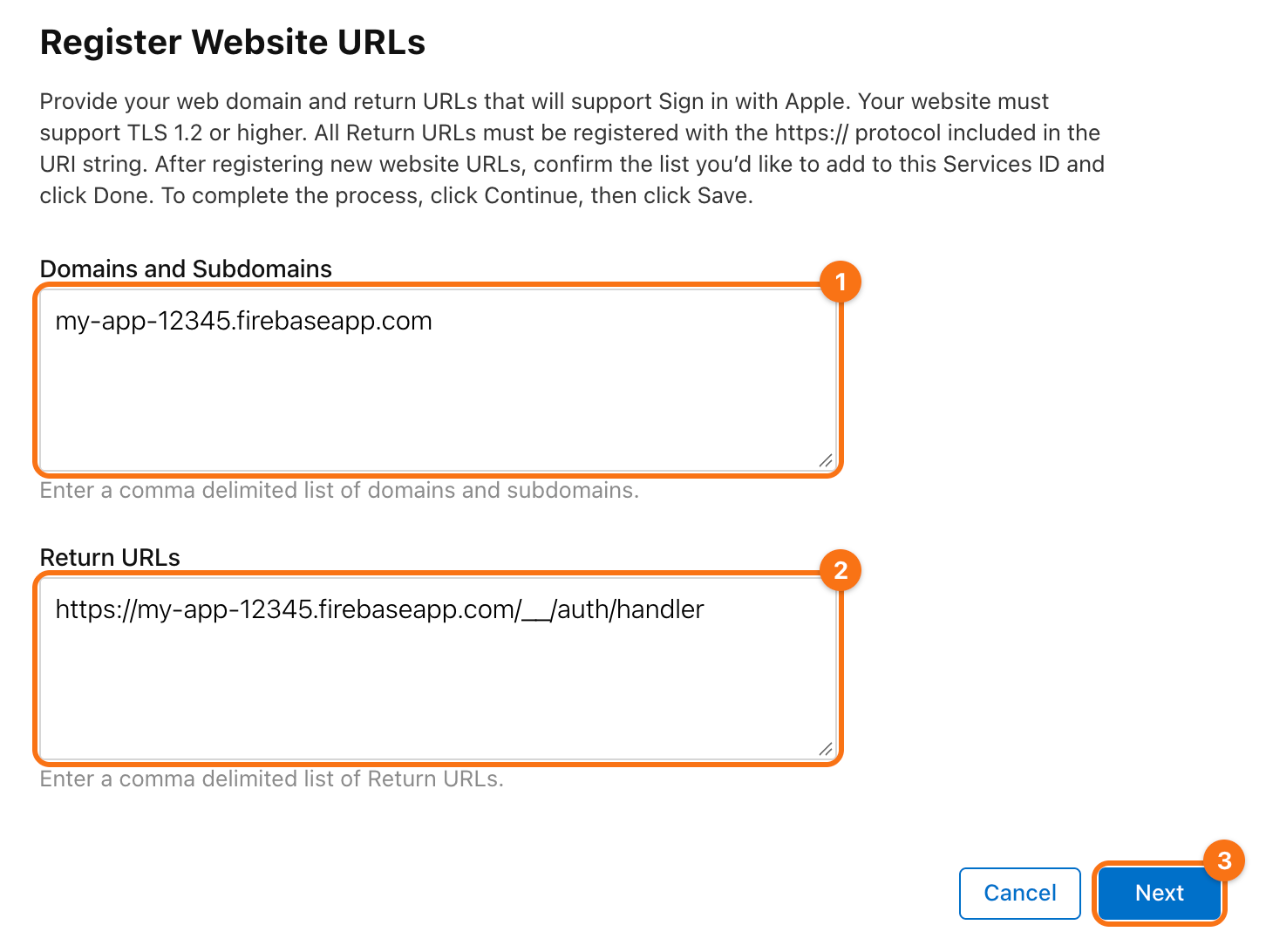
Click Next (3), then Done, then Continue, and Save.
3. Both in Firebase
In the Firebase console, open Authentication, the tab Sign-in method, and click Apple in the list of providers. Open OAuth code flow configuration, then fill in:
- Services ID: the identifier from part 2, such as
com.example.my-app.signin. - Apple team ID: your Team ID.
- Key ID: the Key ID from part 1.
- Private key: open the
.p8file in a text editor and paste all of it, from-----BEGIN PRIVATE KEY-----to-----END PRIVATE KEY-----.
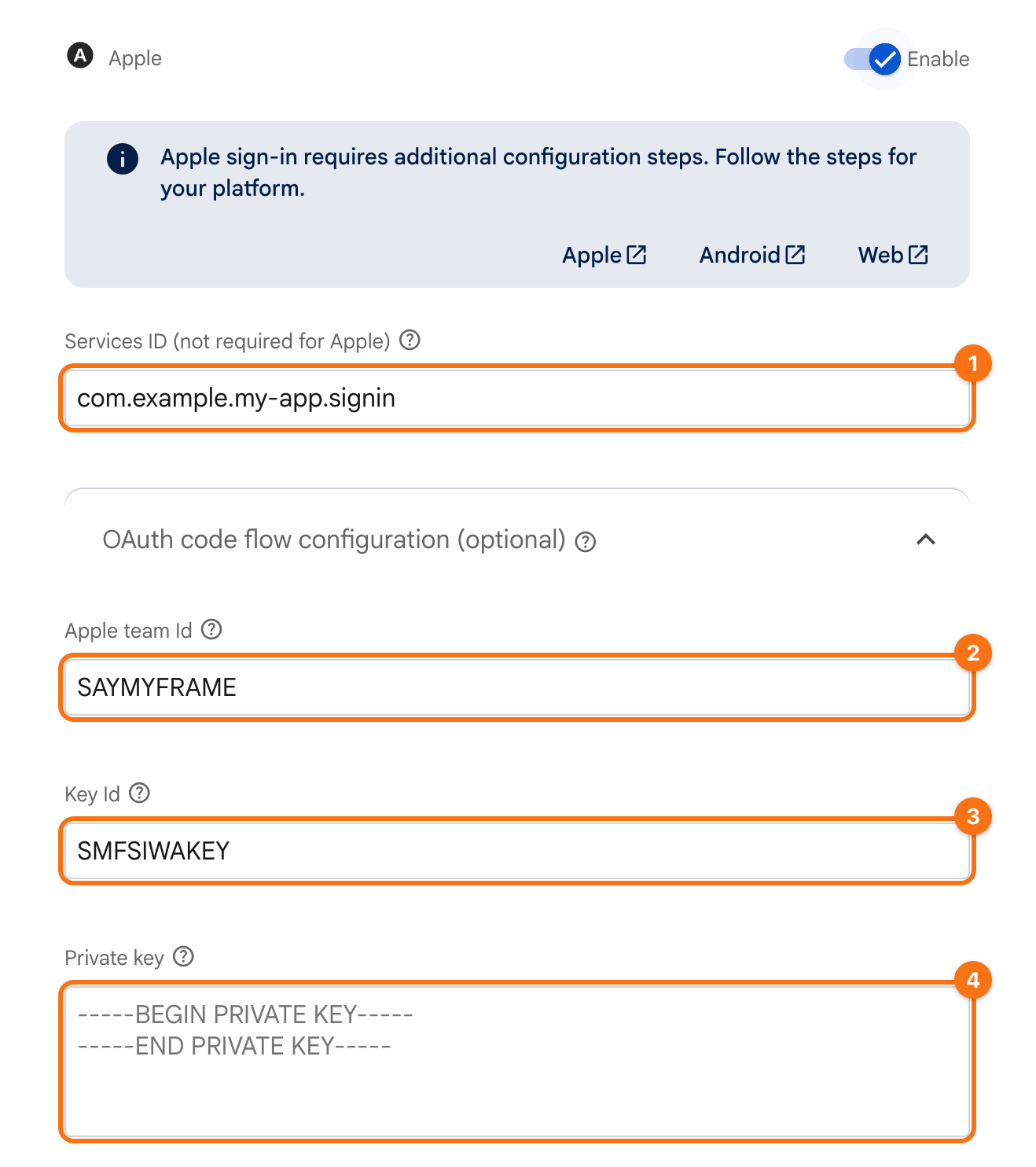
Then click Save (5). The return URL that part 2 gives Apple is the one under the fields, which the button next to it copies.
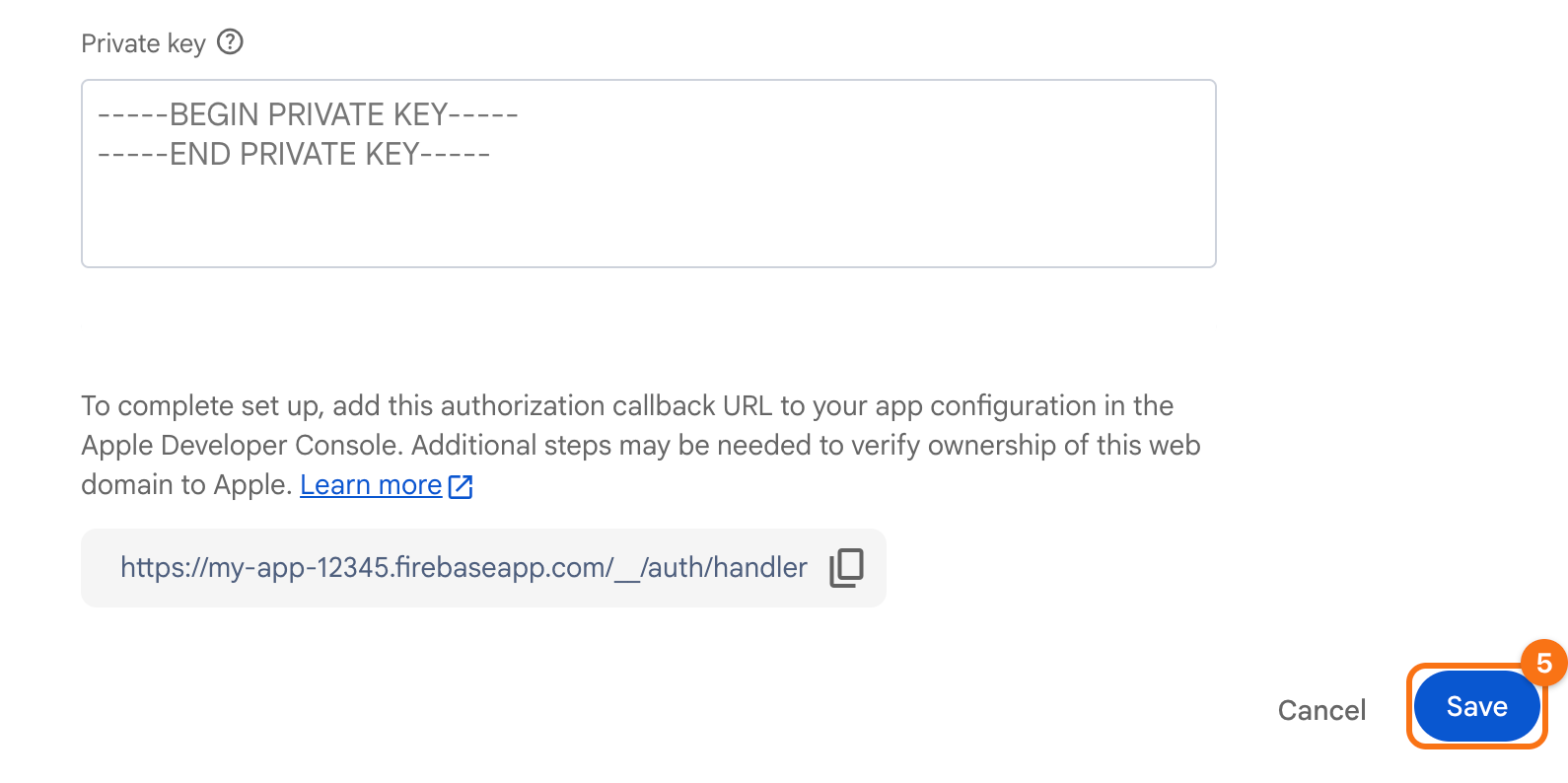
Check. Sign in with Apple in the app, then delete the account on the screen of the account. The app deletes the account and returns to the sign-in, and the user is gone from the tab Users of Authentication.
5Before releasing on Google Play, give Firebase the SHA of your release keys
For firebase_auth
Google recognizes the Android app by the SHA-1 and SHA-256 of the key that signs it. The script dart tool/enable_firebase_sign_in.dart registers those of the debug key of your machine, so sign-in with Google works in debug builds. A release build is signed with other keys, and until Firebase knows them, sign-in with Google fails in the release, for example in a test track of Google Play.
You do this once, before the first release on Google Play, and again if you change the keys.
The screenshots show the example package name com.example.my_app and the example Firebase project my-app-12345. The orange frames mark what to click, in the order of their numbers.
1. Find the SHA of the release keys. With Play App Signing, which Google Play uses for every new app, two keys matter:
- The app signing key, with which Google Play signs what it delivers to users.
- The upload key, with which you sign what you upload to Google Play.
Both are in the Play Console: open the app, then Test and release > App integrity, then App signing. Copy the SHA-1 and the SHA-256 of both certificates.
Before the app is in the Play Console, read the upload key from its keystore:
keytool -list -v -keystore upload-keystore.jks -alias upload
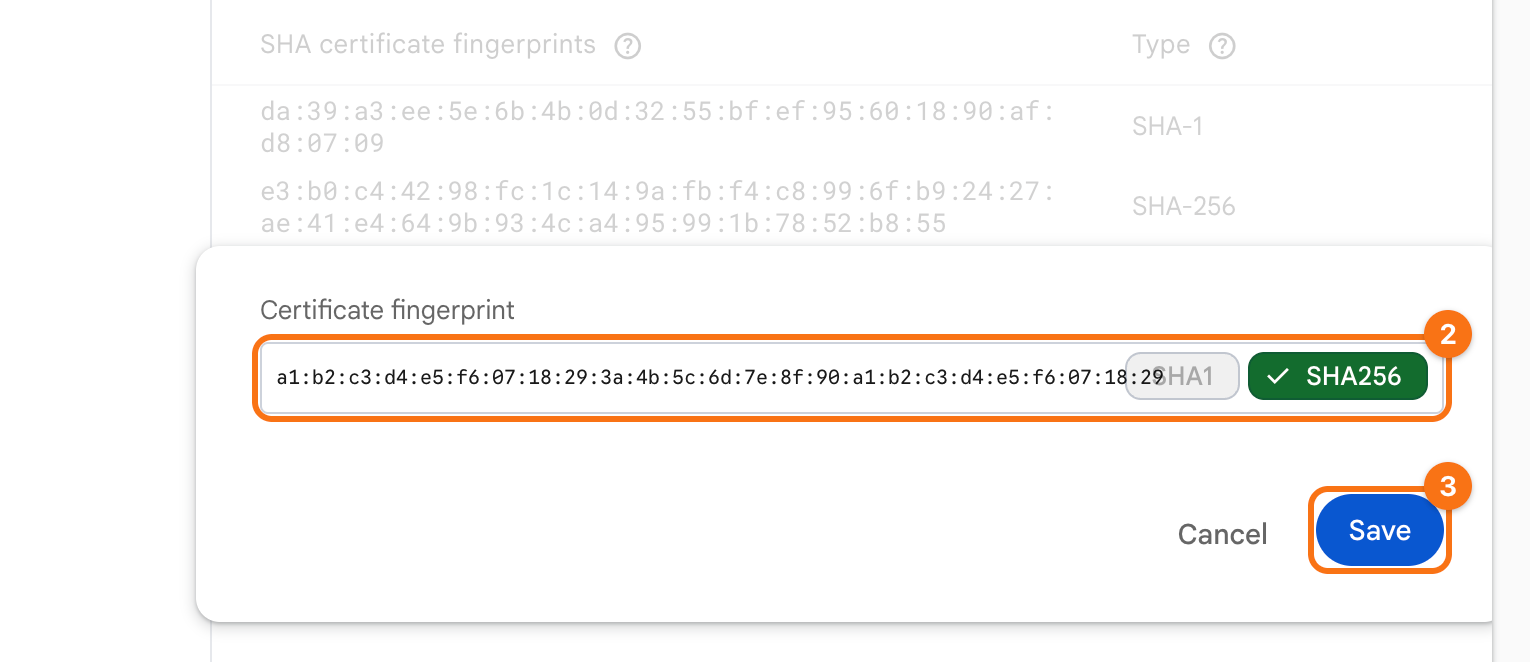
2. Add them in Firebase. In the Firebase console, open your project. In the menu on the left, point at Settings and click General. Under Your apps, select the Android app. Under SHA certificate fingerprints, the debug fingerprints that the script registered are listed already. Click Add fingerprint (1).
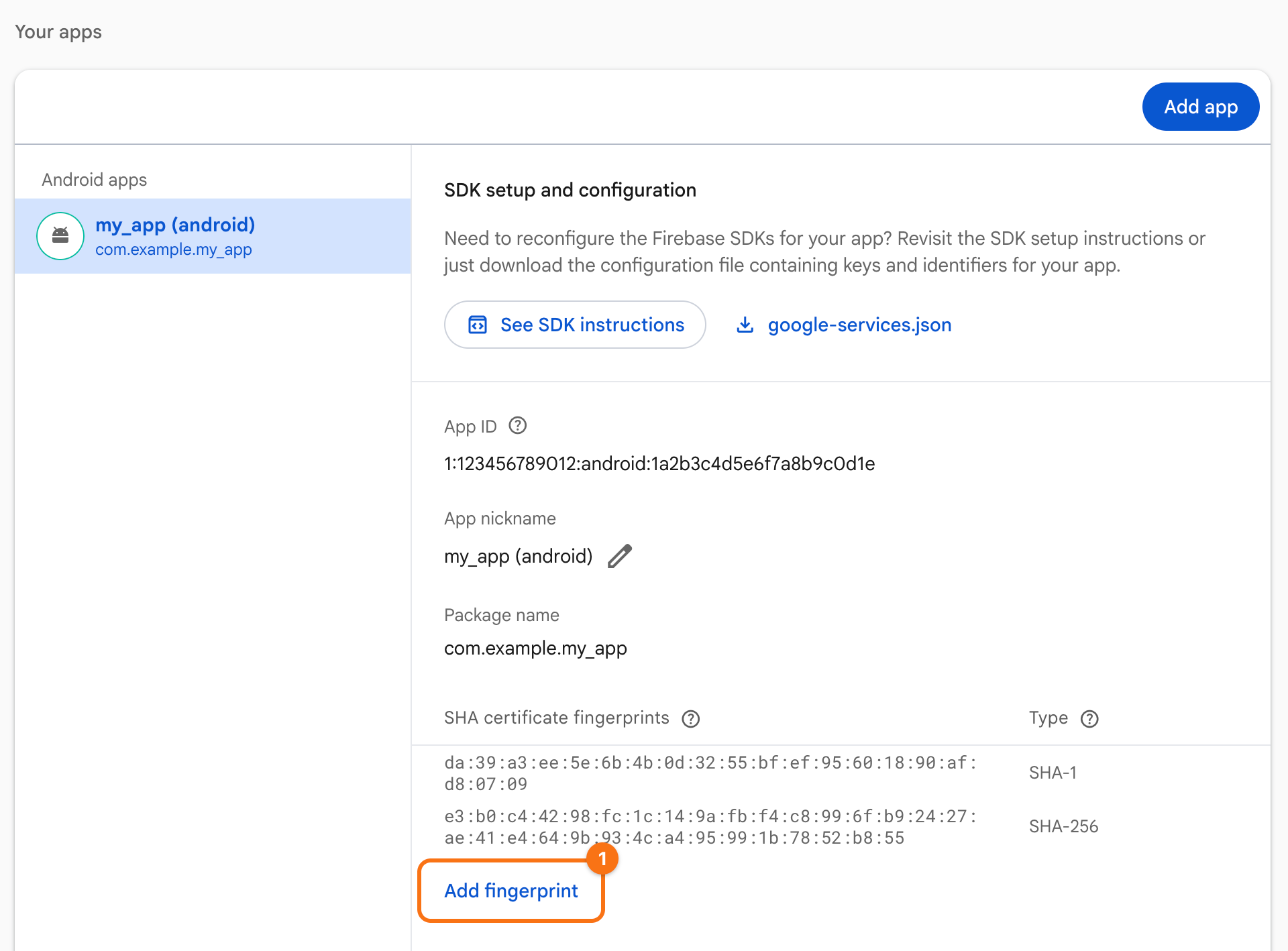
Paste one of the fingerprints (2) and click Save (3). Firebase tells SHA-1 and SHA-256 apart by their length. Repeat for each of the four.
The Firebase CLI does the same, with the id of the Android app from firebase.json of the app:
firebase apps:android:sha:create <appId> <sha>
Check. Install the release from a test track of Google Play and sign in with Google.
Module firebase_messaging
6Give Firebase your Apple push key (APNs key)
Firebase sends push messages to iPhones through the Apple Push Notification service (APNs). For that it needs a key from your Apple Developer account. Without the key the app still gets its address for push messages, but Firebase cannot send anything to it.
You need a paid Apple Developer account and access to your Firebase project. You make the key once for your team, and it works for all of its apps.
The screenshots use example values: the Team ID SAYMYFRAME, the Key ID SMFAPNSKEY, the bundle id com.example.my-app and the Firebase project my-app-12345. You will see your own. The orange frames mark what to click, in the order of their numbers.
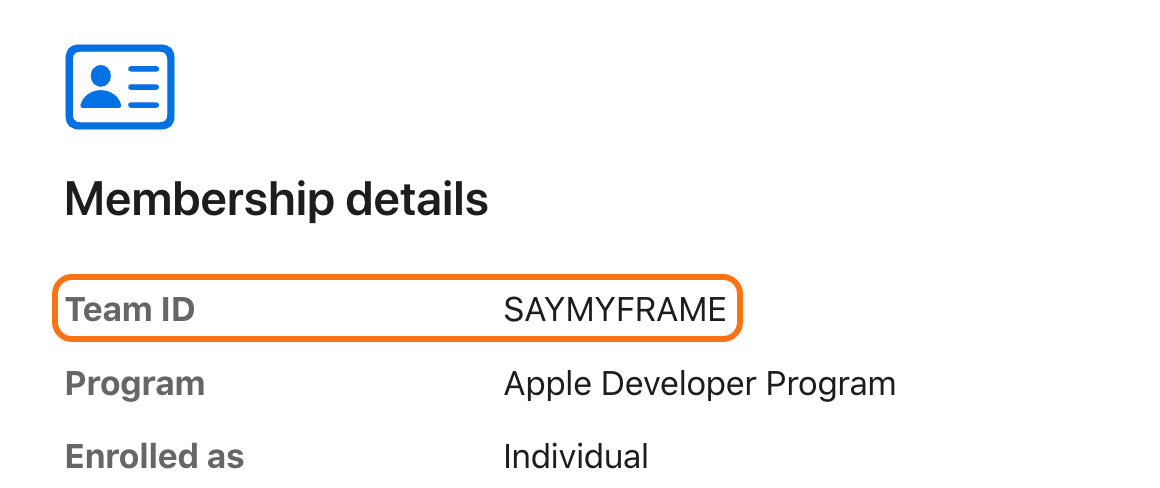
1. Find your Team ID. Open your Apple Developer account and scroll to Membership details. Copy the Team ID: ten letters and digits.
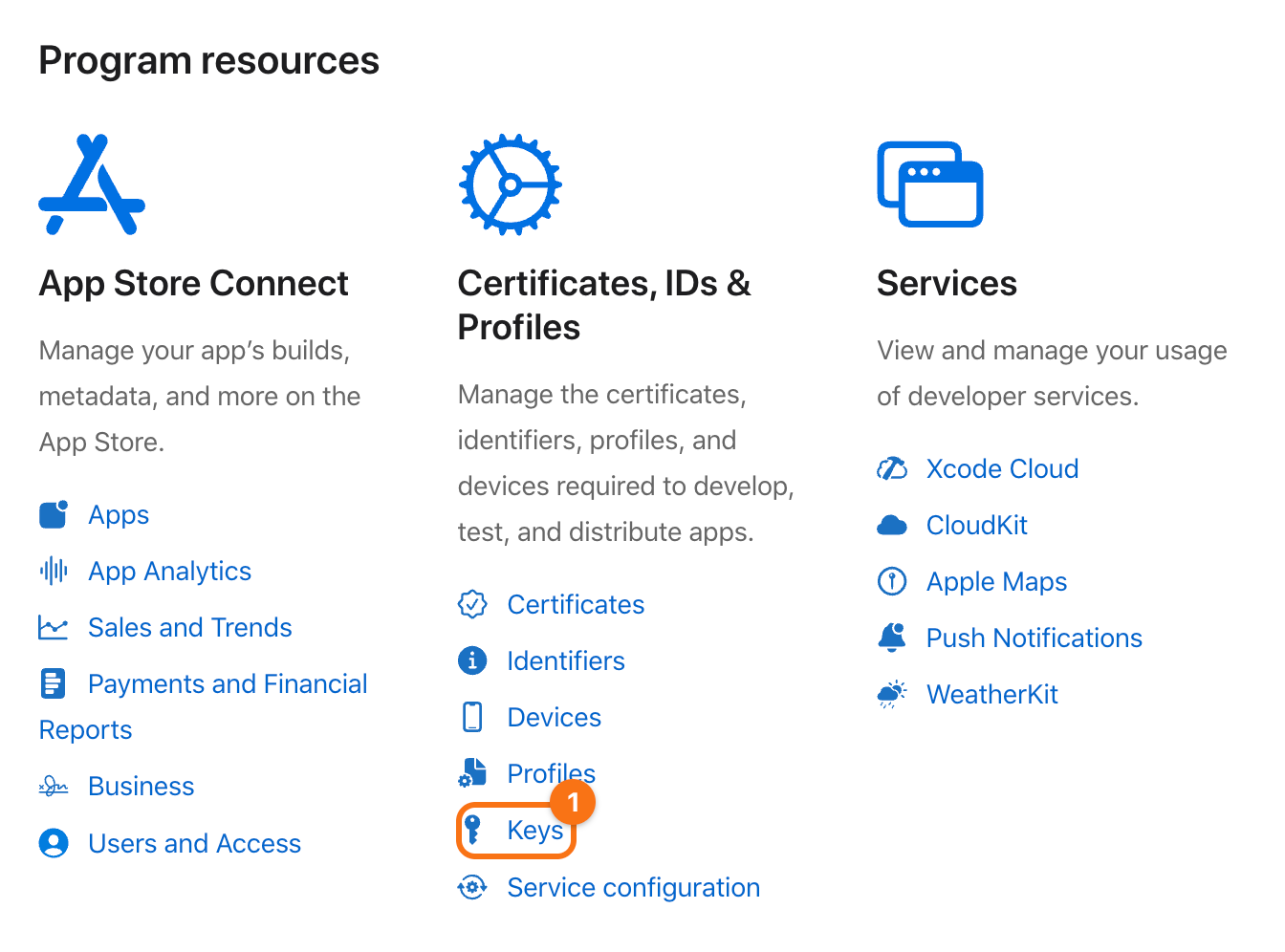
2. Create the key. In the account, under Certificates, IDs & Profiles, click Keys (1).
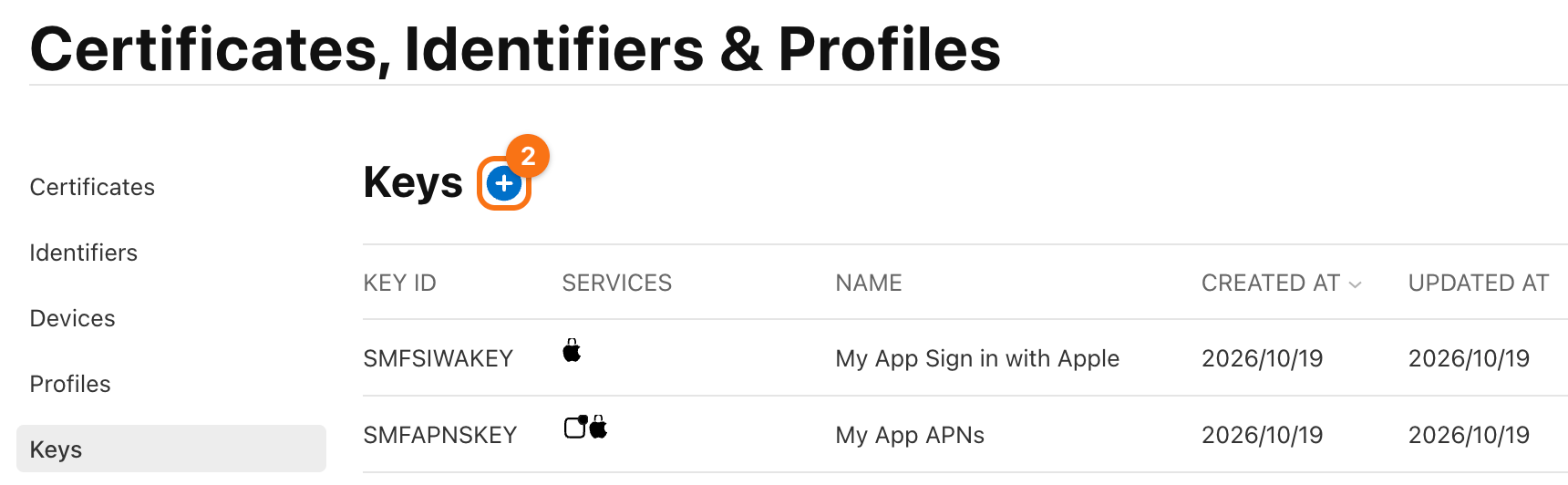
Click the + next to the title (2).
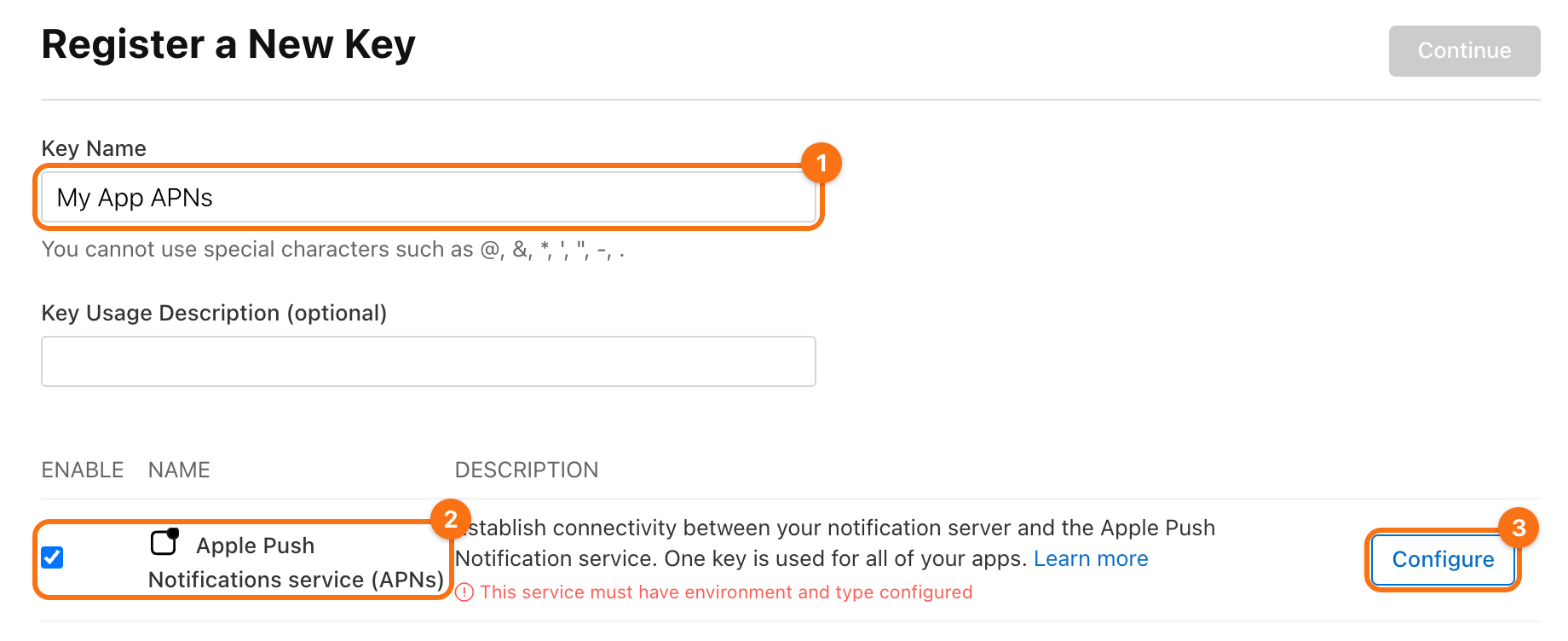
Give the key a name (1), such as My App APNs, and check Apple Push Notifications service (APNs) (2). Then click Configure (3) in the same row.
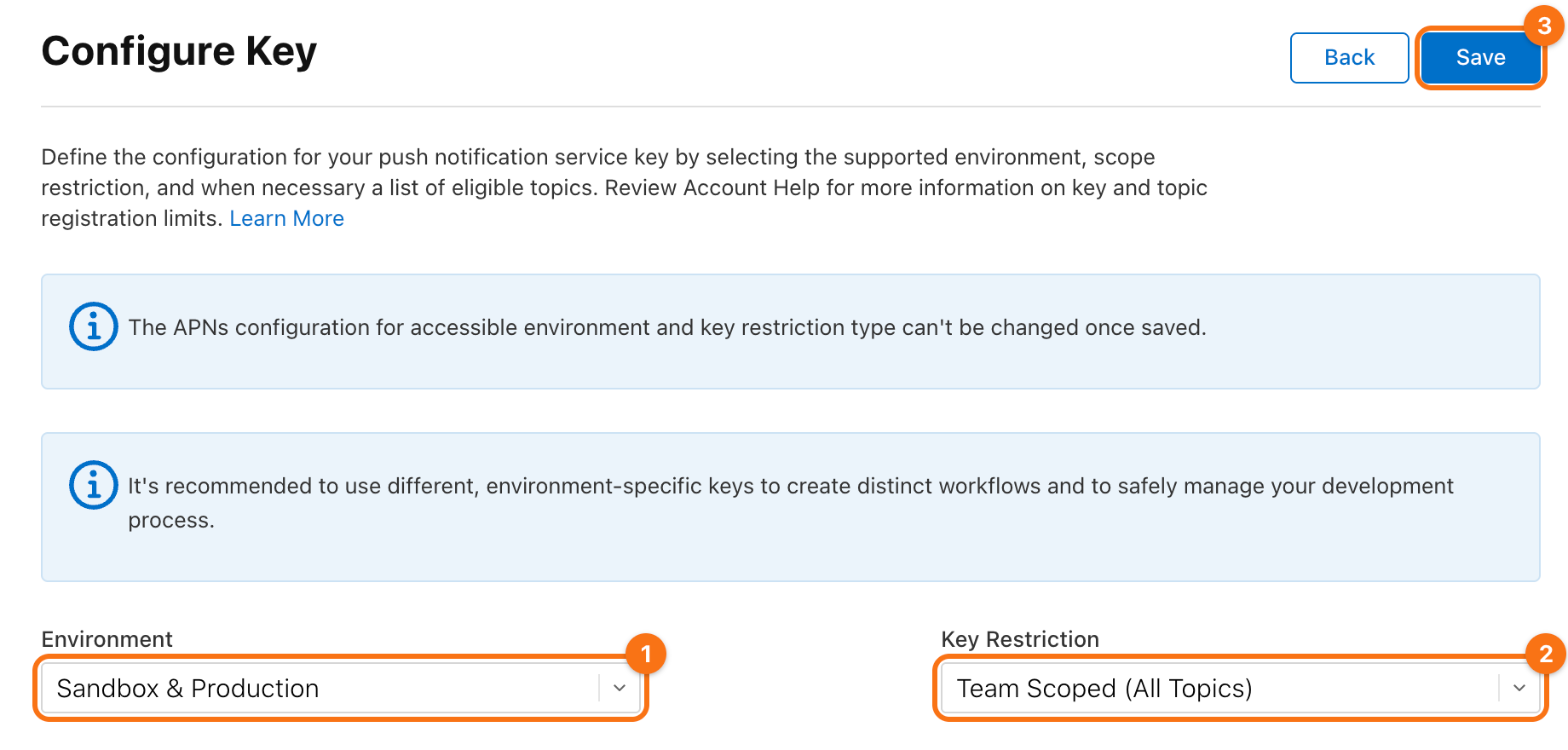
Set Environment to Sandbox & Production (1) and Key Restriction to Team Scoped (All Topics) (2), then click Save (3). One key then serves debug builds and App Store builds alike. Apple does not let you change these two settings later.
Click Continue, then Register.
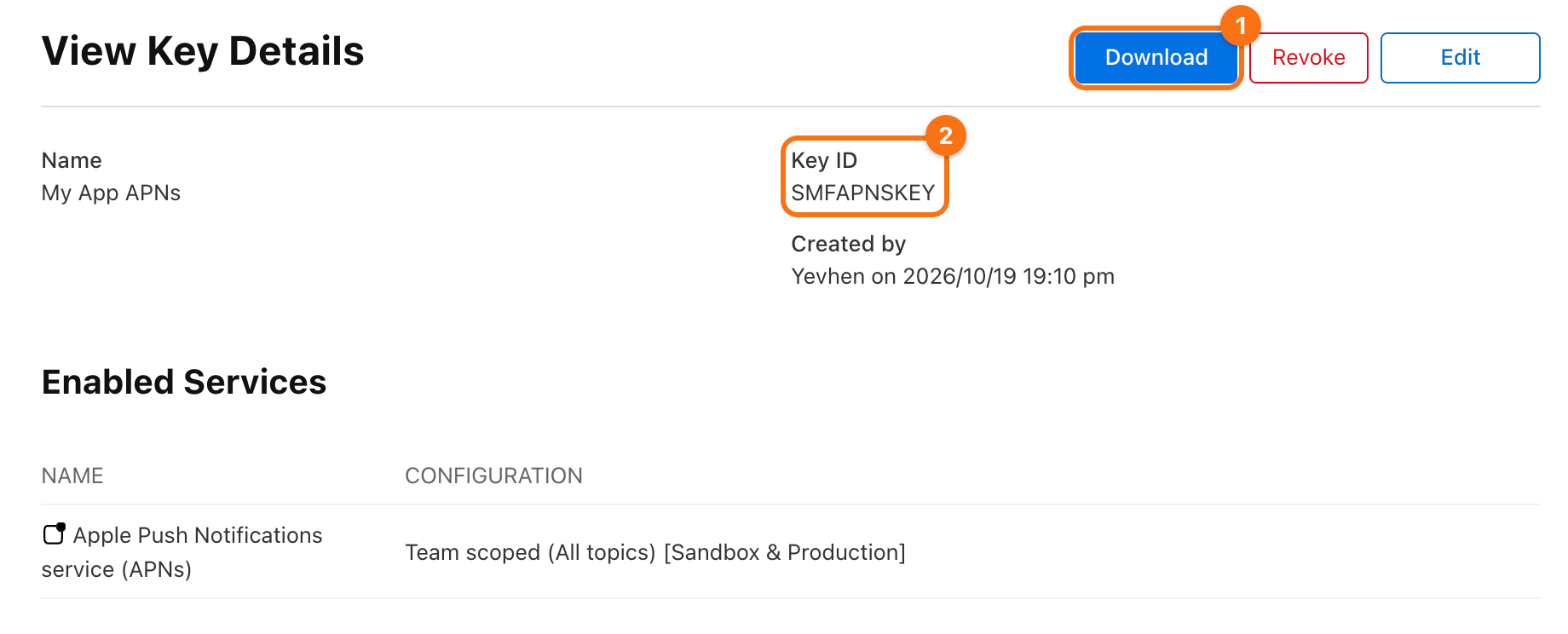
3. Download the key. On the page of the key, click Download (1). You get a file named AuthKey_<Key ID>.p8. Copy the Key ID (2) from the same page.
Apple lets you download the file only once. Keep it in a password manager. The file is a secret: never put it into the app or its repository. If you lose it, revoke the key and create a new one.
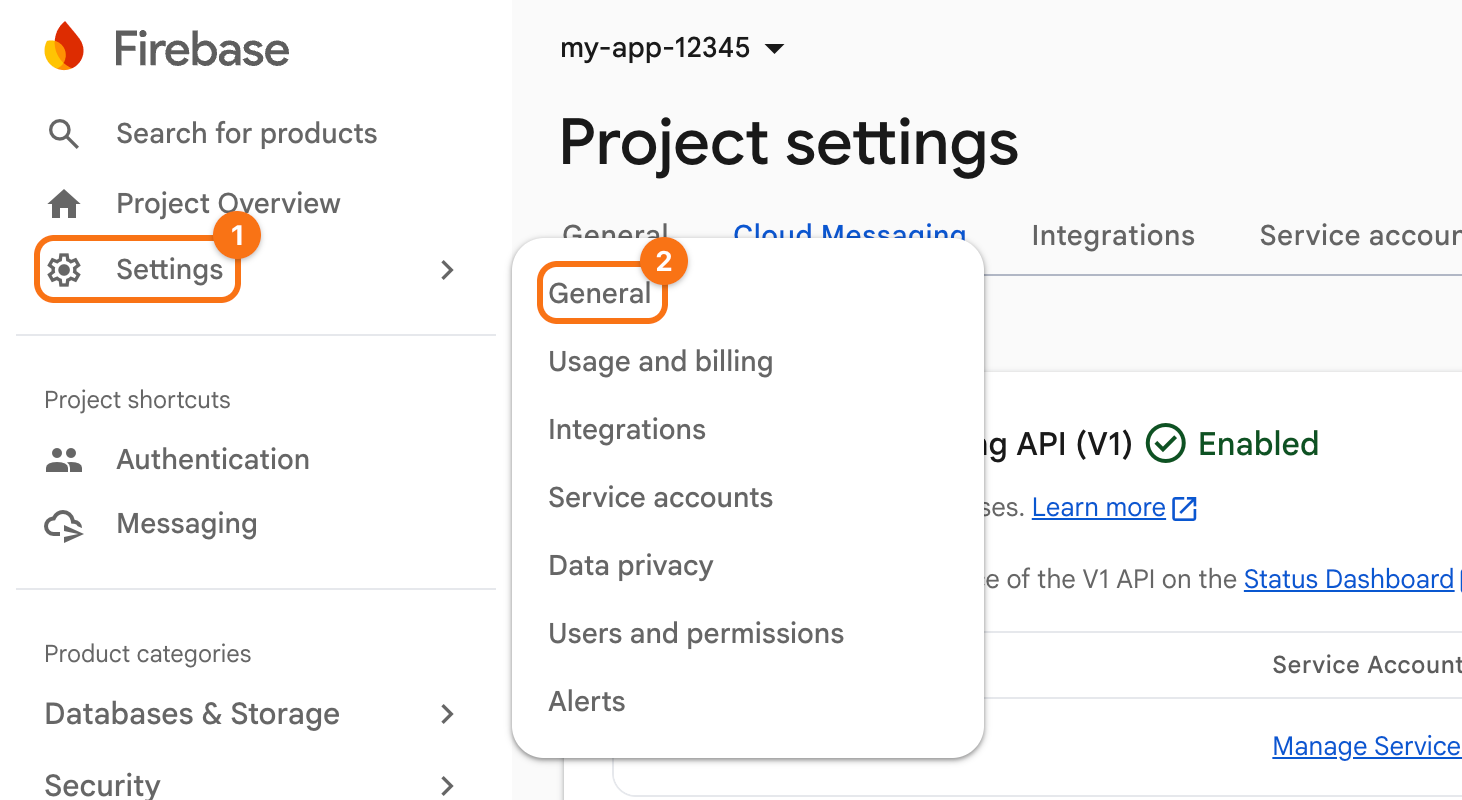
4. Open Cloud Messaging in Firebase. In the Firebase console, open your project. In the menu on the left, point at Settings (1) and click General (2). On the page Project settings, open the tab Cloud Messaging.
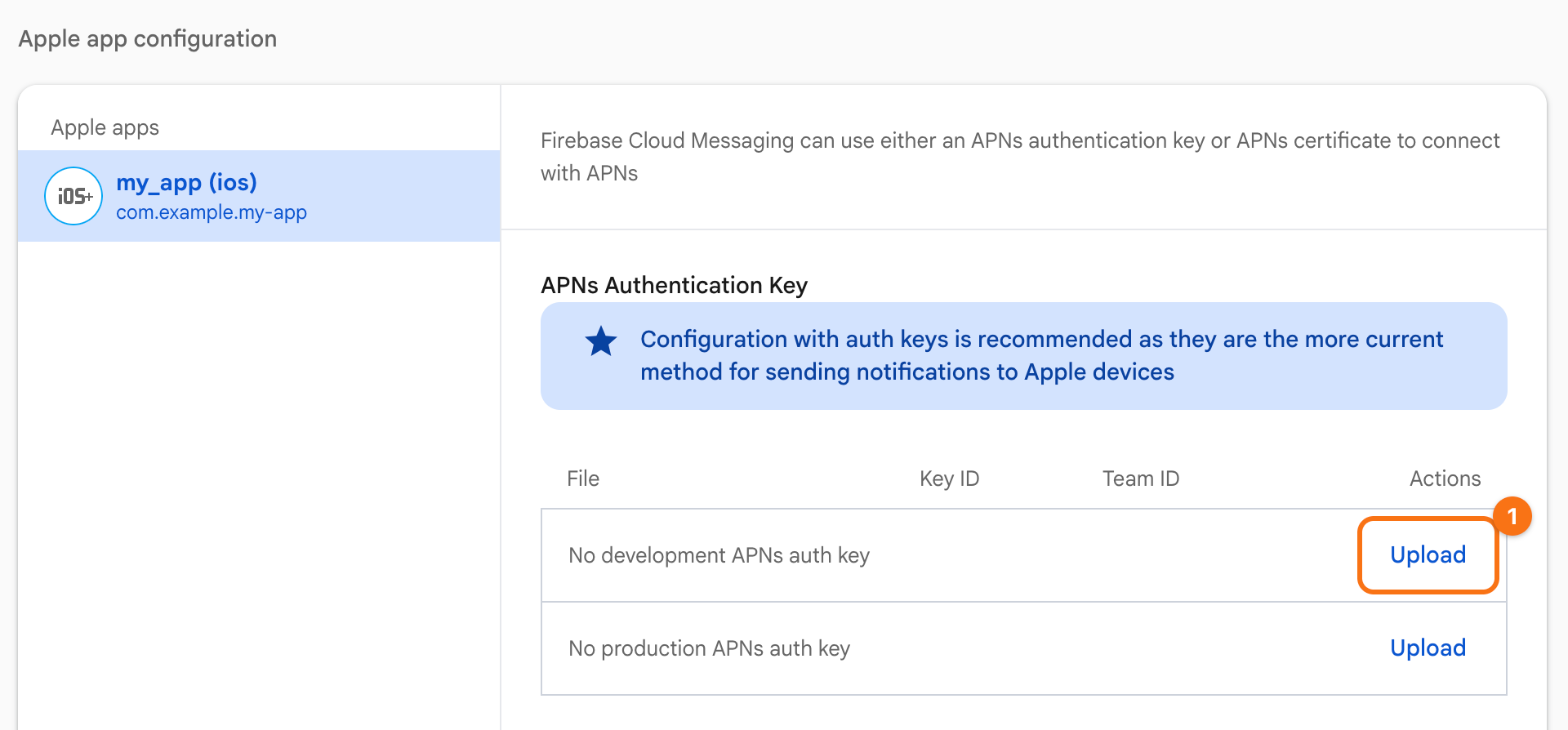
Scroll to Apple app configuration and select your iOS app on the left. Under APNs Authentication Key, click Upload (1) in the row No development APNs auth key.
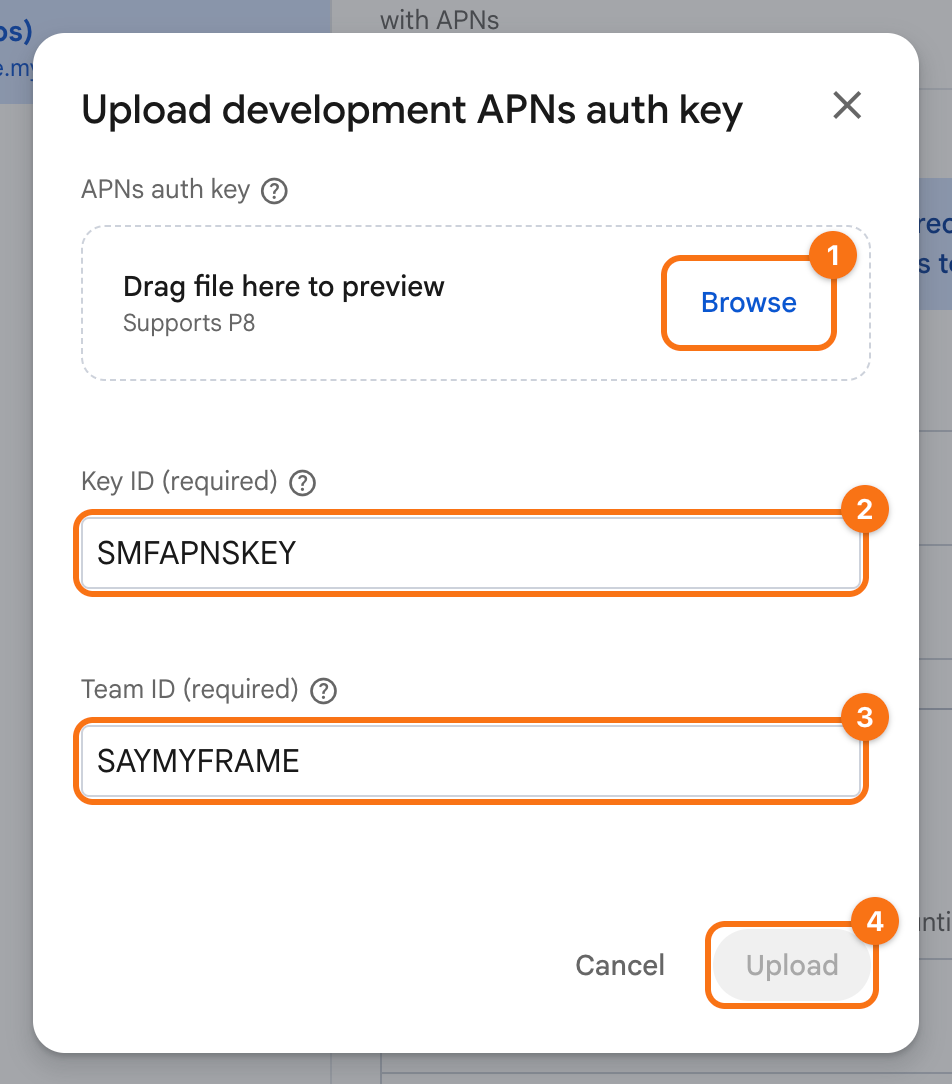
5. Upload the key. Click Browse (1) and choose the .p8 file, or drag the file onto the dashed area. Enter the Key ID (2) and your Team ID (3), and click Upload (4).
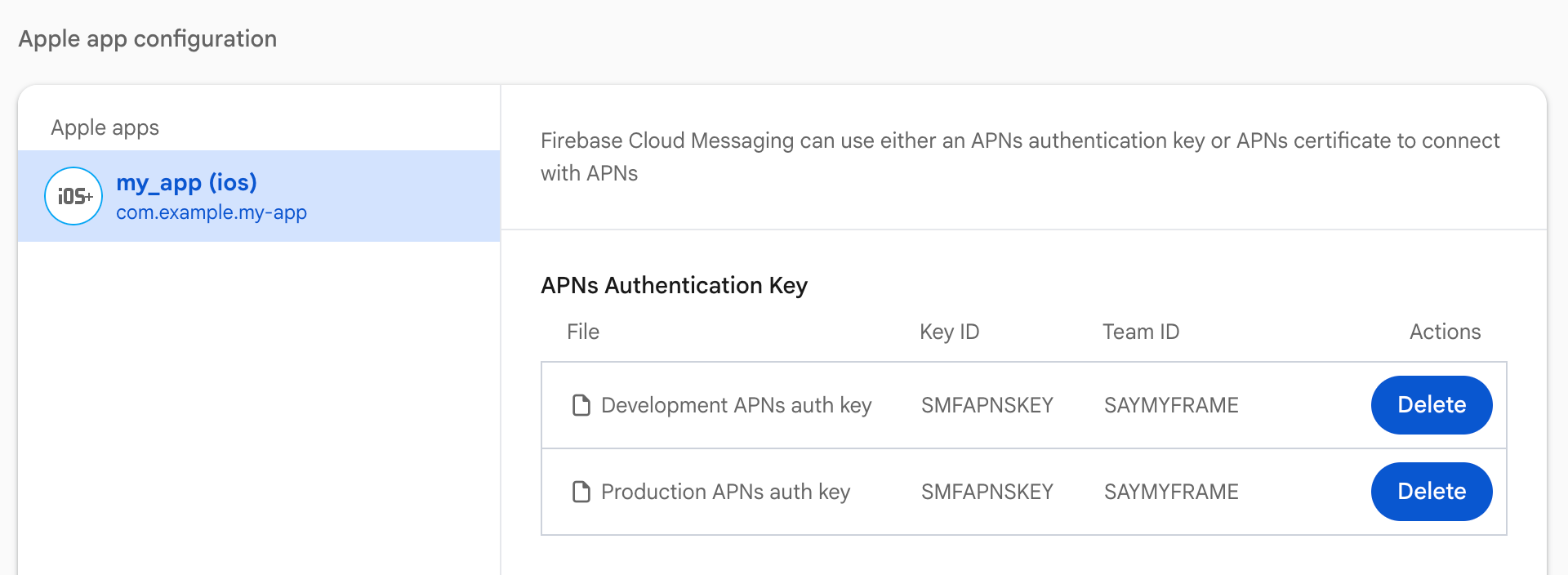
Do the same in the row No production APNs auth key, with the same file and the same ids.
Check. Both rows now show the key with its Key ID and Team ID.
To see that it works, run the app on an iPhone, copy the address that it prints in debug mode, and send it a test message from Messaging in the Firebase console. A test message tells how.
The key reaches only the apps of its team. So the iOS app also needs an App ID of the same team with Push Notifications, which signing the app in Xcode gives it; see the step about the App ID.